Features / App information
How to find an Android app’s SDK, components and declared permissions
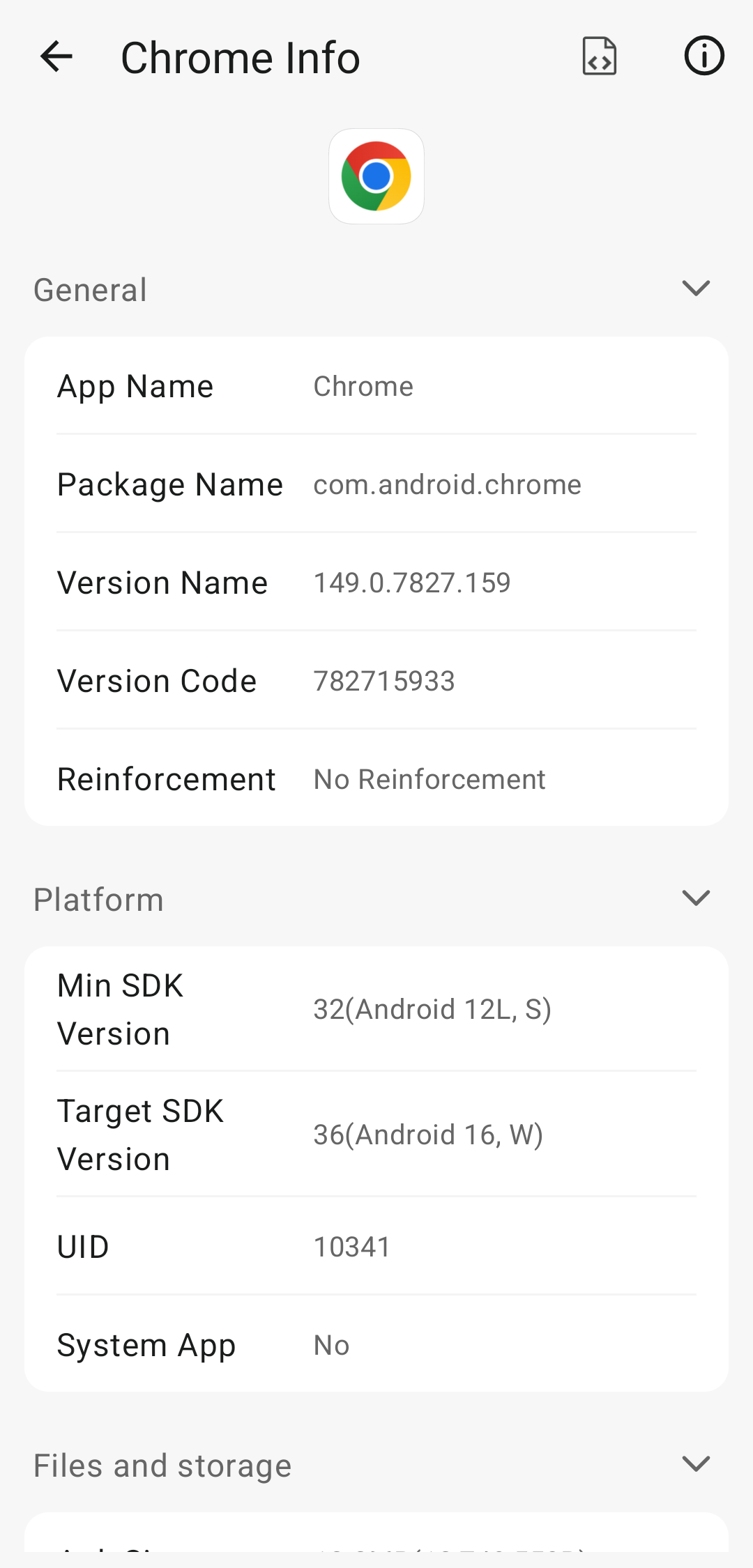
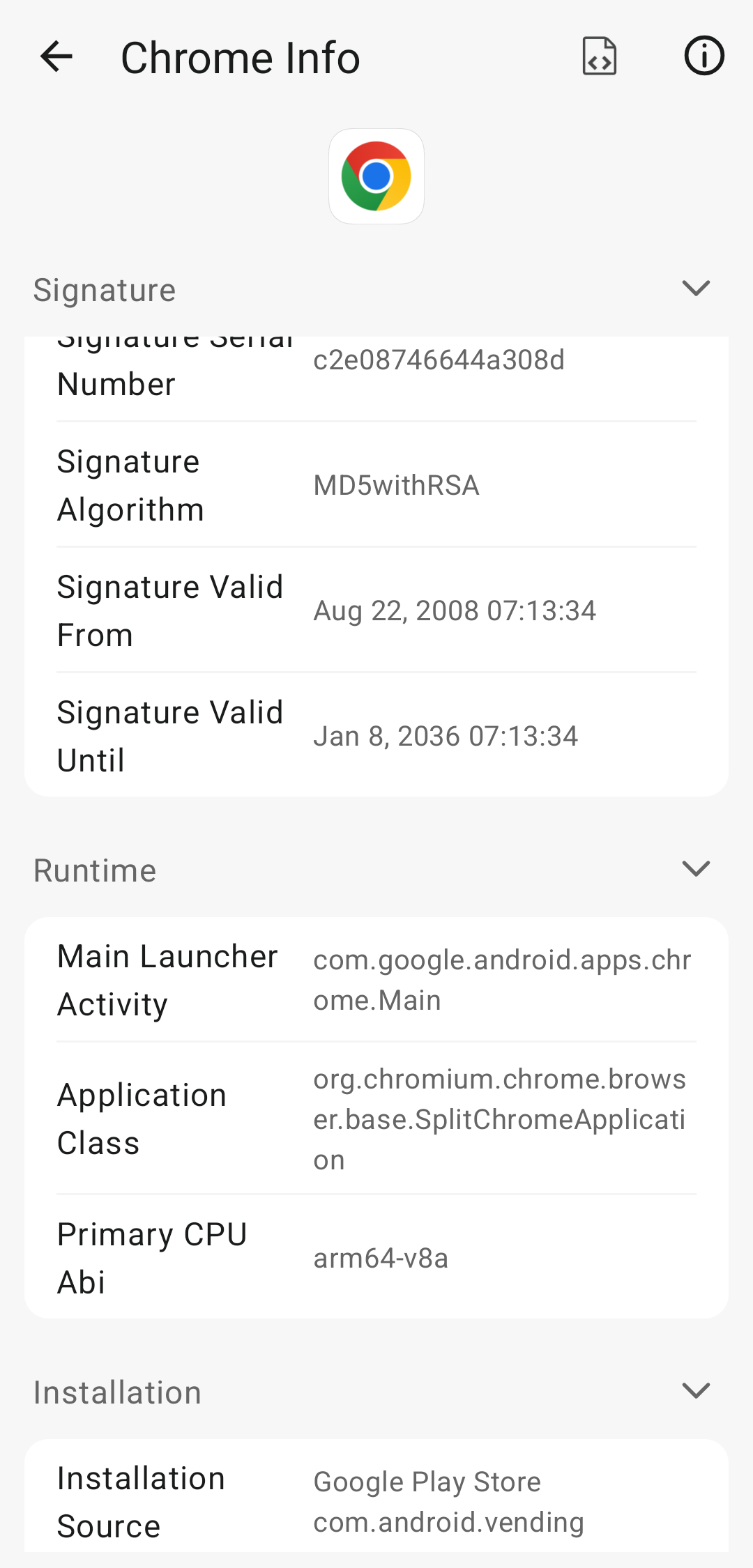
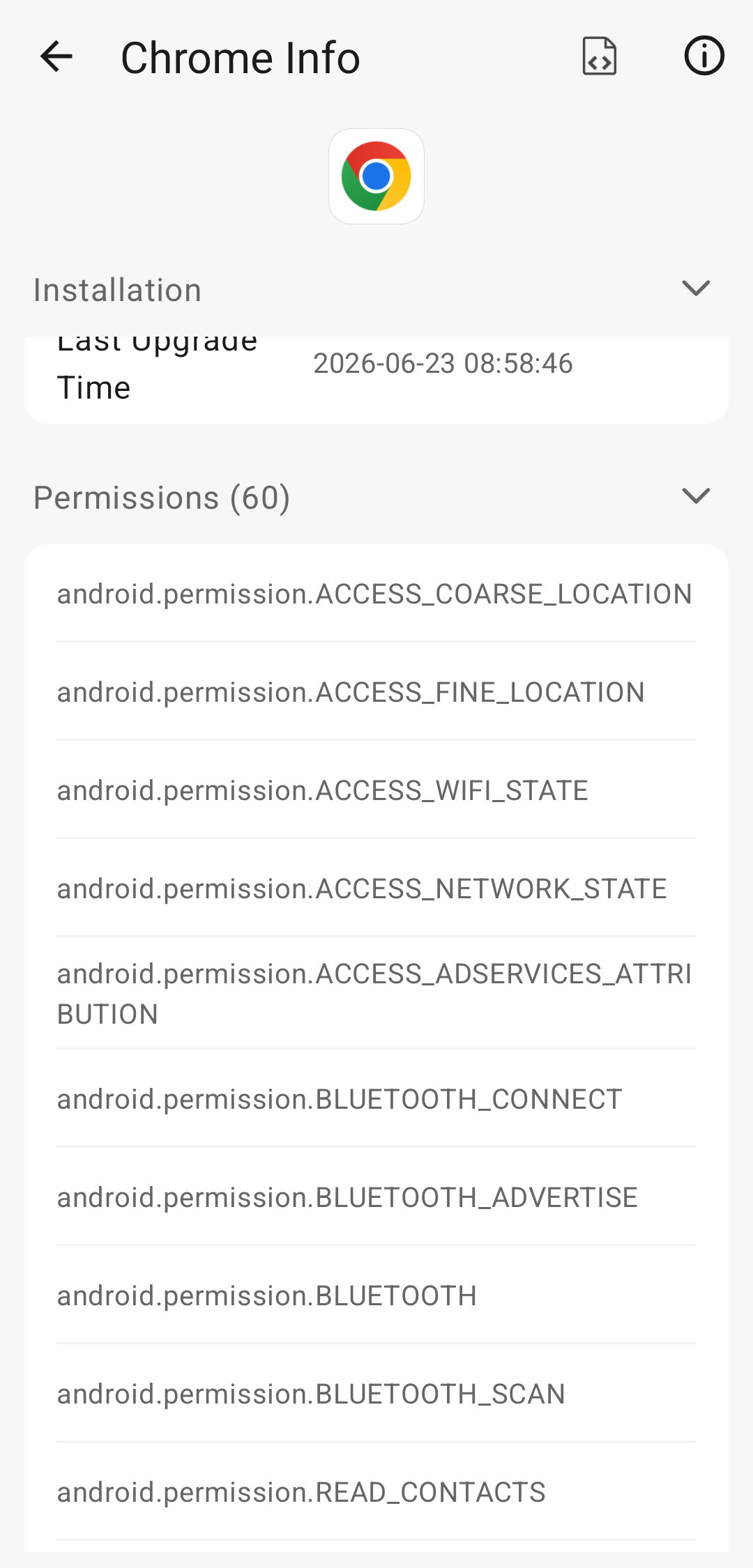
Choose an installed app in App Info in the Dev Tools App. Expand Platform, Runtime and the component sections to see what the build declares.
1. Select the build you want to check
Open App Info from the App section and search for your own test build. Turn on Show System App for preinstalled apps. The minimum SDK field is available through the Android system on Android 7.0 and later.
2. Expand the sections you need
- 2.1Platform shows Min SDK Version, Target SDK Version, UID and whether Android lists it as a system app. A minimum of 26 means Android 8.0 or later meets the OS version requirement.
- 2.2Runtime can show Main Launcher Activity and Application Class. Activities, Services, Broadcast receivers and Content providers list available class names and counts.
- 2.3Permissions lists the app’s requests, such as android.permission.POST_NOTIFICATIONS. To check actual grants, open Permissions in the system app details. The experimental Permission entry also opens Android’s permission controls.
The installed demo com.example.productcapture.demo showed minimum SDK 23, target SDK 34, com.example.productcapture.demo.MainActivity as its launcher, and two permission declarations: VIBRATE and ACCESS_NETWORK_STATE.
3. Copy the class name for a report
Tap an Activity row to copy the full class name or component path, or try opening it. Android checks whether the Activity is exported and whether the caller has permission. Send the full MainActivity class name together with the package name and version code. To check launch intent filters, open AndroidManifest.xml.