Features / App information
How to check an installed Android app’s signing certificate fingerprint
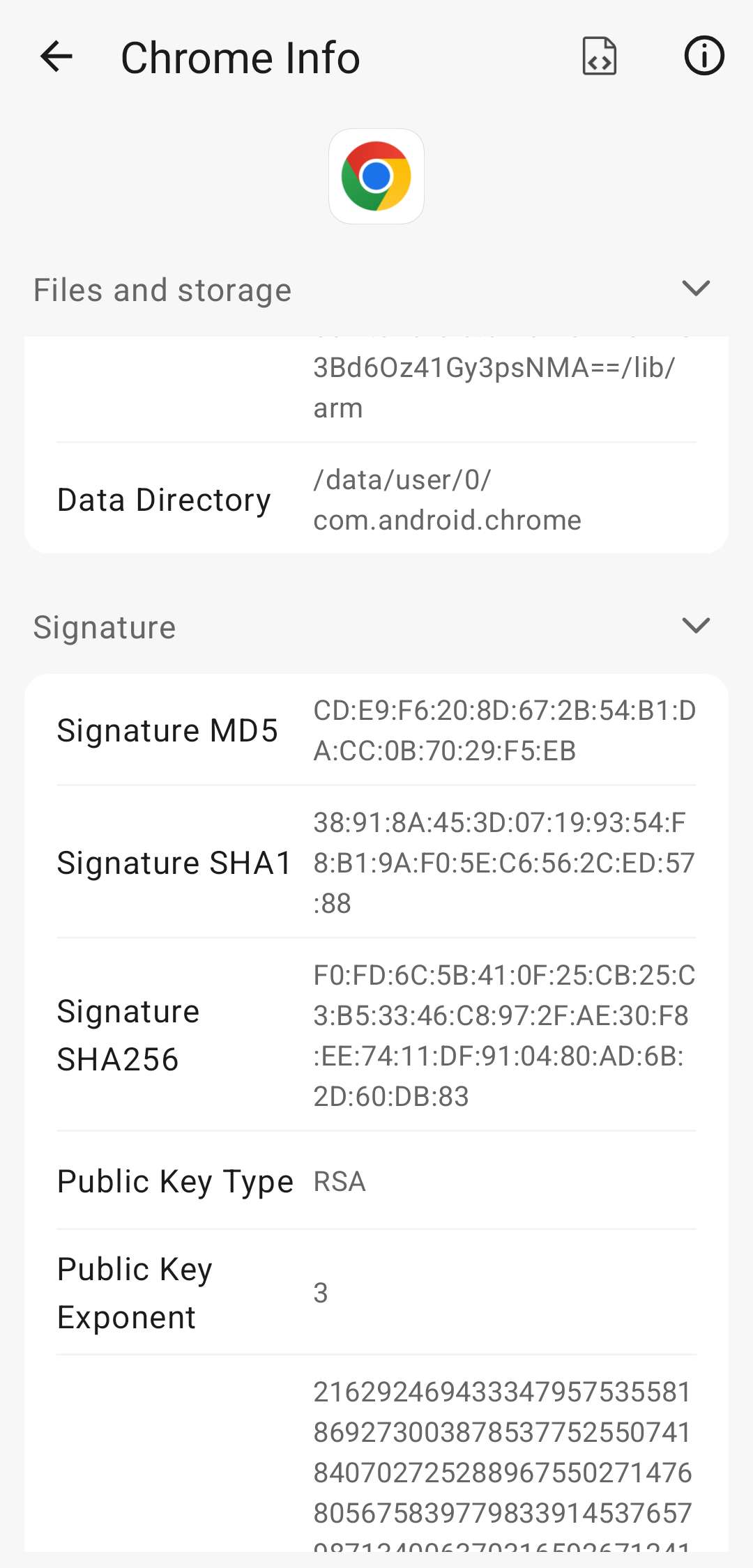
Open an installed app in App Info in the Dev Tools App. The Signature section lists SHA-1, SHA-256 and MD5 for the signing certificate.
1. Identify the installed release
Install your own release build on a test device. Open App Info from the App section. If variants share a display name, use Package Name and Version Code under General to identify the installed build.
2. Copy the fingerprint and inspect the certificate
Long-press the value of Signature SHA1, Signature SHA256 or Signature MD5 to copy it. When the certificate can be parsed, the section also shows the owner, issuer, signing algorithm and validity dates. Public-key fields depend on the algorithm. An RSA key can show its exponent and modulus size. If there are multiple signers, keep the numbers next to the fingerprints.
One device capture used our demo package com.example.productcapture.demo, version 1.0.0 (version code 1). Its SHA-256 was 1D:10:39:1F:A4:ED:EB:15:CD:9C:16:E2:A8:7A:D2:22:0F:35:24:15:68:D8:56:8B:2A:9C:31:5B:63:5A:50:2F and the certificate’s signing algorithm was SHA256withRSA.
3. Compare the certificate for your release channel
For your own Google Play test release, compare the installed SHA-256 with the app signing certificate in Play Console. With Play App Signing, the upload certificate identifies the key used for uploads, and Play signs the distribution APK with the app signing key. Record the channel, version code and matching fingerprint. To verify a file transfer, hash the APK file itself.