Use cases / Installation and release checks
Why won’t one Android APK update another with the same app name?
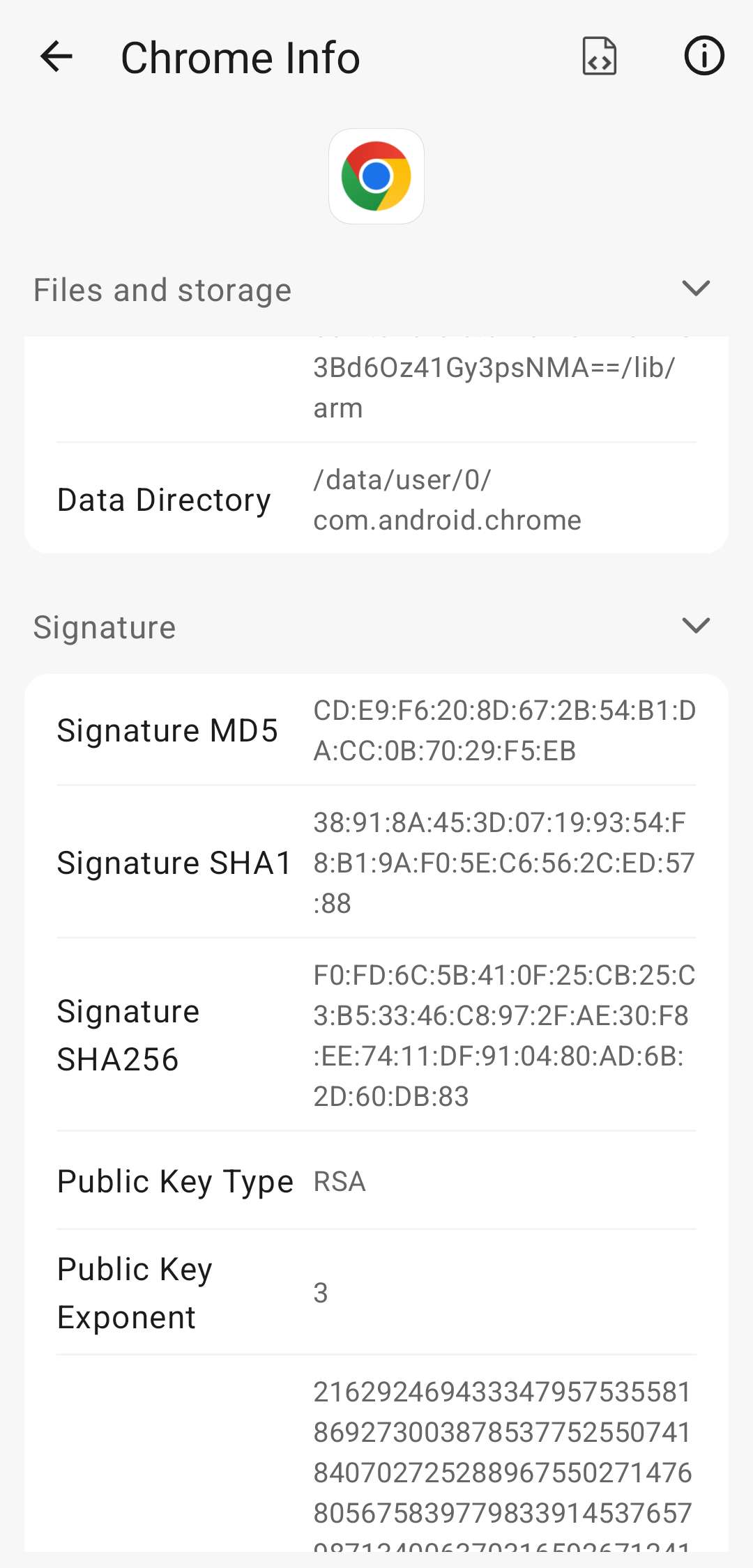
Keep the old build on one test phone and install the candidate on another. Open App Info in the Dev Tools App on each phone. Copy the package name, version code and SHA-256 signing certificate fingerprint. Two launcher icons can have the same label even when their packages differ.
1. Identify which field changed
- 1.1Different package names identify separate apps.
- 1.2For matching packages, compare integer version codes. A normal installation rejects a downgrade. A version name is a display label.
- 1.3Compare the full signing certificate fingerprints using SHA-256 on both phones. If they differ, check the distribution channel and any signing key rotation. For an APK distributed by Google Play, use the app signing certificate. The upload certificate serves a different purpose.
2. Compare two published APKs
These two China-channel Dev Tools releases use the application ID cn.trinea.android.developertools.
| Field | Earlier build | Later build |
|---|---|---|
| Version name | 10.2.0-cs | 10.3.0-cs |
| Version code | 100200 | 100300 |
| Signing certificate SHA-256, first eight digits | dc00cdc7 | dc00cdc7 |
The full certificate fingerprint matched across both archived builds: dc00cdc71eac7ab8881425fd33a895b2dc8c504c00b355963d73a9c9bd6739f3. Use the full value when checking your own APKs.
3. Record the installer’s result
In a release check on Android 15, installing 10.2.0-cs over an existing installation preserved the app data. The installer returned Success, the device reported version code 100200, and a cold launch succeeded. The check did not record the previous build number.
On the phone with your old build, install the candidate and capture the original result. Read back the installed version code if it succeeds. If it fails, give the release owner the two sets of values and the installer message. Uninstalling first changes the test and can remove local data.