Use cases / Installation and release checks
Check permissions and the launcher Activity before an Android release
Write down the expected permissions and launcher class for the release. Then check the installed artifact in the Dev Tools App. The final manifest also reflects build variants and declarations merged from libraries.
1. Identify the release candidate
Confirm the package and version code in App Info, then open its manifest. The example below was checked on a phone using our sample package com.example.productcapture.demo, version 1.0.0, version code 1.
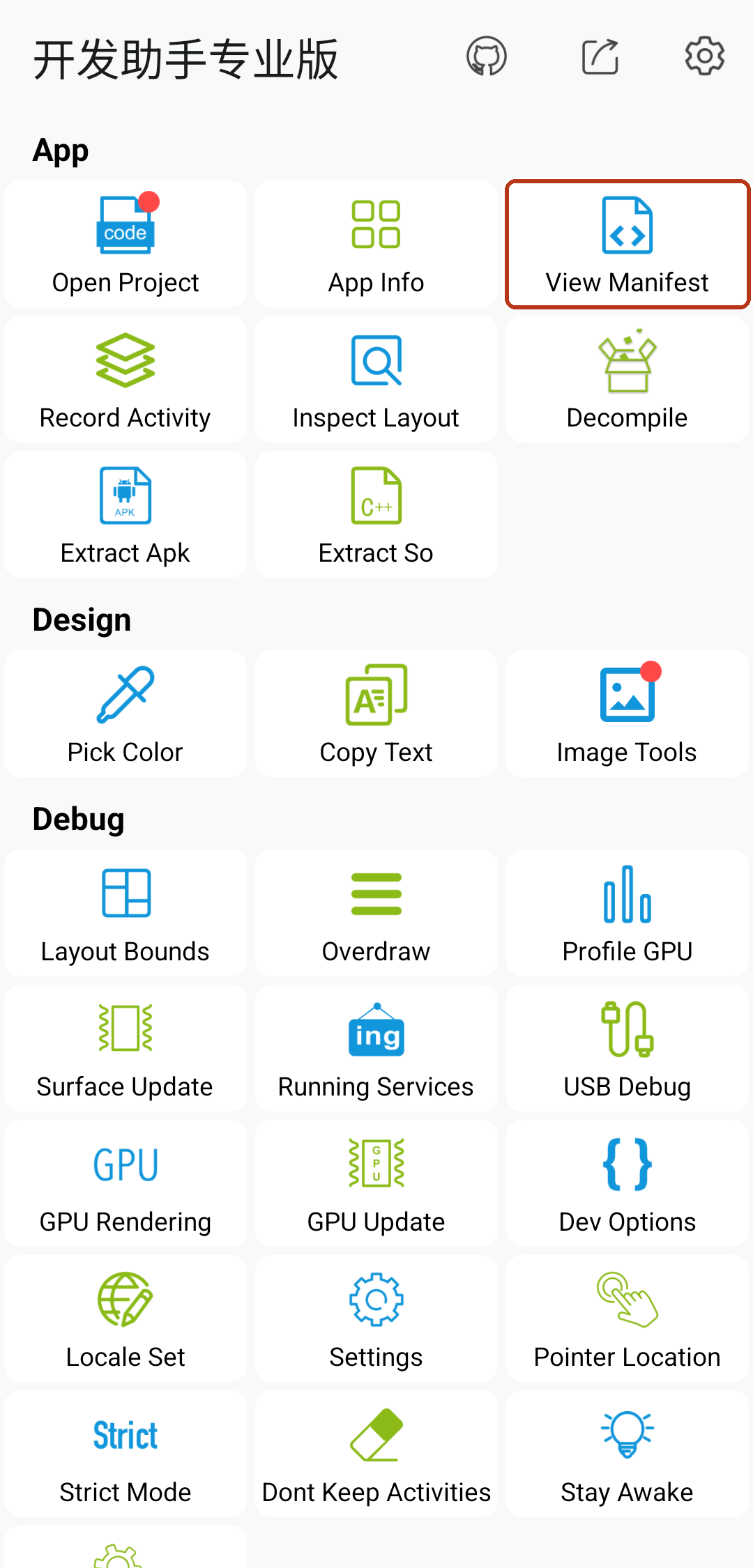
2. Compare each expectation with the installed package
| Check | Expected | Observed on the phone |
|---|---|---|
| Permissions | Vibration and network state | The manifest and App Info both listed VIBRATE and ACCESS_NETWORK_STATE, two declarations |
| Launcher | MainActivity | MAIN and LAUNCHER appeared in the same filter on MainActivity. App Info identified the same launcher class |
| Internal details screen | DetailActivity | It was declared with exported set to false. The component list contained two Activities |
Search for the full name, such as android.permission.VIBRATE. Record declared permissions and current system grants separately.
3. Test the actual launch
Start Record Activity, open the candidate from its launcher icon and navigate to the details screen. The sample showed com.example.productcapture.demo.MainActivity followed by DetailActivity in the same package. If your app uses an activity-alias or a splash Activity, record the declared entry and the subsequent screen separately. Flag any difference from your release checklist.