Use cases / Design and accessibility checks
How to collect text issues when retesting an Android translation
Use the Dev Tools App to open Android’s language settings. Switch to the language under test, then collect exposed text from the target screens. Keep the exact wording and its location for each issue.
1. Set the test language and screen
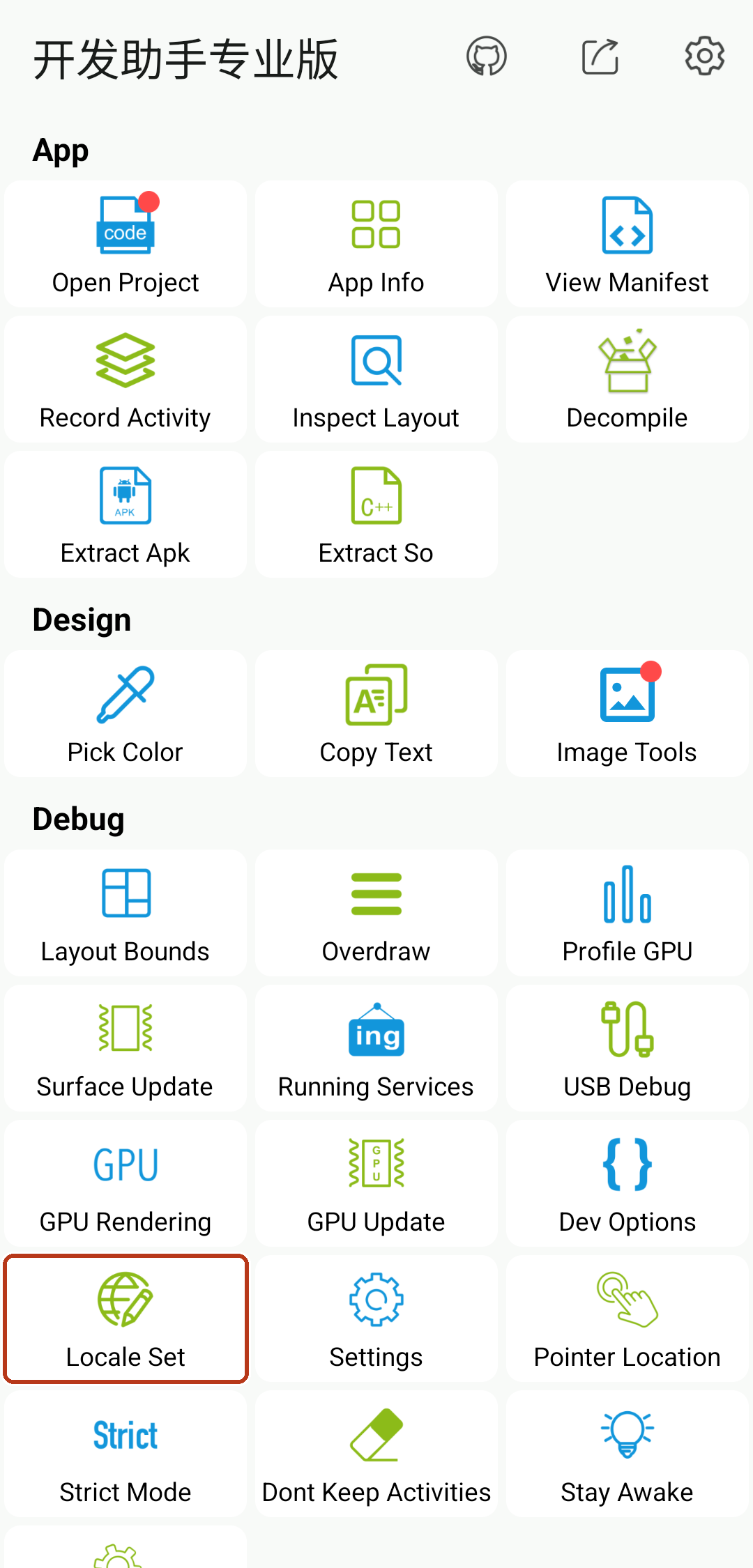
Use your own test build and pick a short flow, such as opening a confirmation dialog from Settings. Open Locale Set, note the original language and region, then change to the target language. If the app has an independent language setting, confirm which one is active. System settings shortcuts
2. Collect text screen by screen
- 2.1Note the visible screen title. Use Record Activity to record the app and class.
- 2.2Use Copy Text on one item or the whole screen. Search and remove duplicates as needed. Keep separate locations when the same words appear on different controls.
- 2.3Transcribe text you can see but can’t extract, and mark it as transcribed. Attach the relevant screen for clipped or obscured labels.
3. Write a list someone can retest
For example: “en-US / Settings → confirmation dialog / dismiss button / actual: 取消 / expected: Cancel.” Add the build and steps. Restore the original language at the end.