Features / APKs and resources
How to view an installed app’s AndroidManifest.xml on Android
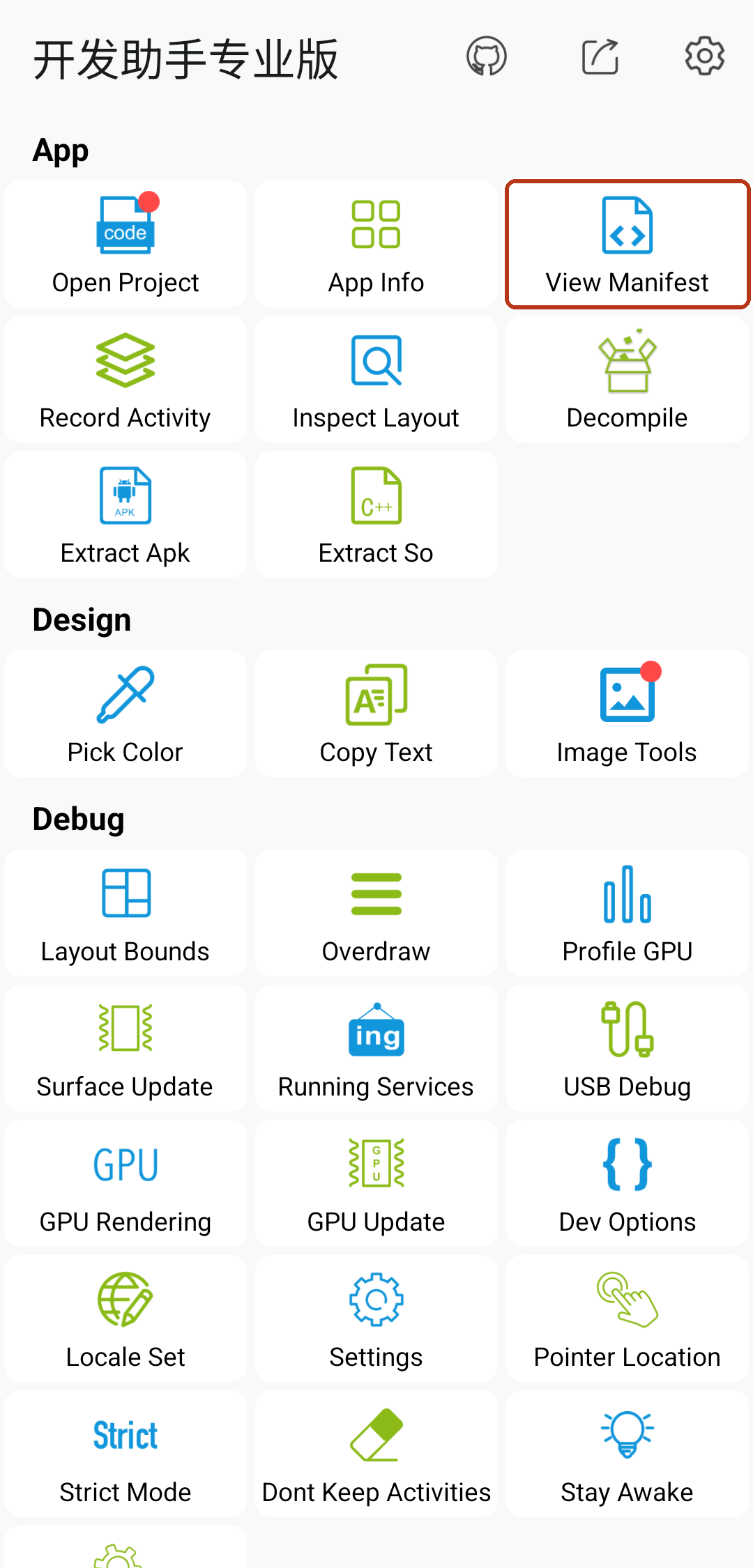
Open View Manifest in the Dev Tools App and select your installed build to read its AndroidManifest.xml and search for permissions and entry points.
1. Open the release manifest
Install your own release build on a test phone. Tap View Manifest in the App section and select your build. You can also open the manifest from App Info. For a split install, check the source notice to see which APK paths contributed to the result.
2. Find a declaration in the viewer
- 2.1Open search and try uses-permission, an Activity class name or MAIN. Step through the matches.
- 2.2Use the menu to switch between auto, HTML and text display. Toggle wrapping, zoom and line numbers as needed. Wrapping helps when you’re reading long attribute values.
- 2.3Save the manifest to a file or share the current result. The save message gives you the output location.
The installed demo com.example.productcapture.demo showed android.permission.VIBRATE and android.permission.ACCESS_NETWORK_STATE in its manifest. Try searching for VIBRATE and check that the match is inside uses-permission.
3. Verify a release requirement
If your release should request notifications, search for android.permission.POST_NOTIFICATIONS and check that it appears in a uses-permission element. For a quick list of component classes and requested permissions, open App Info.