Features / APKs and resources
How to inspect code and resources from your own APK on Android
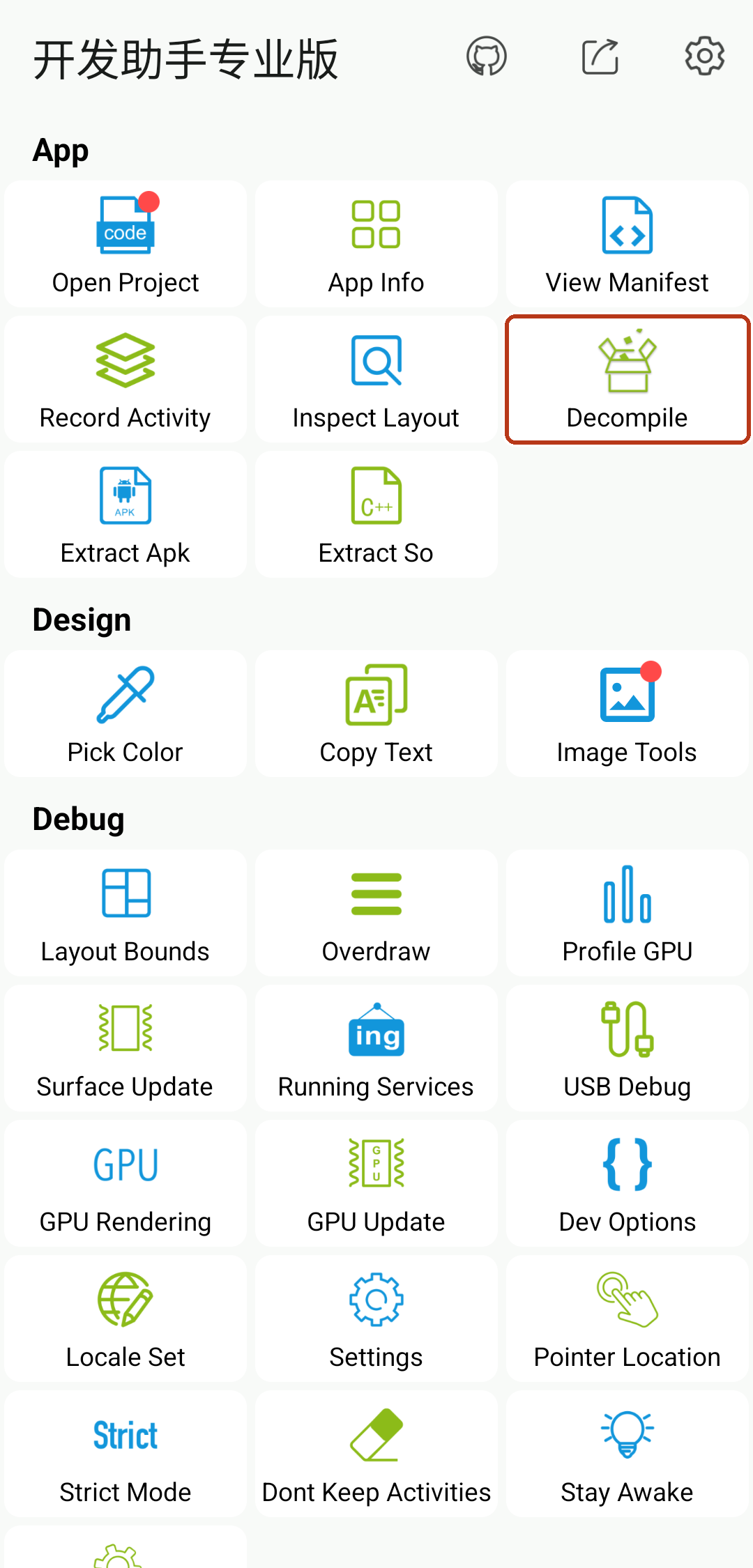
In the Dev Tools App, open Decompile, select your installed build and choose code, resources or both. Browse the output or share a file when parsing finishes.
1. Start with a build you can share
Use an installed demo with a class and a resource you wrote and can recognize. Open Decompile from the App section. If App Info names a protection or packing type, treat it as a detection result. Readability depends on how the build was produced.
2. Choose what to extract
- 2.1Use resources only for a string or icon. Use code only for a class, or select both when you need both sets of files.
- 2.2Open an existing result if it is from the right build. Parse again when the build or options change. Check the common library filter when you need to inspect a dependency.
- 2.3Browse the results and share the file you need. The media scan setting controls whether media apps such as a gallery can index the generated files.
For our installed demo com.example.productcapture.demo, the code output included MainActivity.java and showed the call that loads the sample library capture_demo.
3. Find a resource you recognize
Try a resource-only run and look for the known Demo ready string in your sample’s strings.xml. Then use code-only to see which test classes are readable. Decompiled code is a reconstruction. Original comments, symbol names and files in separate splits may be absent.