Features / APKs and resources
How to check an APK’s native libraries and CPU architecture
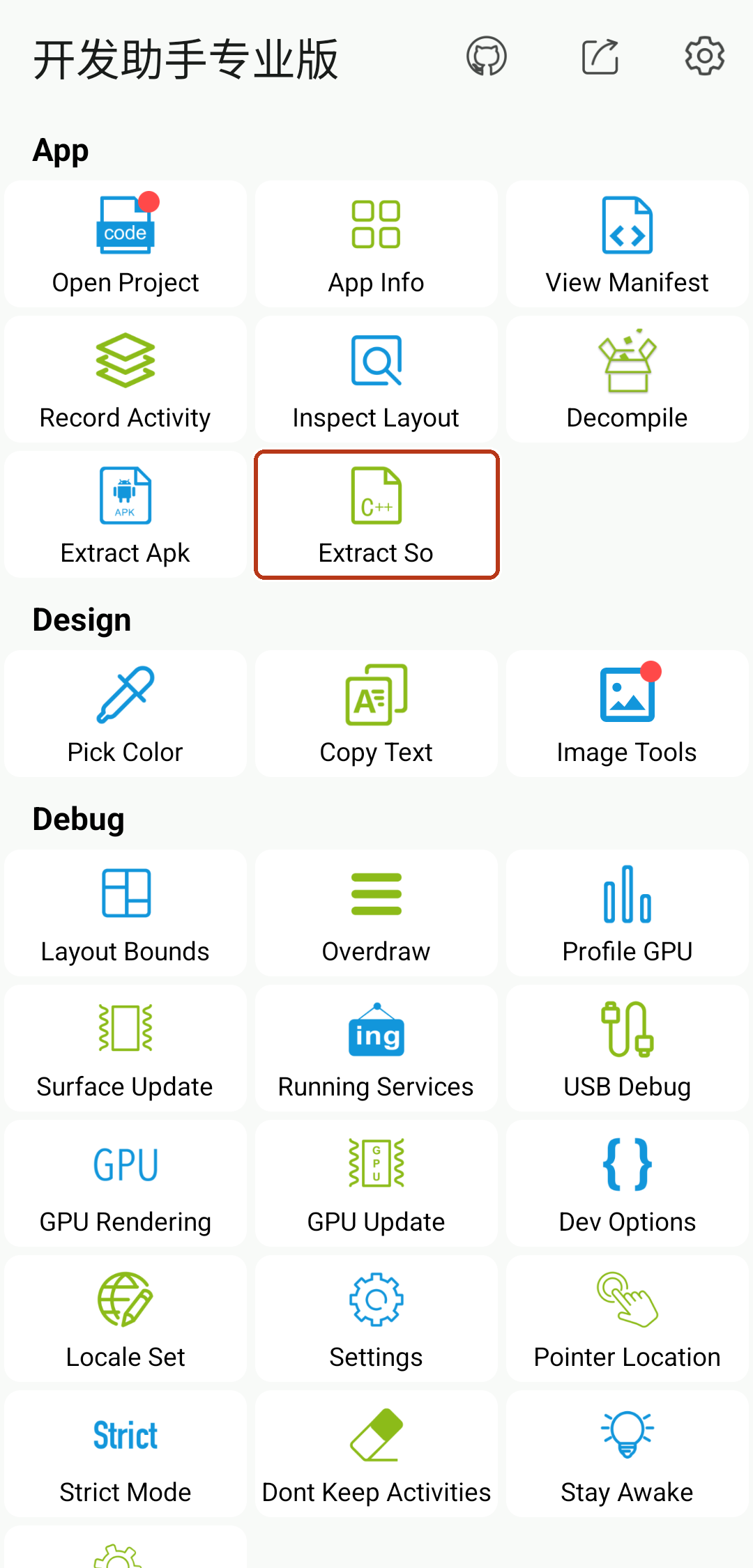
Open Extract So in the Dev Tools App and select your test app. The tool groups native libraries from the base APK by ABI and can show readable files in installed native library directories.
1. Pick builds that give different results
Use one build of your own with a known C or C++ library and one Java or Kotlin build whose dependencies add no native libraries. Open Extract So from the App section.
2. Check the APK and the installed library view
- 2.1In the APK view, open the ABI groups and check the .so names, paths and counts. Save an individual library or an available group if you need the files.
- 2.2Switch to the installed library view to check readable directories. In App Info, look for Native Library Path and Primary CPU Abi when the system supplies it.
- 2.3For a split install, check split paths in Files and storage. The APK view covers the base package.
The captured demo showed one libcapture_demo.so under arm64-v8a in the APK and one under arm64 in the installed view, each displayed as 5.6 KB. The save confirmation showed Document/DevTools/so.
3. Interpret the two sample outputs
A universal build might contain libdemo.so under both lib/arm64-v8a and lib/armeabi-v7a, while the installed app reports arm64-v8a as its primary ABI. Your second build can show an empty list. Apps can load libraries directly from their APKs, so an empty installed directory can coexist with libraries in the package.