Use cases / Installation and release checks
Why does the same Android app behave differently on two CPU architectures?
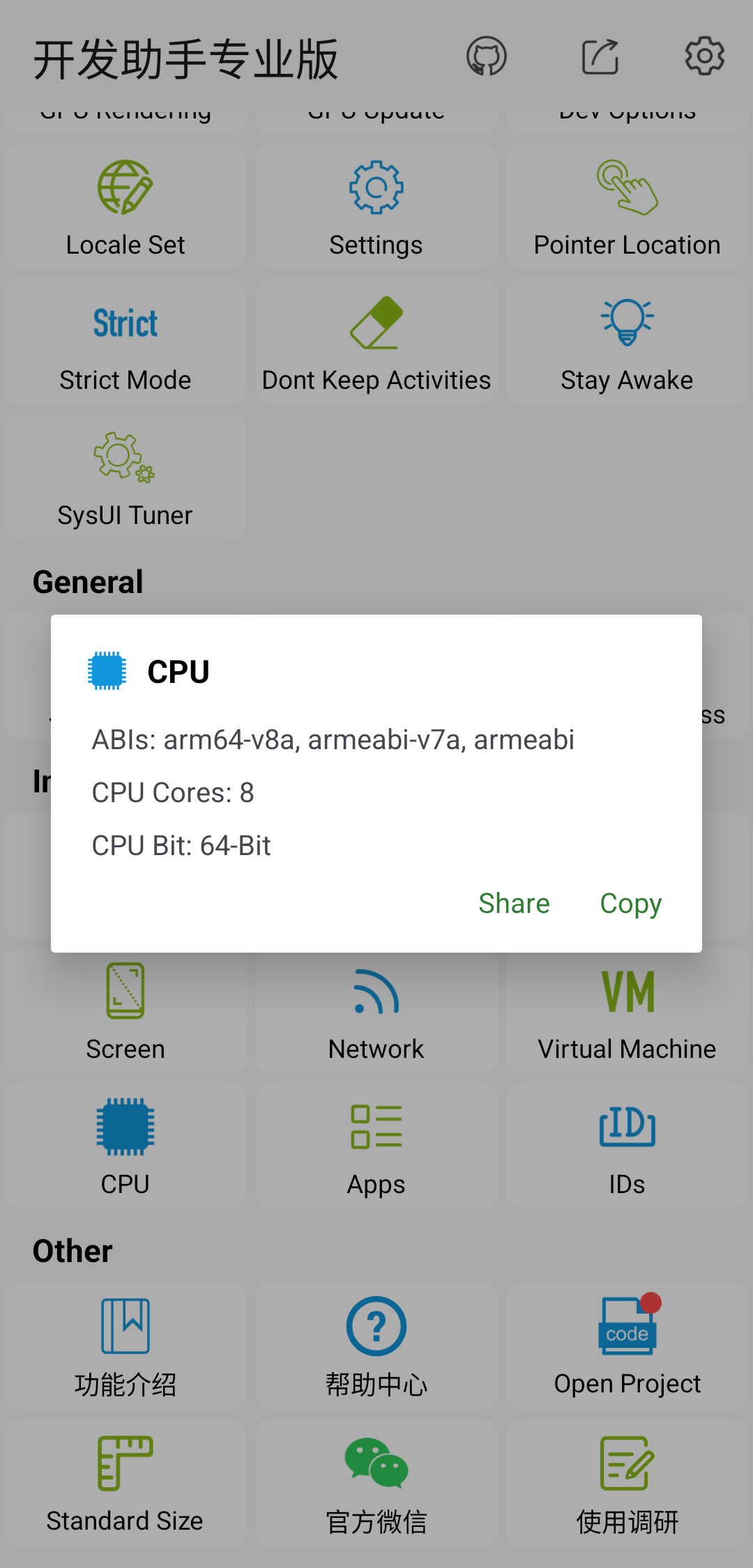
Start with one APK you built and record its channel and version. On each test phone, use the Dev Tools App to compare what the package contains, what the phone supports and what Android installed.
1. Establish which files reached each phone
For a standalone APK, compare the SHA-256 file hashes. For store installs, note the base APK and split paths in App Info. A store can deliver different ABI splits to two devices with the same version code.
2. Record the same fields twice
Select the app in the native library tool. Record the ABI directories and library names inside the package, then check the installed library list. In device information, read the supported CPU ABIs and system API level. This archived run on a Xiaomi 17 gives you a first row to compare against your second phone.
| Field | Observed on the first phone |
|---|---|
| App and minimum SDK | com.example.productcapture.demo, version 1.0.0, minSdk 23 |
| Inside the APK | One library, lib/arm64-v8a/libcapture_demo.so |
| After installation | libcapture_demo.so under arm64, shown as 5.6 KB |
| Device | arm64-v8a, Android 16, API 36 |
3. Decide what to check next
A phone supporting only 32-bit armeabi-v7a has no ABI in common with this sample’s sole library. If both phones support it, check the minimum SDK, the installed splits and the exact error from the failing operation. Android can load native code directly from an APK, so an empty extracted library directory alone is inconclusive. Give the developer both sets of fields, the point of failure and the original error message.