Use cases / Performance and device troubleshooting
What to compare when two Android test phones get different network results
If a page loads on one phone and times out on another, use the Dev Tools App to capture the conditions on each. Pair the observed connection with the result of a specific app action.
1. Choose a repeatable request
Use the same build, starting screen and non-sensitive test content on both phones. Note the time, model, Android version, API level and whether a VPN is active. Leave account identifiers and request tokens out of the report.
2. Fill in one column per phone
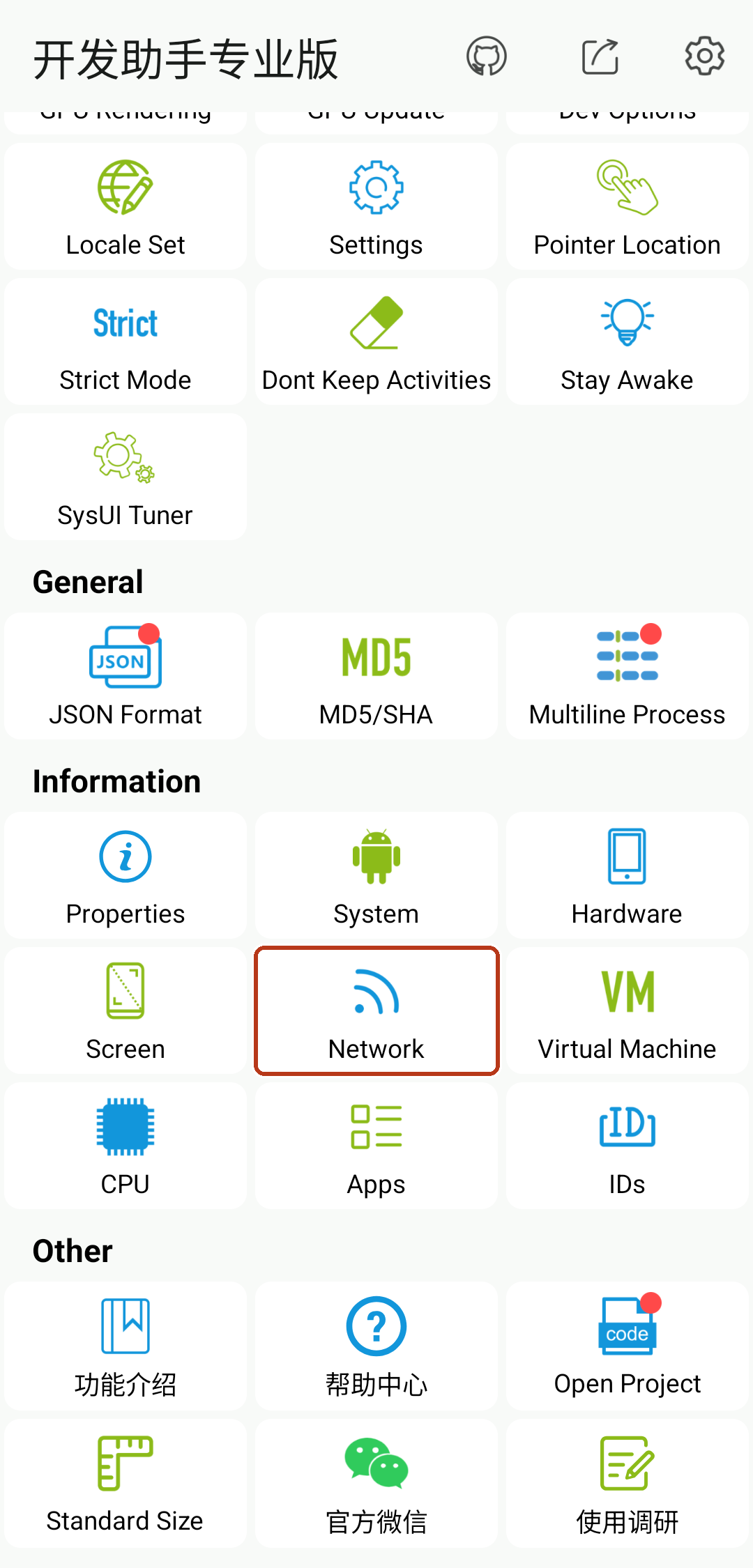
Open Network under device information. Record the active transport, visible local IPv4 and IPv6 addresses, and available Wi-Fi or cellular details. This example uses documentation addresses and fictional results.
| Field | Phone A | Phone B |
|---|---|---|
| Connection | Test Wi-Fi | Cellular |
| IPv4 | 192.0.2.10 | Not shown |
| IPv6 | Not shown | 2001:db8::20 |
| Result | Loaded | Timed out after 10 seconds |
Write “not shown” for an empty field. A missing value does not establish that the phone lacks IPv4 or IPv6 support. The visible local address describes a device interface.
3. Change one condition and retry
Move phone B onto phone A’s test Wi-Fi. Record the new network fields and repeat exactly the same request. If both phones now succeed, report “B timed out on cellular and loaded on the shared Wi-Fi.” That gives the next tester a condition to reproduce. Request logs can then help narrow down DNS, routing or server behavior.