Features / Device information
How to see your Android phone’s IPv4, IPv6 and active network
Open Network under Information in the Dev Tools App for local IPv4 and available IPv6, the network type and any Wi-Fi or cellular details Android exposes.
1. Connect to a test network
Join your test Wi-Fi, then open Network. Decide whether to grant the phone and location permissions when prompted. SSID, carrier and cell data also depend on Android, the hardware and the permission state. Some fields can be blank or unknown.
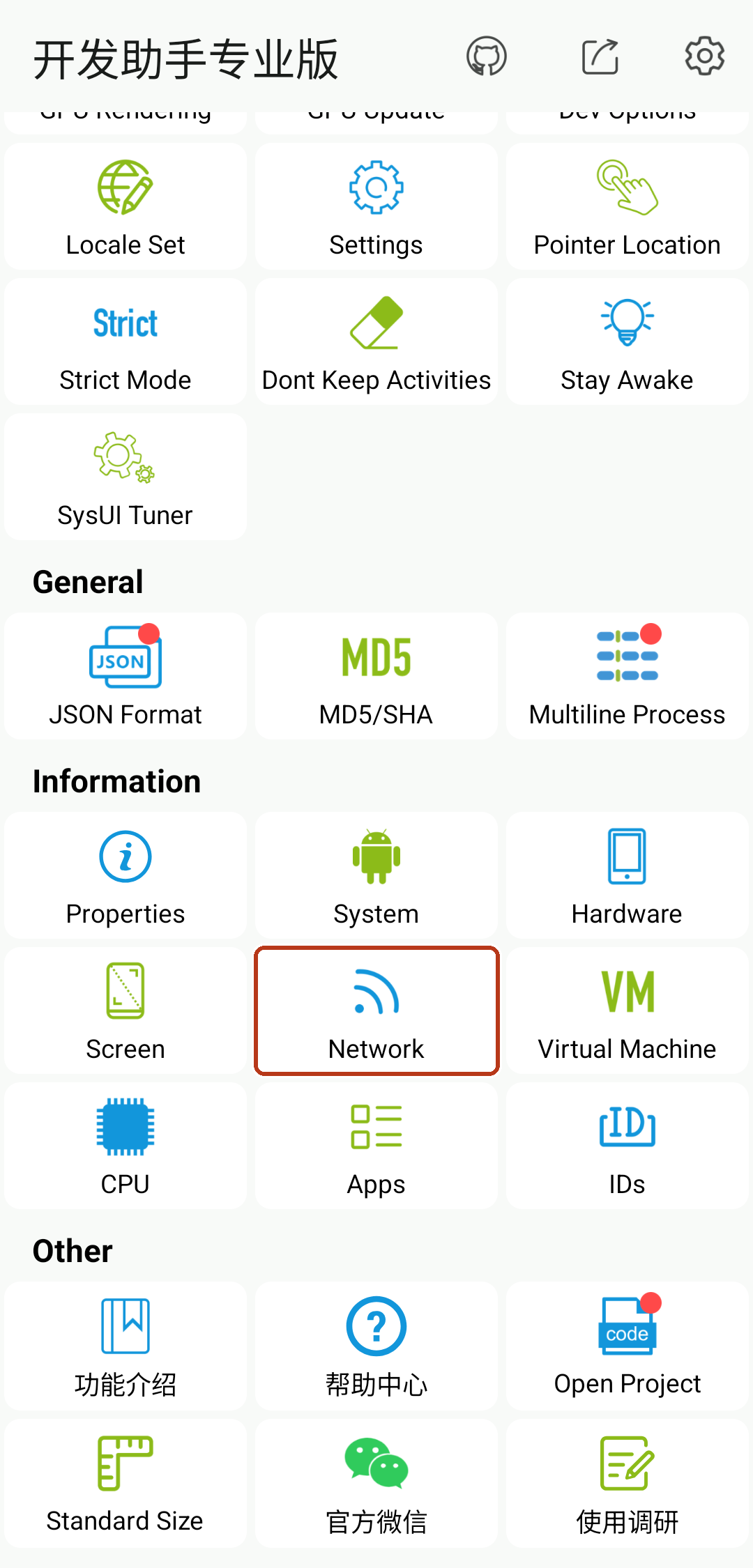
2. Note the connection and the addresses
Record the network type before copying IPv4 and any IPv6 shown. A phone may have several interfaces, so note the addresses the tool actually displays. Wi-Fi can show a private LAN address. Record the carrier and cellular network type separately when available.
3. Compare after switching connections
For example, your test Wi-Fi might show 192.168.50.24. Switch to a test SIM’s mobile data, reopen Network and record the new connection type and address. If IPv6 is absent, mark it “not shown.” Share only the fields relevant to the report.