Use cases / Testing and bug reports
How to record an Android screen that appears and disappears quickly
Start recording Activities in the Dev Tools App before triggering the transition in your own app. Use the package name, class names and times to show a developer where the screen appeared in the sequence.
1. Prepare a transition you can repeat
Use your own demo app and give the tester a known starting screen. For a brief full-screen case, set up a separate DetailActivity that returns automatically. In Record Activity, choose accessibility to listen for window events.
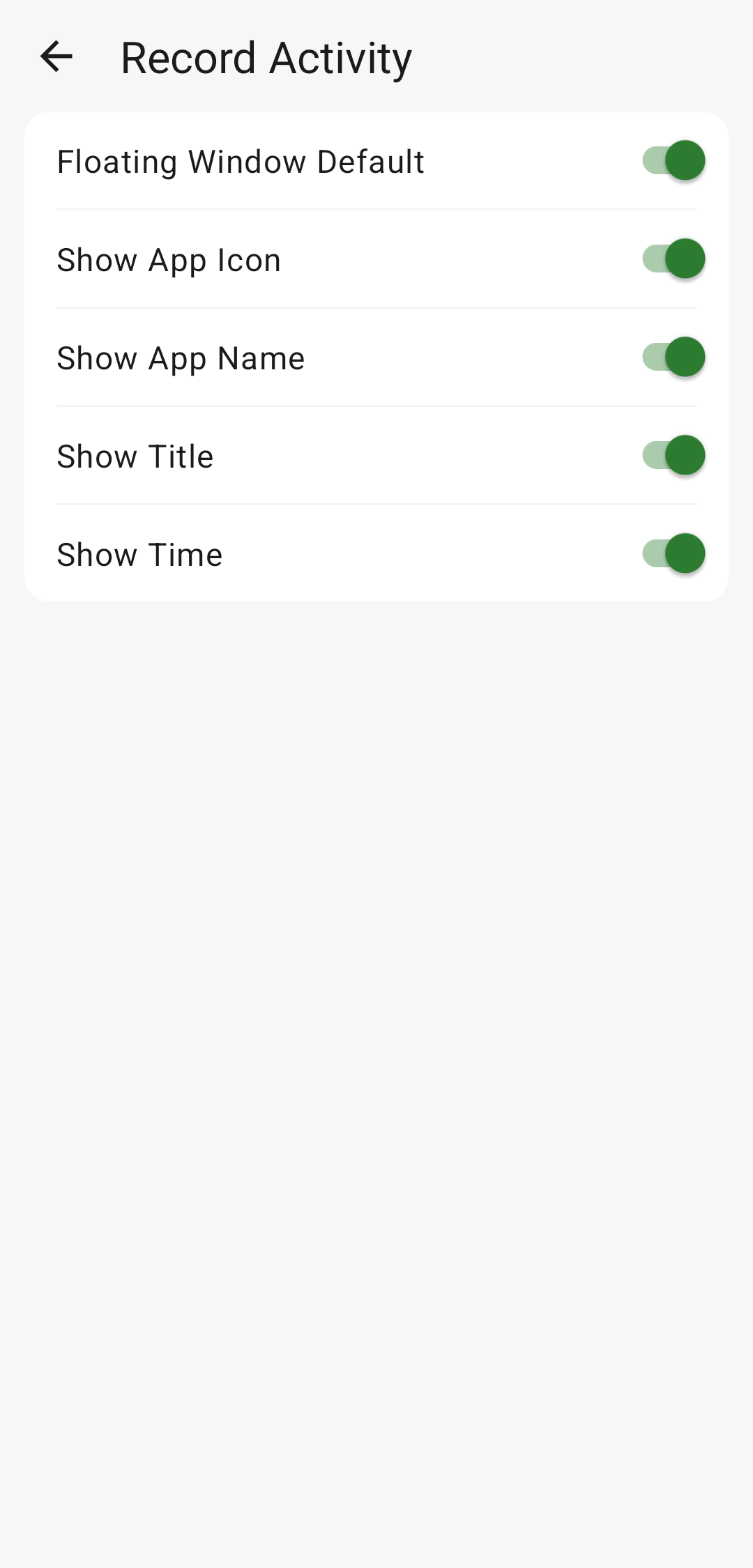
2. Reproduce the transition once
- 2.1Start recording and note the time. Open the demo app and use the action that opens and then leaves the detail screen.
- 2.2Return to the Activity history and find the entries around that time. Use the package name in App Info to confirm which app they belong to.
- 2.3Keep the entries you actually saw. If the middle event is missing, record the gap. Try holding the test screen open longer or check your own app’s logs.
3. Send a trace the developer can follow
Example format: Demo app (com.example.productcapture.demo), 14:03:21 MainActivity → 14:03:22 DetailActivity → 14:03:23 MainActivity. Replace the example times with yours and include the action that triggered the transition. Stop recording after copying the entries.