Features / Activities, history and statistics
How to see the time you spent today, this week or this month
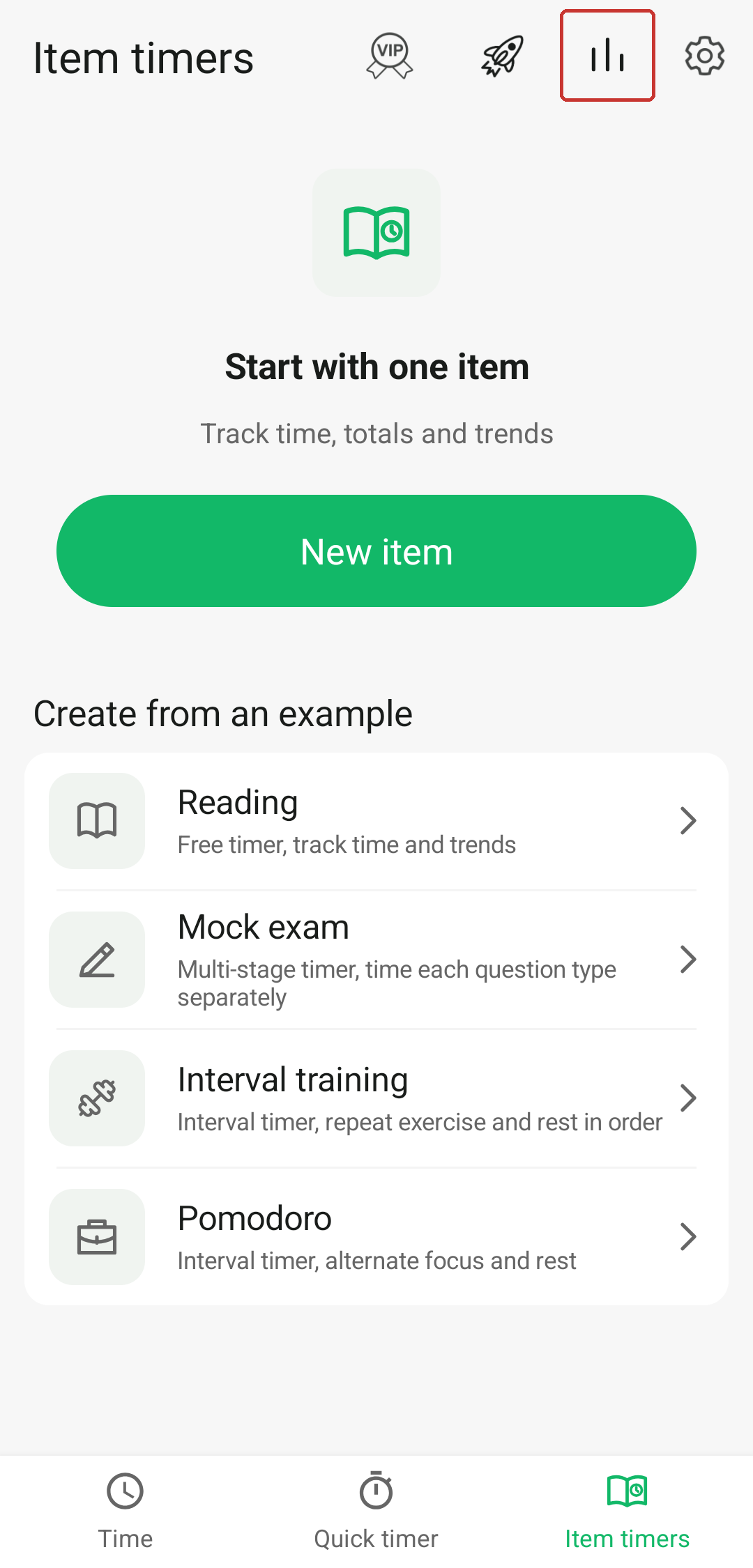
Time today on the Item timers tab in the New Second App shows the total and the time spent on individual items. Open Records to look at all items or one item, filter by date, and see the daily totals.
1. Choose the time range
- 1.1To check today, look at Time today in Item timers.
- 1.2Open Records and choose All, an item, or Unclassified. You can also go directly to Records and statistics from an item’s timer.
- 1.3Open Time filter and choose This week, This month, All time or Date. The week starts on Monday and the month starts on the first.
2. See which days contributed to the total
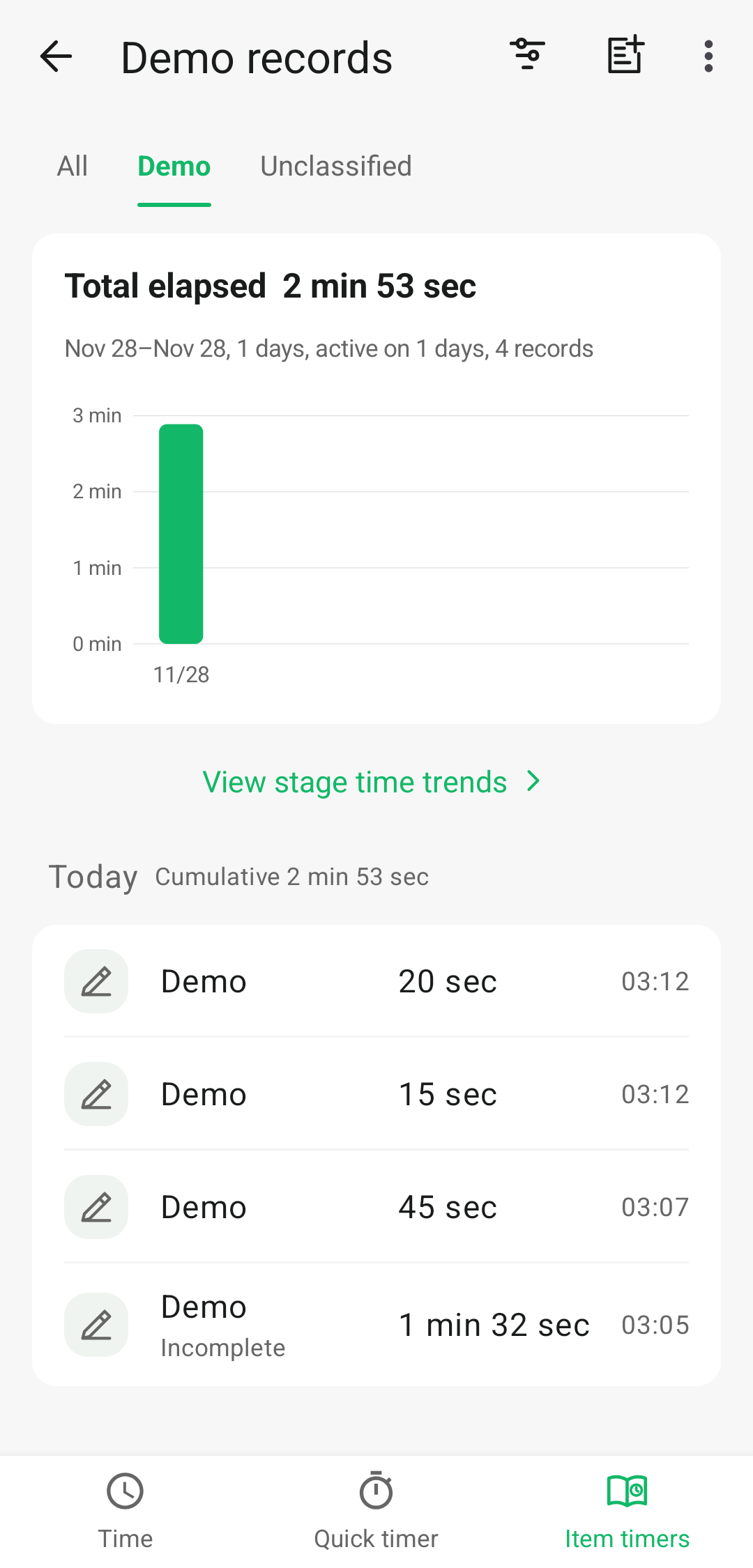
- 2.1Read Total elapsed and tap a day in the chart to see its time. The sessions below are grouped by start date. Expand a date in the list to see its sessions.
- 2.2If you read for 12 and 18 minutes on Tuesday and 20 minutes on Thursday, the week shows three records, two active days and a total of 50 minutes.
3. Read the totals for a session that crosses midnight
A manual entry starting Tuesday at 11:50 p.m. and lasting 20 minutes contributes ten minutes to Tuesday and ten to Wednesday in local time. It is a single session with a Tuesday start date. For a one-day filter, the time total and the session count can therefore describe different aspects of your activity. Pauses in a timed session do not add to time spent. Quick timers have their own Timer History.