Features / Activities, history and statistics
How to set up an interval timer with multiple stages and repeats
Create an Interval timer under Item timers in the New Second App. Set the stage lengths and Run full sequence. If a sequence is 20 seconds of exercise and 10 seconds of rest, eight runs take four minutes, including the last rest.
1. Build one complete sequence
- 1.1For a first item, choose Interval training under Create from an example. You can also tap New by My items and select Interval timer.
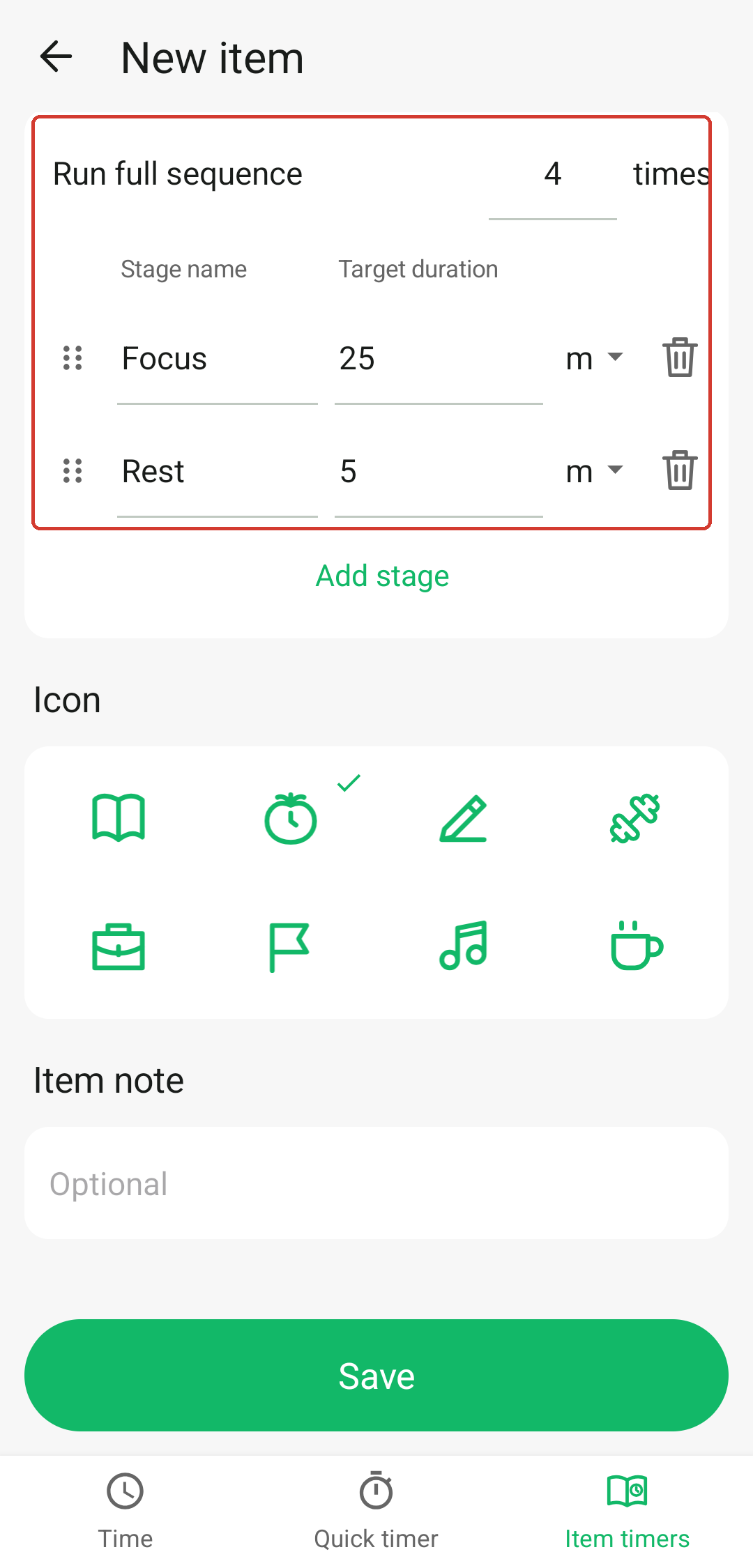
- 1.2Under Interval settings, name the stages, set their durations, and put them in the order you will do them. Add a third stage or more if your workout needs it.
- 1.3Set Run full sequence to between 1 and 100 runs. A run includes all the stages in the list. Add the stage times and multiply by the number of runs to check the total before tapping Save.
2. Follow the current run
- 2.1Tap Start. The timer advances to the next stage at its target, then starts the next run when the sequence finishes.
- 2.2Pause and resume as needed. Skip advances when another stage remains. Finish ends the session early and saves the elapsed time and progress.
- 2.3After a full run, check Completed runs and Total elapsed in the result. Eight rounds of 20 seconds plus 10 seconds, with no skips, should produce eight runs and 240 seconds.
3. Test auto-advance with short intervals
Start with two one-second stages, “Prepare” and “Done,” and a single run. A prior on-device check on Android 16 with a 10.0.0 debug build recorded that two-second sequence completing automatically. A separate earlier background-service check completed two rounds of exercise and rest and checked the saved total. The 240 seconds above is calculated from the settings. For a longer sequence, see the two-hour Pomodoro timer.