Features / Clock display and calibration
How to calibrate the New Second clock with network time
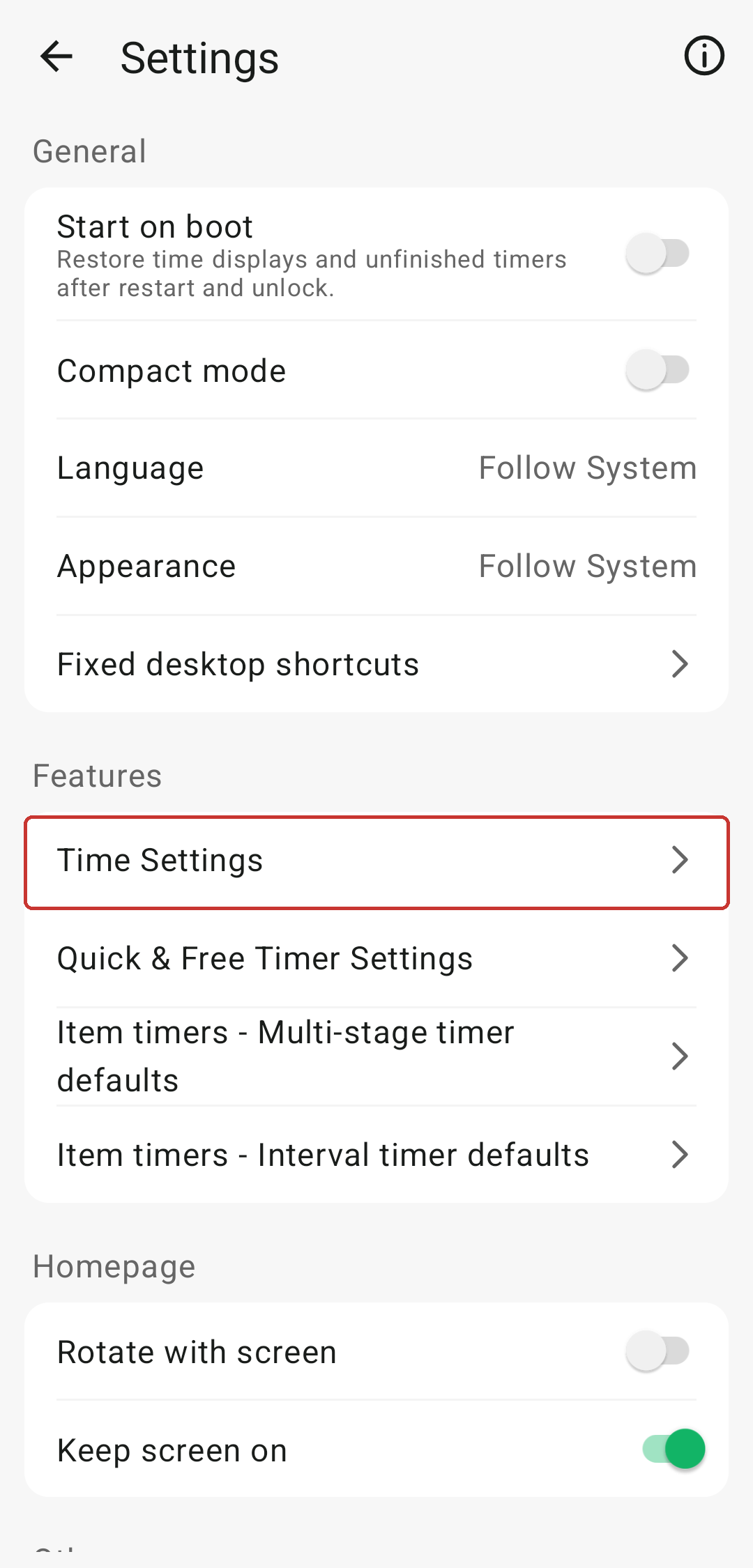
Open Time Settings in the New Second App, find Time calibration, and turn on Use network time. After a successful sync, the Current source line shows network time. You can apply a separate manual adjustment. Stopwatches and countdowns measure their own elapsed durations.
1. Enable and update network time
- 1.1Turn on Use network time under Time calibration. The app requests a calibration as soon as you enable it.
- 1.2Turn on Automatic calibration if you want the app to check for updates while you use the clock. Tap Update network time to sync immediately, even when automatic calibration is on.
- 1.3After a successful sync, tap the source line to open Network calibration details. Check the time server, the network-to-device offset, the last calibration time and the round-trip delay.
2. Read the offset and apply an adjustment
On a physical phone running an earlier 9.3.0 build, the Alibaba Cloud time source was 2 ms ahead of device time and the request had an 87 ms round trip. After a manual refresh, the figures were +28 ms and 33 ms. The offset compares the network result with the phone’s clock. Round-trip delay measures how long the request and reply took. These figures come from a previous validation run.
To move the app’s clock another quarter second forward, enter +250 ms under Manual adjustment and save. A network refresh keeps that adjustment. Tap Reset in the adjustment dialog to clear it.
3. Check which source the clock is actually using
If a sync fails, the app can keep using a previous result while it is valid. With no valid network result, it uses device time and still applies your manual adjustment. While the clock is in use, automatic calibration checks results older than one hour. A network result is usable for up to 24 hours. Start with Current source when troubleshooting, then check the calibration timestamp in details. Android continues to manage your phone’s system clock.