Features / Activities, history and statistics
How to compare the same stage across practice sessions
In the New Second App, open Records and statistics for a Multi-stage timer, then Stage time trends and choose a stage. The chart uses a reference record to check which sessions were timed with the same stage setup.
1. Open the chart from an item or a session
- 1.1Open Stage time trends from the item’s statistics to use the most recent valid record with stage details as the reference. Open it from a particular session’s details to use that session as the reference instead.
- 1.2Choose a stage such as Listening. The sessions must belong to the same Multi-stage item and have the same stage names, order and targets. The selected stage must be complete and have an elapsed time above zero.
2. Read the chart and check excluded records
- 2.1The chart shows up to five records. From the item’s statistics it uses the five most recent eligible records. When you enter from a much older eligible record, the chart keeps that reference and can show it with the four most recent eligible records. One eligible session still gives you one point.
- 2.2Tap a point to read the session date and stage time. Expand Other matching records for eligible sessions outside the chart. Open Records not meeting criteria to see reasons such as a manual entry with no stages, a changed target or an incomplete stage.
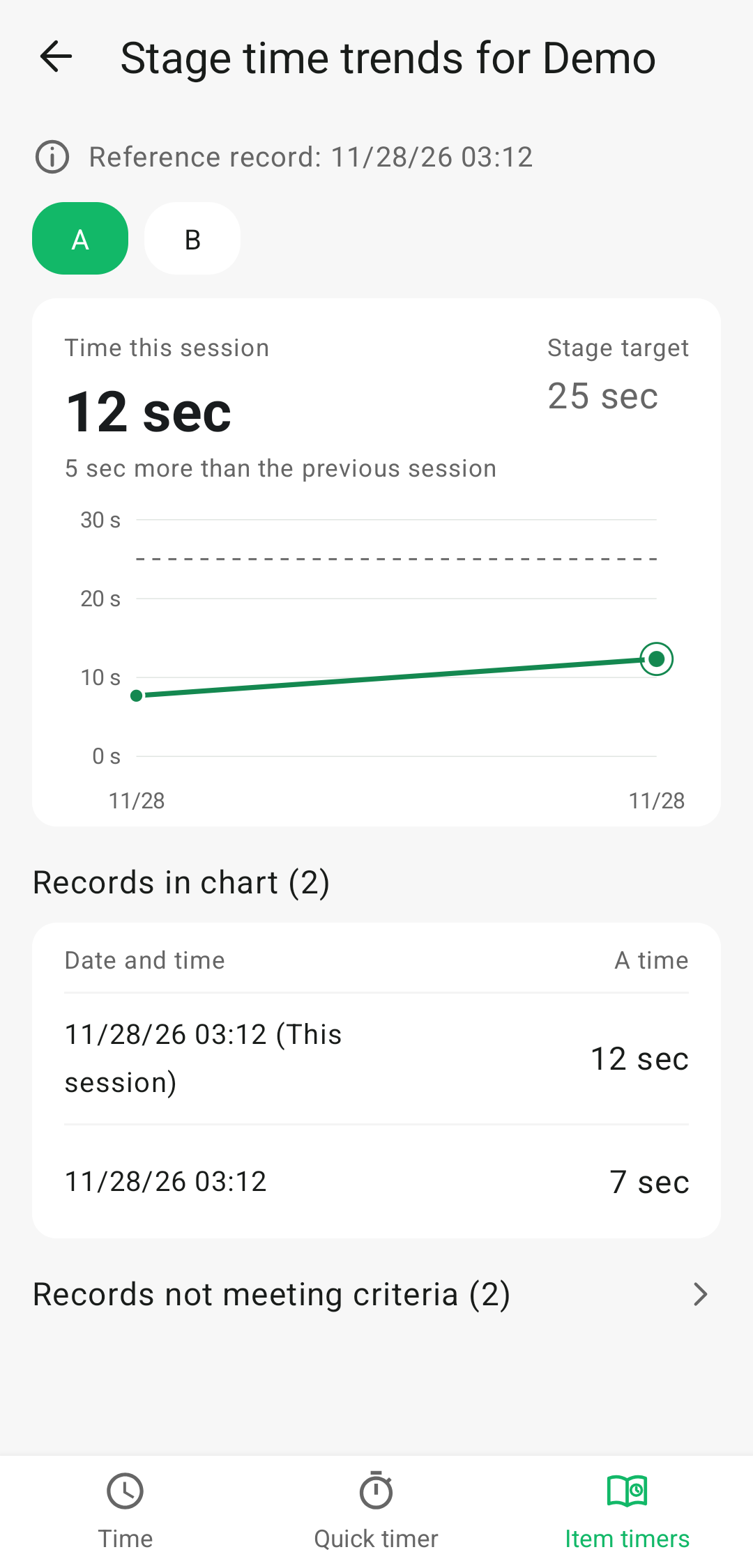
3. Check a pair of practice sessions
In the Demo item shown above, stage A had a target of 25 seconds. We finished it early in both sessions, first at 7 seconds, then at 12. The second point is 5 seconds higher. Two older sessions using different stage names appear under Records not meeting criteria. Set up a Multi-stage timer.