Features / Shortcuts, data and settings
How to add a clock, stopwatch or item timer to your Android home screen
Open Home screen widget in the New Second App settings. You can add a clock, a floating-clock switch, or a single- or double-row quick timer. Use a widget bound to an item if you want to start reading or piano practice from the home screen.
1. Pick the widget you want
- Time displays a clock. Floating Window Time turns the floating clock on or off. Grant permission to display over other apps when prompted.
- Quick timer - Single row and Quick timer - Double row provide controls for the quick timer. Preview both to see which fits your space.
- Item timers binds an existing, unarchived item. You can also open that item and select Add to home screen.
2. Preview and add it
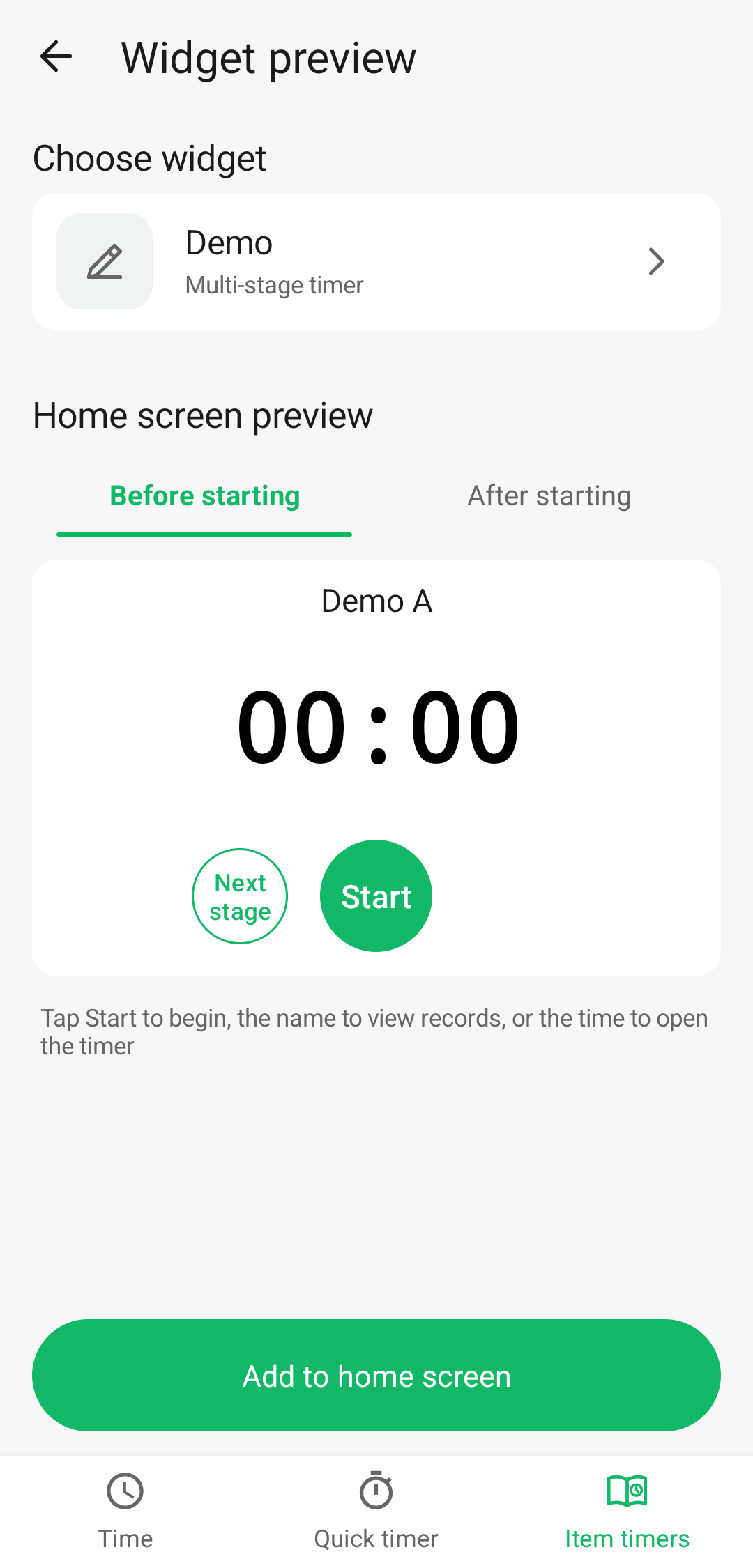
- 2.1Find the row under Home screen widget and tap Preview. For an item, check the Before starting and After starting views. The controls in the preview do not start your timer.
- 2.2Tap Add or Add to home screen, then confirm if Android prompts you. If your launcher cannot add the widget directly, touch and hold an empty area on your home screen, open Widgets, and find the widget under New Second. Select the item when Android opens the item widget setup.
3. Check the controls on a Reading widget
Bind Reading and return to the home screen. Tap Start to time a session, the item name to see its records, or the time to open the timer. If you prefer a launcher icon menu or a swipe-down control, see launcher and Quick Settings shortcuts.