Features / Shortcuts, data and settings
How to start a timer from an Android app icon or Quick Settings
Touch and hold the New Second App launcher icon to use a fixed or recently used shortcut. Add New Second timer to Android Quick Settings if you want a swipe-down control from any app.
1. Set the launcher icon shortcuts
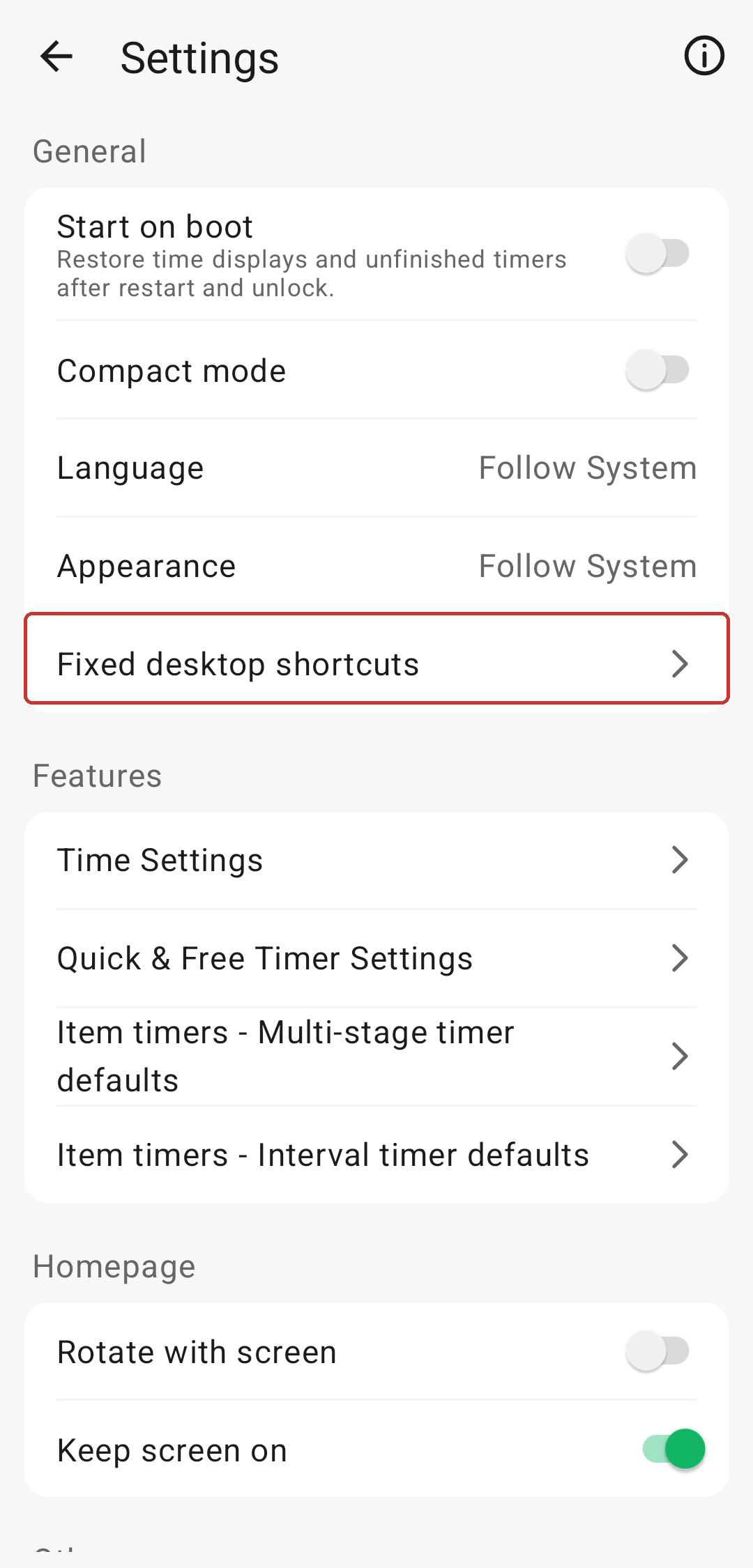
- 1.1Open Fixed desktop shortcuts in the app’s settings. Choose options such as Countdown, Stopwatch, Start quick timer or Timer history.
- 1.2Add shortcuts with the plus button. Drag to reorder and tap a shortcut to edit or replace it. You can select up to four. Recently used actions fill open slots up to that limit, depending on your launcher.
- 1.3Return to the home screen and touch and hold the icon to check the order. For example, put Countdown above Timer history.
2. Use Quick Settings to control the timer
- 2.1Expand Android Quick Settings and edit the tiles to add New Second timer. Floating Time is a separate Pro tile for the clock overlay and requires permission to display over other apps.
- 2.2Tap New Second timer to open Quick timer. The tile starts an idle timer, pauses a running one, and continues a paused one. A countdown starts from the duration set in the app.
3. Check that it continues the same countdown
Try a 30-second countdown. Tap the tile to start it, again to pause, and a third time to resume from the remaining time. An earlier 9.3.0 debug validation checked these state changes on a Xiaomi 2211133C with Android 15. To see the digits on the home screen alongside the controls, use a quick timer widget.