Features / Activities, history and statistics
How to make a timer announce the stage name and current run
Open Timer settings for a Multi-stage or Interval timer in the New Second App. Choose voice for Stage end reminder and use Insert dynamic content to add Stage name. An Interval timer can also say Current run.
1. Choose a stage alert or a repeating session alert
- 1.1Turn on Stage end reminder for the item and enter Advance time. Five seconds schedules a cue when the current stage has five seconds left before its target.
- 1.2For repeating cues across the whole session, turn on Overall periodic reminder and set Interval. Choose tone, voice announcement or vibration for each group.
2. Edit the spoken message
- 2.1Under Sound, choose Voice announcement and open Spoken content. Insert the dynamic fields using the options in the editor and add your own words.
- 2.2For an Interval timer, combine Current run, Stage name and Advance time to say something like “Run 2. Exercise ends in five seconds.” A repeating alert can use Total elapsed time. Read and play the Spoken example before starting.
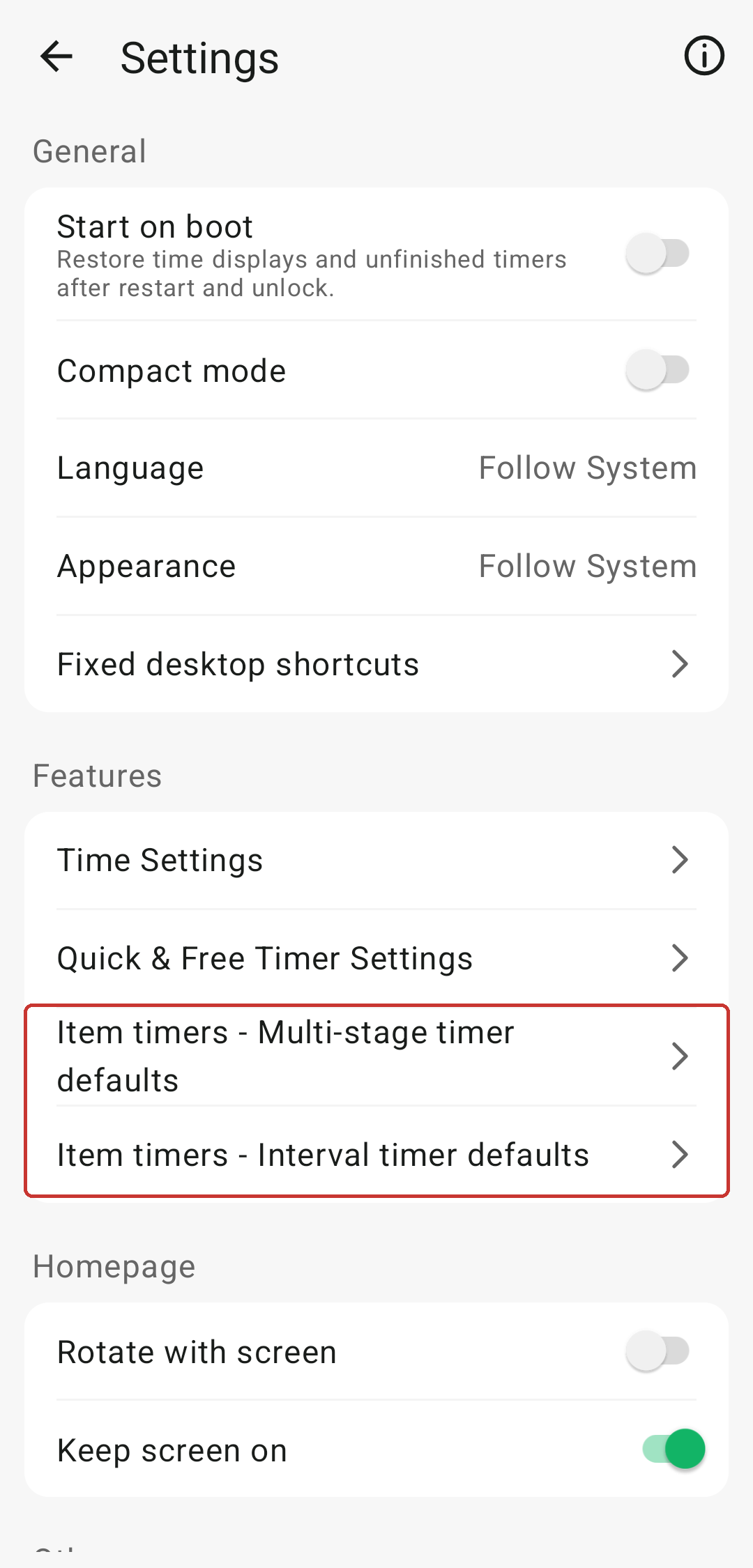
- 2.3Use Item timers - Multi-stage timer defaults or Item timers - Interval timer defaults in the main settings to set defaults for future items. Change an existing item’s alerts in its own Timer settings.
3. Listen for the run number
Try two runs of 12 seconds of exercise and eight seconds of rest, with a stage alert three seconds early. The exercise alert for the first run is due at nine seconds. The alert for the second is due at 29 seconds of total elapsed time and should say a different run number. See how stages and repeats work.