Features / UI inspection and design
How to see the current Android Activity and navigation history
Start Record Activity in the Dev Tools App and open the target app. Return to review the observed history, or use a floating window to display the current Activity.
1. Choose how to observe Activities
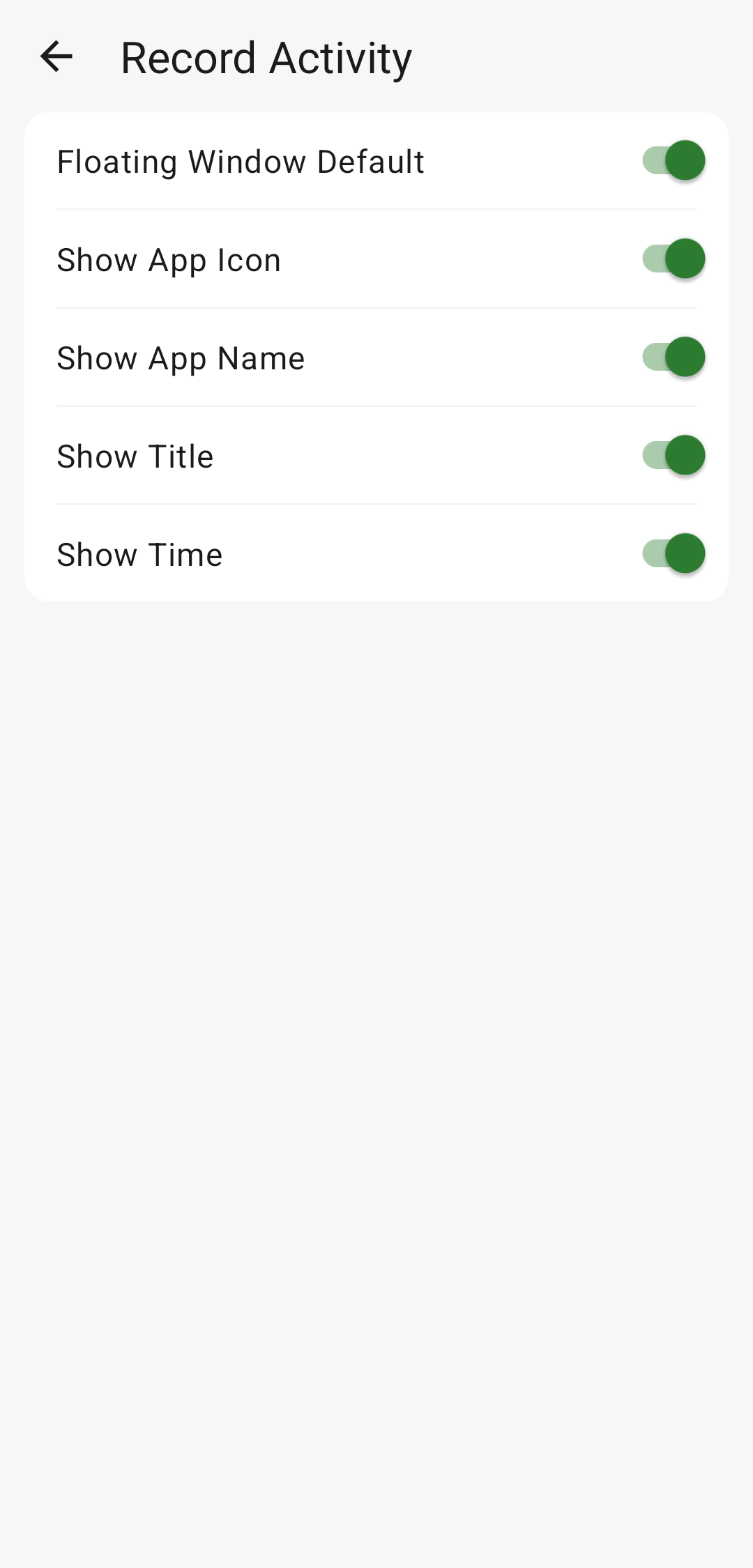
Open Record Activity from the App section. Accessibility listens for window events. Shizuku polls the foreground task. Try the event-based method for brief windows, then check whether the event appears. The floating display requires its own system permission.
2. Trace a simple transition
- 2.1Start recording. In your demo app, open a detail screen implemented as a separate Activity, then go back.
- 2.2Return to Record Activity and locate the transition by group and time. Use the entry’s copy action. Floating display options include the app name, icon, time and window title when available.
- 2.3Stop recording after saving what you need. Use the menu’s clear action when you want to discard the history.
On the demo package com.example.productcapture.demo, opening the feature details changed the observed floating display from MainActivity to DetailActivity.
3. Identify both screens within a package
A sample sequence is MainActivity → DetailActivity → MainActivity, all with the same package name. Keep the package and class together in your notes. A Fragment or Compose destination can change within a single Activity, in which case the class may stay the same.