Features / Files, text and shortcuts
How to validate JSON and edit multiple lines on your phone
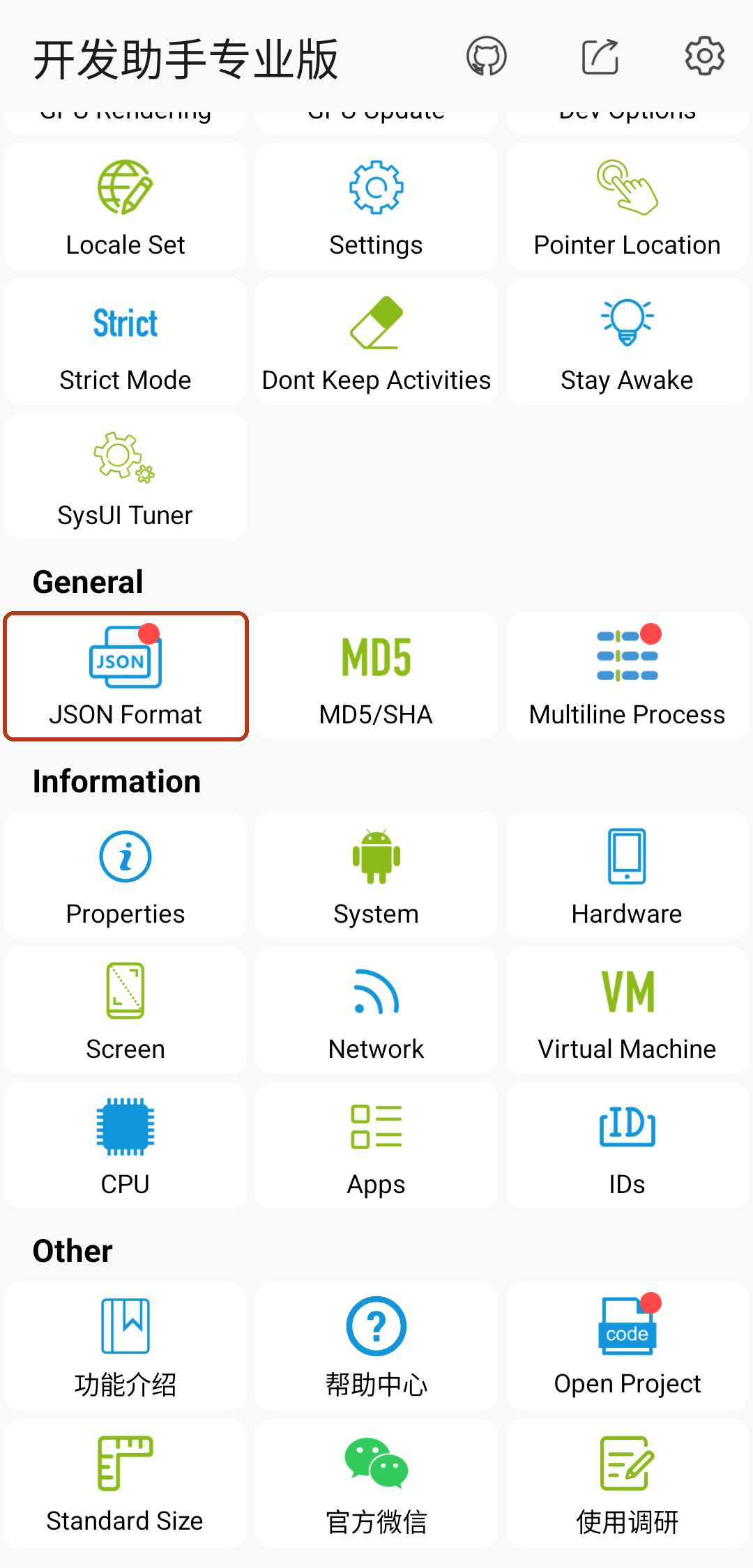
Open JSON Format or Multiline Process under General in the Dev Tools App. These web tools appear when enabled by configuration. Use public or sanitized text.
1. Pick the tool for the input
Use JSON Format for an object or array, and Multiline Process for several lines of names, labels or log excerpts. For a file on your phone, first inspect it in File viewer.
2. Repair the input and choose an operation
- 2.1Paste
{"b":2,"a":1,}in JSON Format. Use the validation message to find the extra comma. Remove it, then format, minify, sort or convert to XML as needed. - 2.2Paste two lines, demo-alpha and demo-beta, in Multiline Process and choose multiline mode. Position the cursor by line start, line end or an occurrence of a string. Use the insert or delete controls for the edit.
3. Check the output before sharing it
Insert the custom prefix test- at the start of both lines. Expect test-demo-alpha and test-demo-beta. Check the line count and exact text before copying. If you converted JSON, check that the next tool accepts the output.