Features / Files, text and shortcuts
How to open JSON, JSONL and XML files on Android
In Android’s file manager, choose Open with and select File viewer from the Dev Tools App. Version 10.3.0 can format JSON, JSON Lines and XML for display and lets you switch back to the original text.
1. Open a file from Android
Select a .json, .jsonl or .xml file. If another app is the default, look for Open with in the file menu. For pasted text, use the JSON and multiline text tools.
2. Switch between formatted and original text
When formatting succeeds, tap the status message to show the original. Use search to step through matches, and enable line numbers or wrapping from the menu. JSONL keeps one record per physical line. Invalid data or a formatting limit can cause the viewer to show the original. Display formatting leaves the file intact.
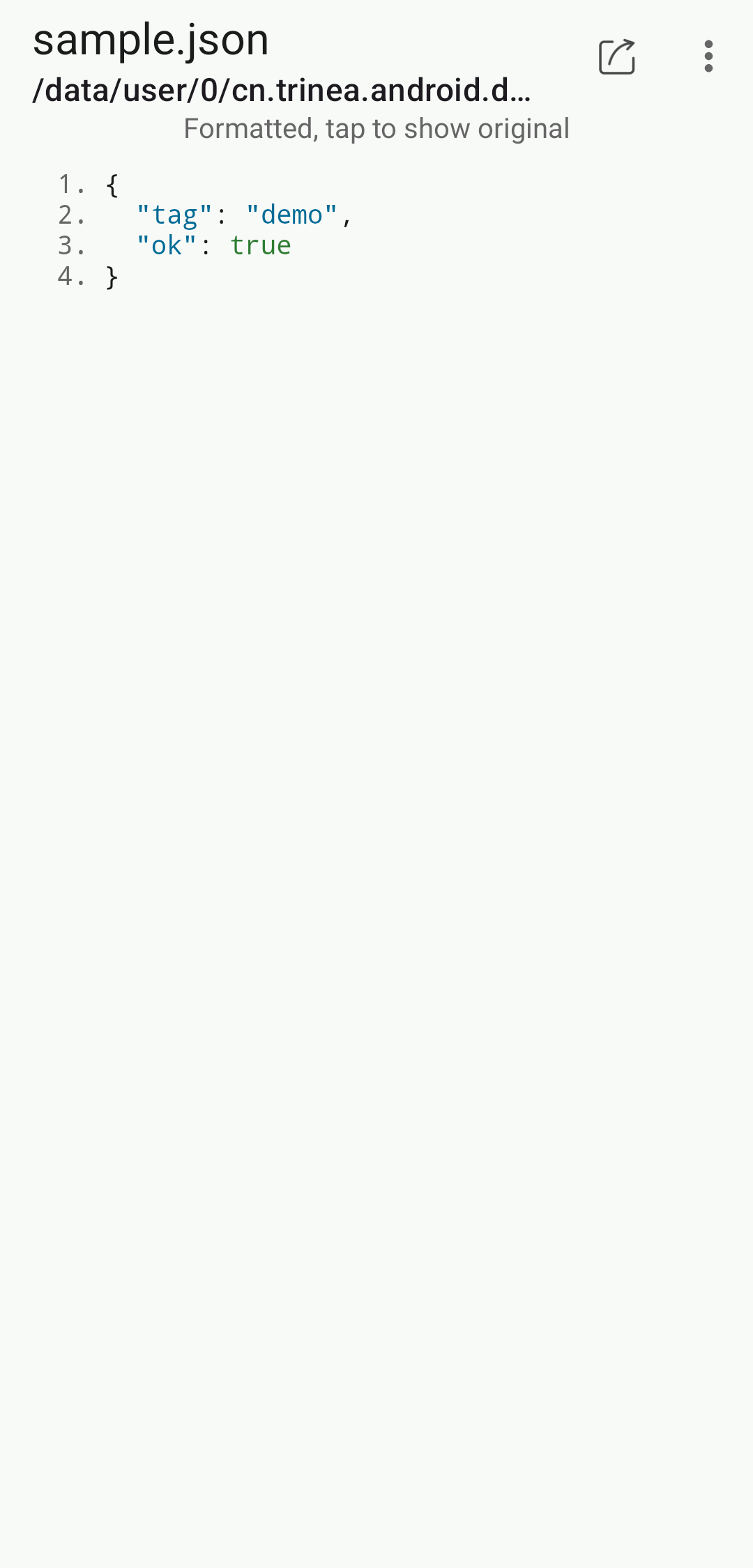
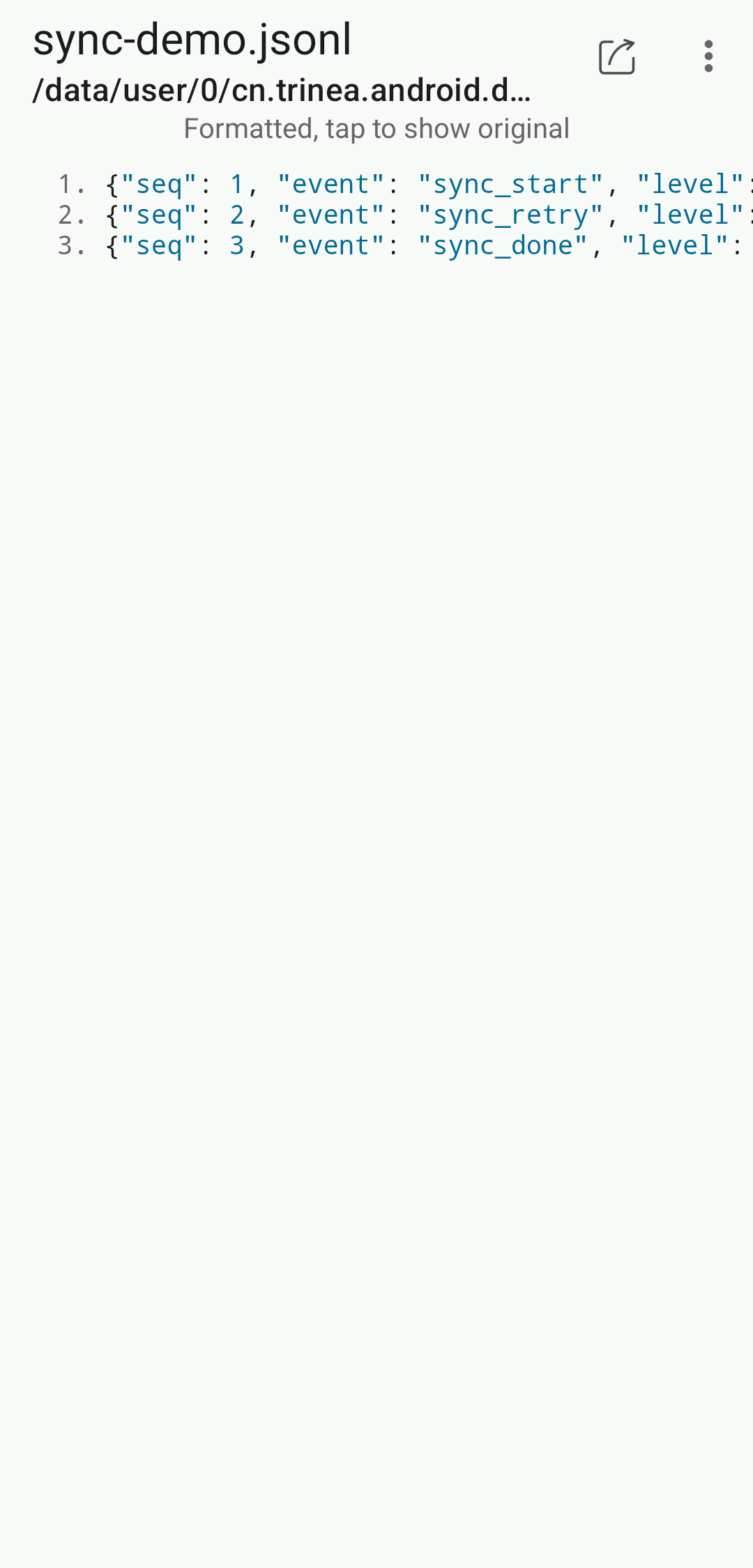
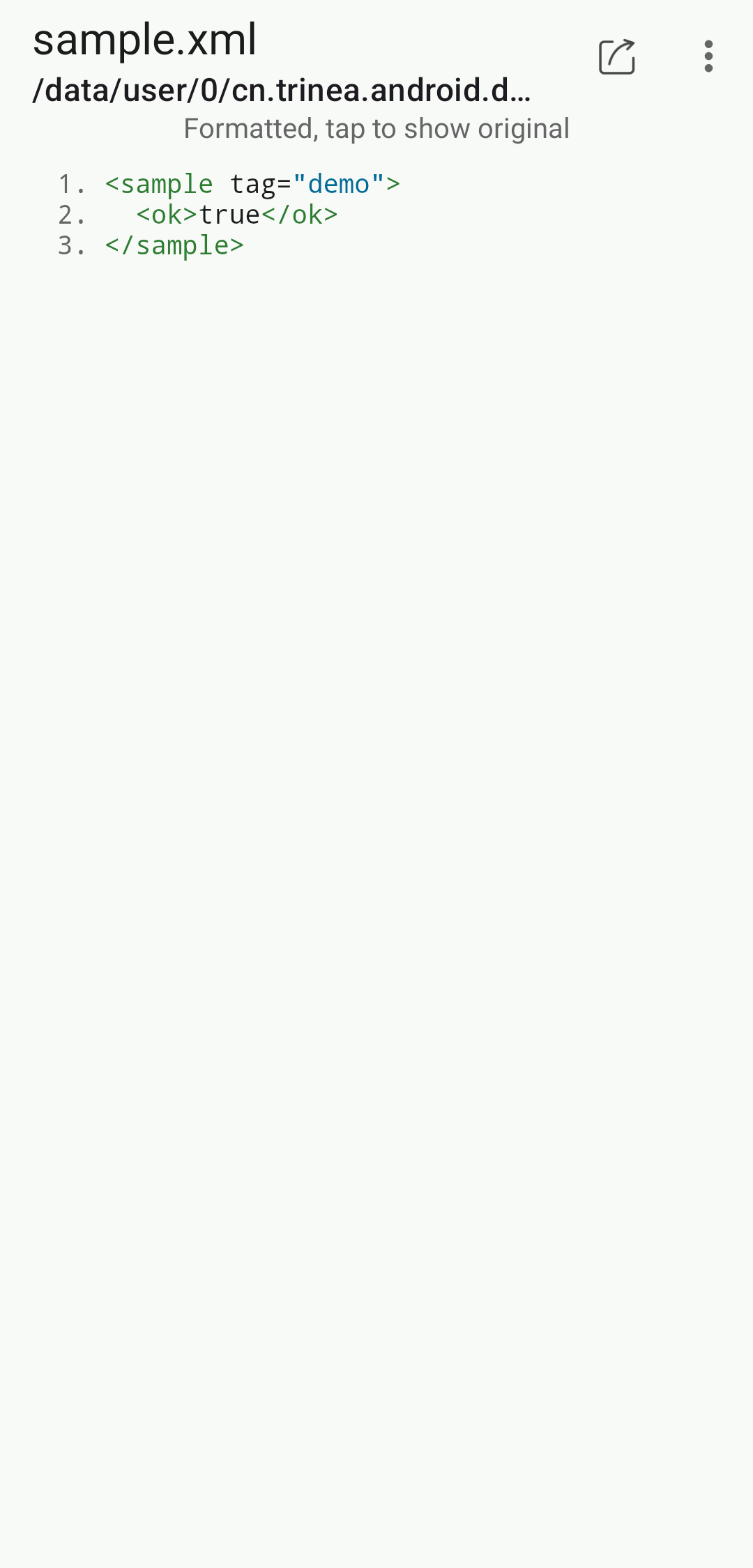
3. Try three small files
Save the JSON and XML examples below, or download the JSONL log used in the screenshots.
- sample.json:
{"tag":"demo","ok":true} - sync-demo.jsonl contains three events. Search for
E_TIMEOUTto find the second one. - sample.xml:
<sample tag="demo"><ok>true</ok></sample>