Use cases / Design and accessibility checks
How to report the ID of an Android button to a developer
Use the Dev Tools App to read the button’s resource ID, class and description. If the node provides no ID, report the label, screen, parent and position together.
1. Identify the screen first
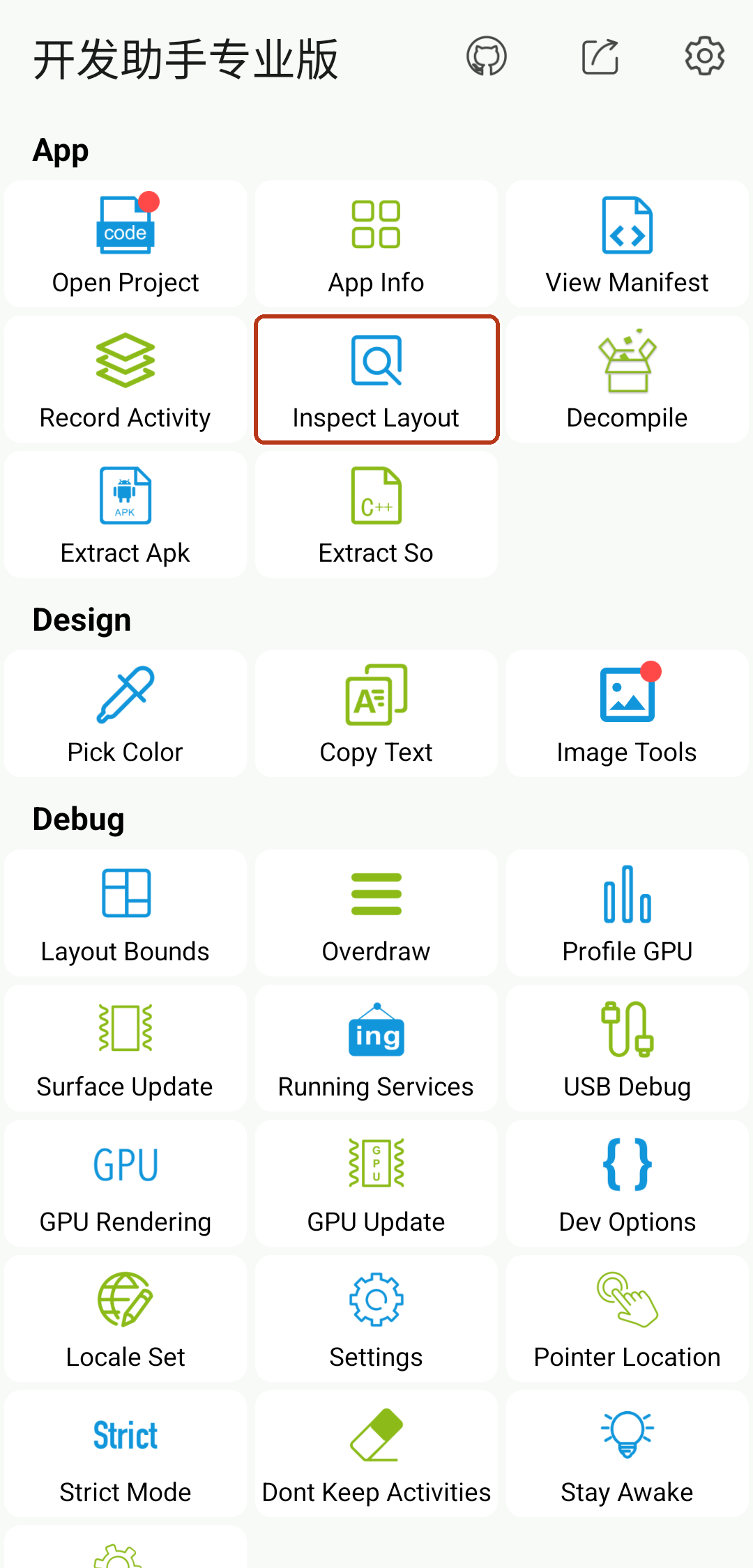
Open the page in your own test app. Use Record Activity to confirm the package and Activity, then add the visible screen title. A single Activity can host more than one screen.
2. Read the button and its hierarchy
- 2.1Select the button in Inspect Layout. If a resource ID is present, copy the full value including its package. Record the class and any accessibility description.
- 2.2If the ID is missing, note the label, parent class, position and nearby elements. In a captured demo, the Dev Tools button appeared as android.widget.Button under android.widget.LinearLayout, with no resource ID or children.
3. Send a description someone can follow
For example: “Demo app MainActivity, first button in the demo choices, label Dev Tools, android.widget.Button, parent android.widget.LinearLayout, no resource ID.” Add an accessibility description, coordinates or a screenshot if useful. Ask whether the developer can select the same node and confirm the properties.