Features / UI inspection and design
How to find a view ID and inspect the Android layout hierarchy
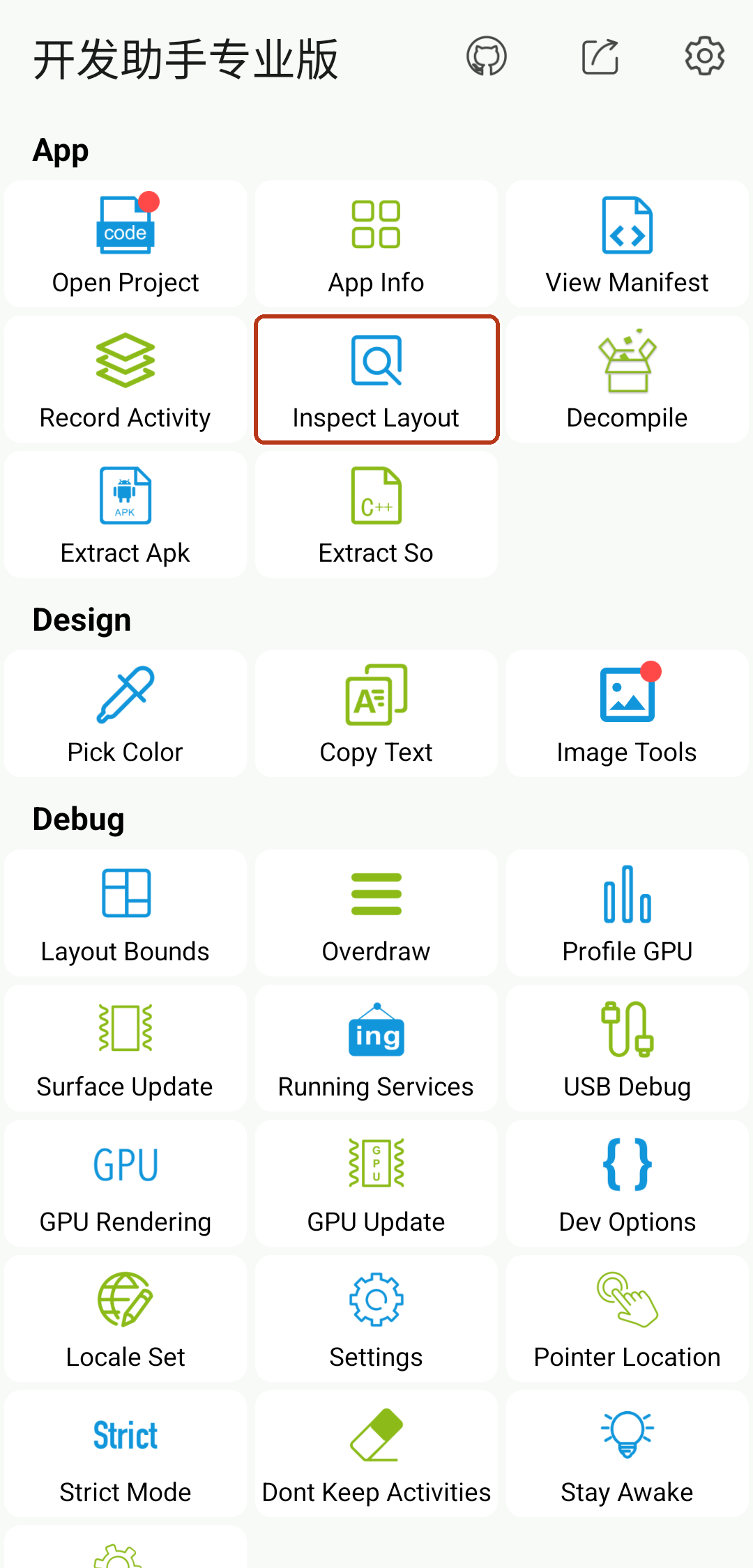
Open Inspect Layout in the Dev Tools App, grant page-reading access and use the floating control on the target screen. Select a node to see its available properties and inspect its parents or children.
1. Choose a test screen you can revisit
Open Inspect Layout from the App section and follow the prompts for page access and the floating window. Use your own test screen with one button that exposes a resource ID and a text view that provides no ID.
2. Select a node and inspect its properties
- 2.1Read the screen with the floating button, then tap the location you want to inspect. When views overlap, switch between candidate nodes at that position.
- 2.2Check the ID, class, text, description, click or selection state, bounds and dimensions.
- 2.3Follow the hierarchy to a parent or child. Save the layout if you need to share it. Enable auto-hide if the floating control is in the way.
In the captured demo, the button labeled Dev Tools appeared as android.widget.Button, 934 px wide by 169 px high, under android.widget.LinearLayout. Its resource ID was absent.
3. Note what each node exposes
You might find com.example.demo:id/continue_button on the button and only class and text on its neighbor. For the second node, record its parent, position and visible text. The available fields depend on what the screen exposes to Android.