Use cases / Design and accessibility checks
How to report an Android button that differs from the design
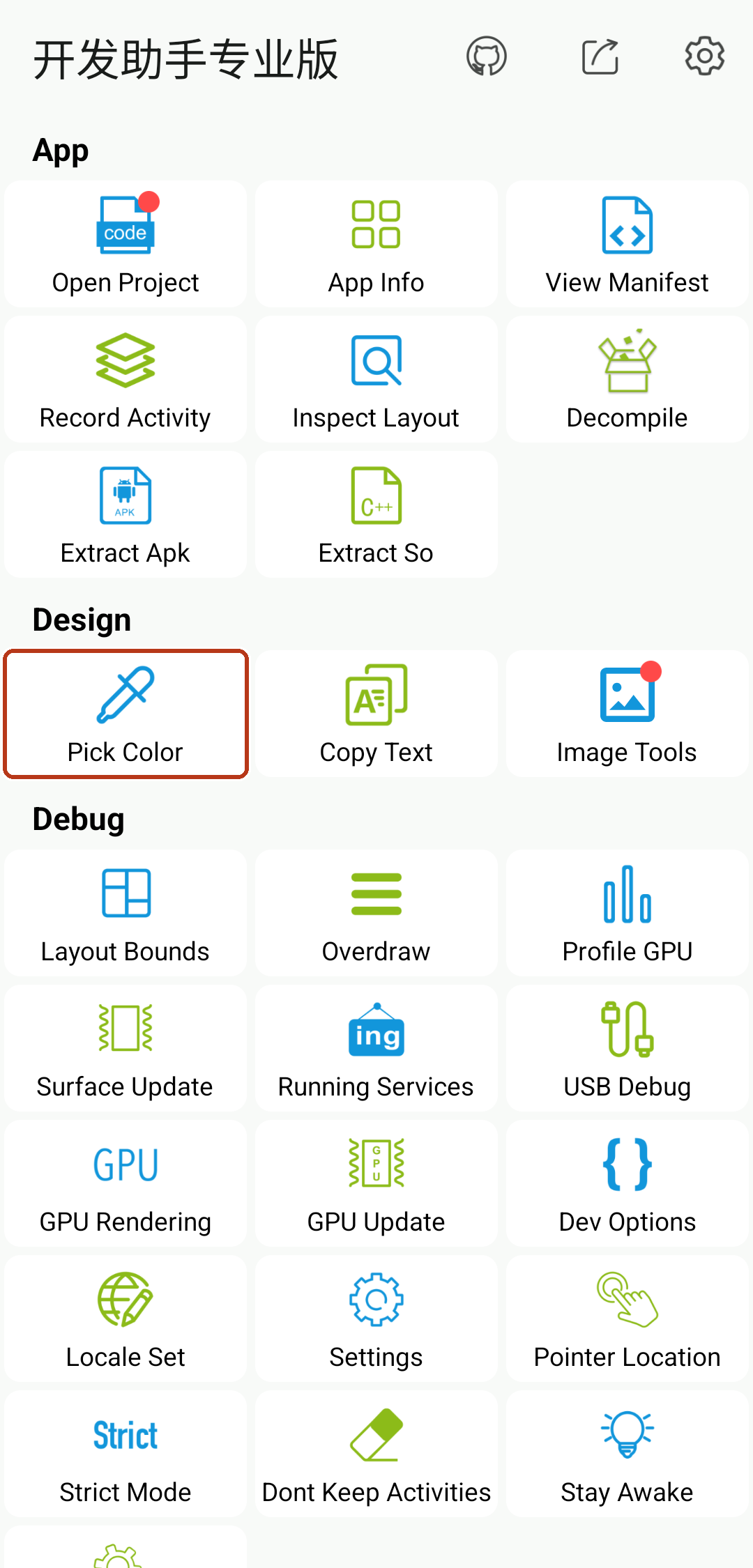
In the Dev Tools App, measure the button with Inspect Layout, sample a named point with Pick Color and include the device density. Give the design value and phone reading separately so a developer can repeat the check.
1. Match the screen to the design conditions
Use the screen under review in your own app. Record the build, orientation and any display or font scaling. Read density in Screen and confirm the design’s units.
2. Record the bounds, size and color
- 2.1Select the button in Inspect Layout and copy its bounds, dimensions and units. In one captured demo, the Dev Tools button measured 934 × 169 px (287.38 × 52 dp) at a logical density of 520 dpi.
- 2.2Use Pick Color in an even area. State which surface you sampled. The demo’s white card read ARGB #FFFFFFFF at (610, 1328) px.
3. Write a difference someone can verify
If the design calls for a 48 dp button, your note could read “Expected height 48 dp, measured 52 dp, difference 4 dp. Width 287.38 dp at 520 dpi. White card background #FFFFFFFF at (610, 1328) px.” Add the button bounds, design revision and test screen name.