Features / UI inspection and design
How to pick an Android screen color and read pixel coordinates
Open Pick Color in the Dev Tools App, allow Android’s screen capture prompt and move the eyedropper to the pixel you want. The floating panel shows the sampled color and its location.
1. Start screen sampling
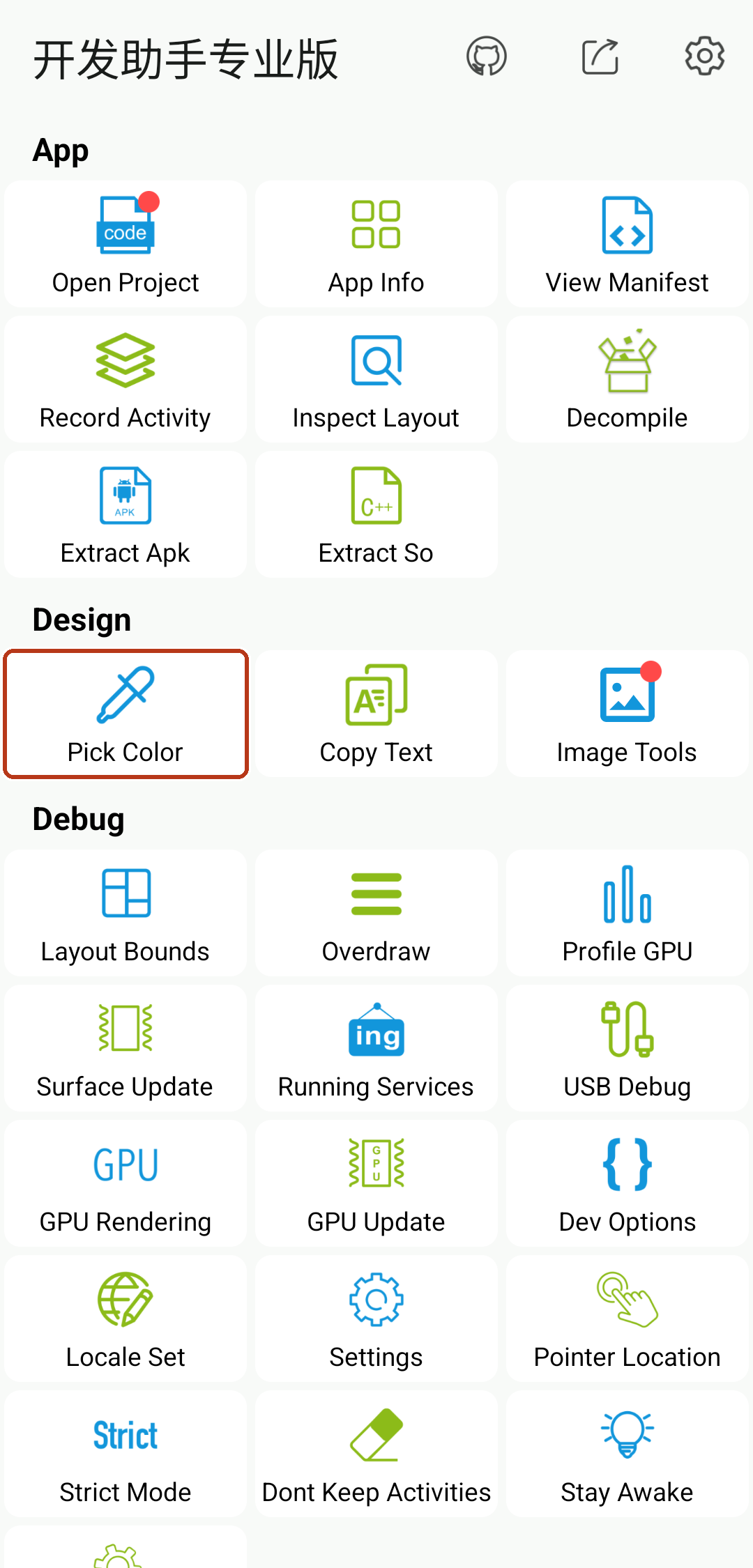
Tap Pick Color in Design. Follow the prompts for the floating window and screen capture, then open the test screen. Android or an app may protect a screen from capture.
2. Record the color and position together
- 2.1Place the sampling point in the middle of a color swatch. Long-press the color or coordinate value to copy it.
- 2.2Switch between ARGB and CMYK for color, and px and dp for coordinates. Record the units, orientation and density if you plan to compare the result with a design or layout.
3. Check a known color swatch
In a device capture, the demo’s white card returned ARGB #FFFFFFFF at (610, 1328) px. An edge pixel can differ because of antialiasing or compositing. Design can also show the MuKit image tools shortcut for editing or redacting images on the Google Play build or on a phone with the Play Store installed.