Features / Device information
How to find an Android phone’s resolution, density and refresh rate
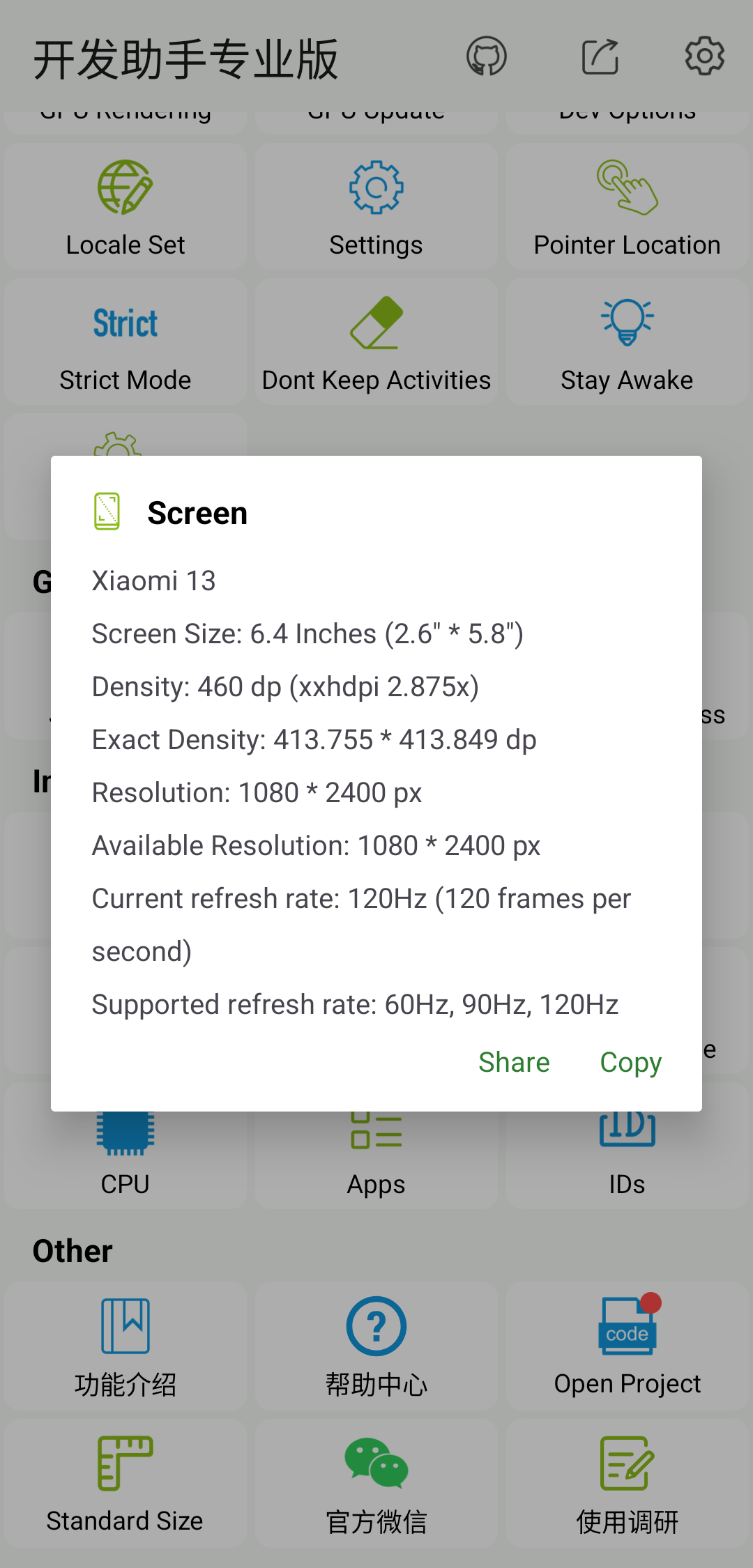
Open Screen under Information in the Dev Tools App to see the display size, resolution, density, current refresh rate and supported modes together.
1. Open Screen in the test orientation
Keep the phone in the orientation and display mode used to reproduce the issue. Record Resolution and Available Resolution. The first describes the full display size, and the second describes the pixel area Android reports as available to the app.
2. Read density and refresh rate separately
Density is the setting used to scale dp. Exact Density is the device’s reported horizontal and vertical physical density. Record the current refresh rate separately. Supported modes can include repeated rates, and the active rate can change with system settings and the content on screen.
3. Record a comparison point
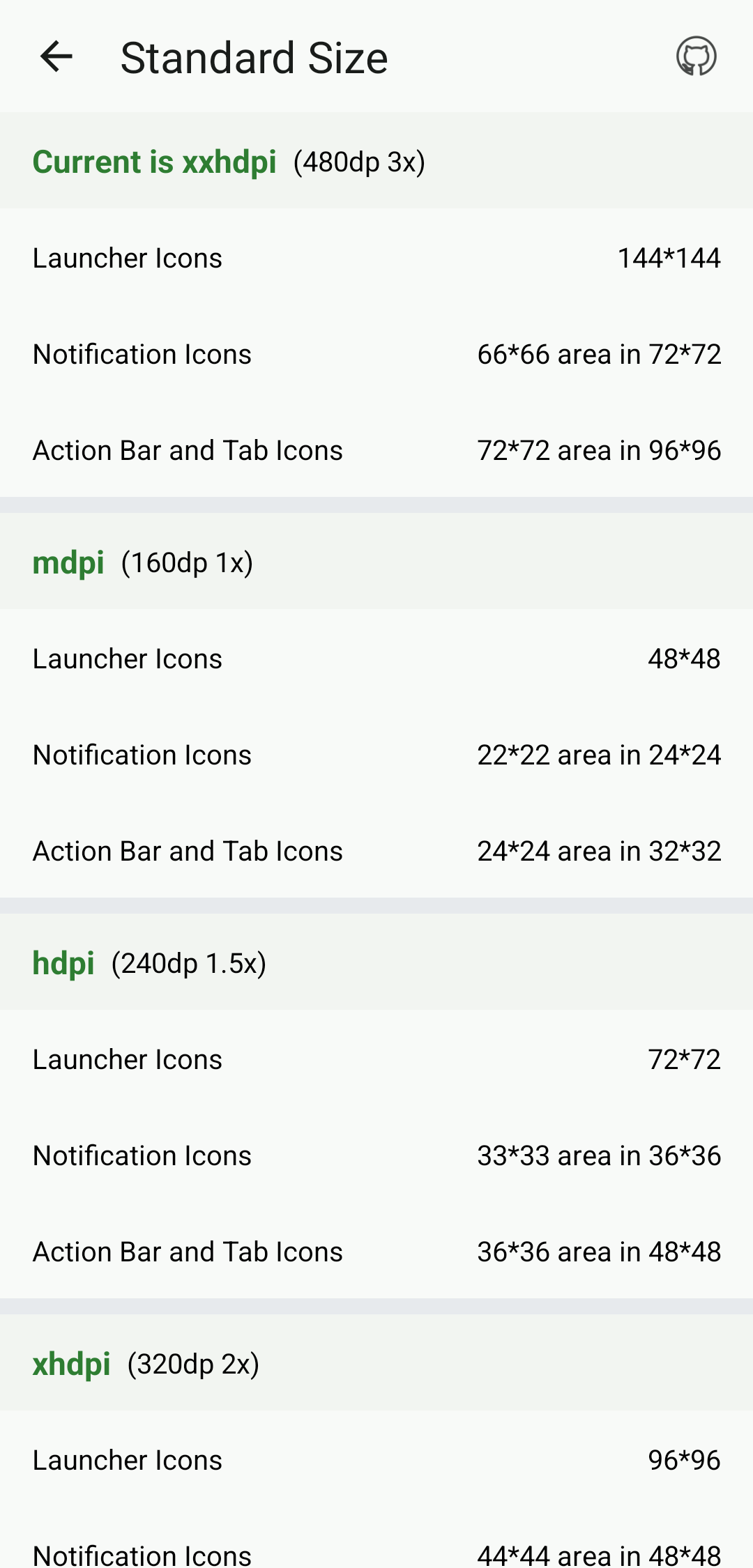
One Xiaomi 17 on Android 16 showed 1220 × 2656 px, a logical density of 520 dpi (3.25 scale), an active rate of 120 Hz and reported modes of 60, 90 and 120 Hz. Reopen Screen after changing modes if you need a fresh reading. For density buckets and icon sizes, open Standard Size under Other.