Features / Files, text and shortcuts
How to add Android debugging tools to Home and Quick Settings
Long-press a tool in the Dev Tools App to add a home-screen shortcut. On Android 7 and later, you can also enable supported Quick Settings tiles and add them in the system panel.
1. Pin one tool to Home
For example, long-press App Info in the app and choose the shortcut action. Accept the launcher prompt, then open the new icon and confirm that it goes to App Info. Compatible launchers can also show recent tool actions when you long-press the app icon.
2. Put an available tile in Quick Settings
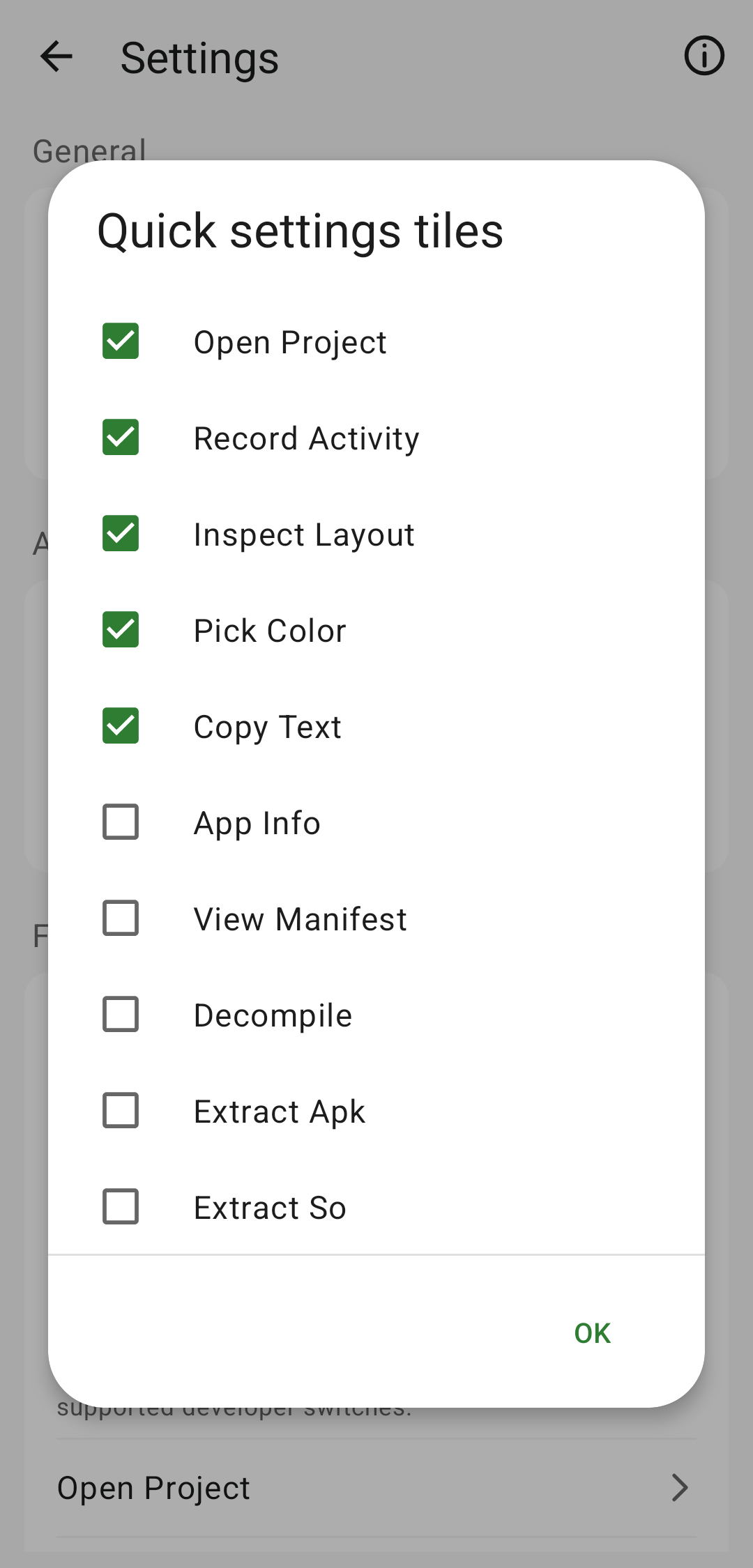
Open Quick settings tiles in the app settings and select the tools you need. Edit the system Quick Settings panel and move an available tile into the active area. The edit controls and available tiles depend on Android and the device.
3. Try both shortcuts
Open the app list from your Home shortcut, then tap the tile to see which tool starts. If the shortcut is missing, check the launcher prompt. If the tile is missing, reopen the system editor and look in the available tiles.