Use cases / Testing and bug reports
How to remove unexpected outlines, flashes or colored bars on Android
If outlines, flashes, colors or bars appear after using a debugging tool in the Dev Tools App, identify the matching Android switch. Turn it off in Developer options and check the same screen again.
1. Note when the effect appears
Pick a screen where it’s easy to reproduce, such as the list you were scrolling. Is it a static outline, a touch trail, a color overlay, a flash or a bar chart? Use Quick locate to get to Developer options.
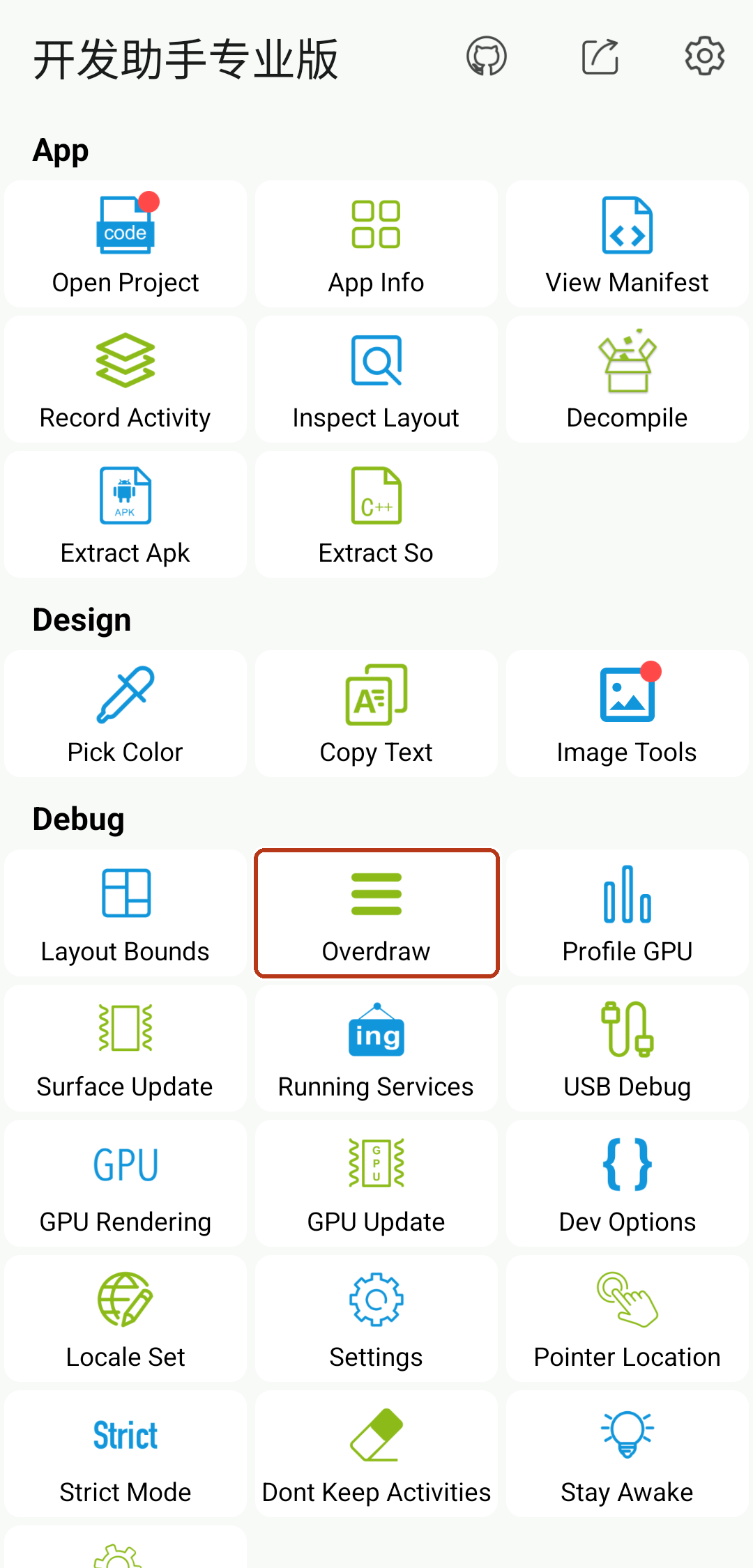
2. Check the switch for that effect
- Outlines around views point to Show layout bounds. A coordinate bar or trail on touch points to Pointer location. See layout bounds and pointer location.
- Colored coverage points to Debug GPU overdraw. Update flashes can come from Surface Update or GPU Update. Frame-timing bars point to Profile GPU. System names can differ. See GPU debugging options.
3. Verify one change at a time
If a coordinate bar appears as you scroll, turn off Pointer location, then return to the same list and drag once. Check whether the bar has cleared before addressing any other effect. If it persists, inspect the current value in Android again and record what is still visible.