Features / System debugging and permissions
How to use Show layout bounds and Pointer location on Android
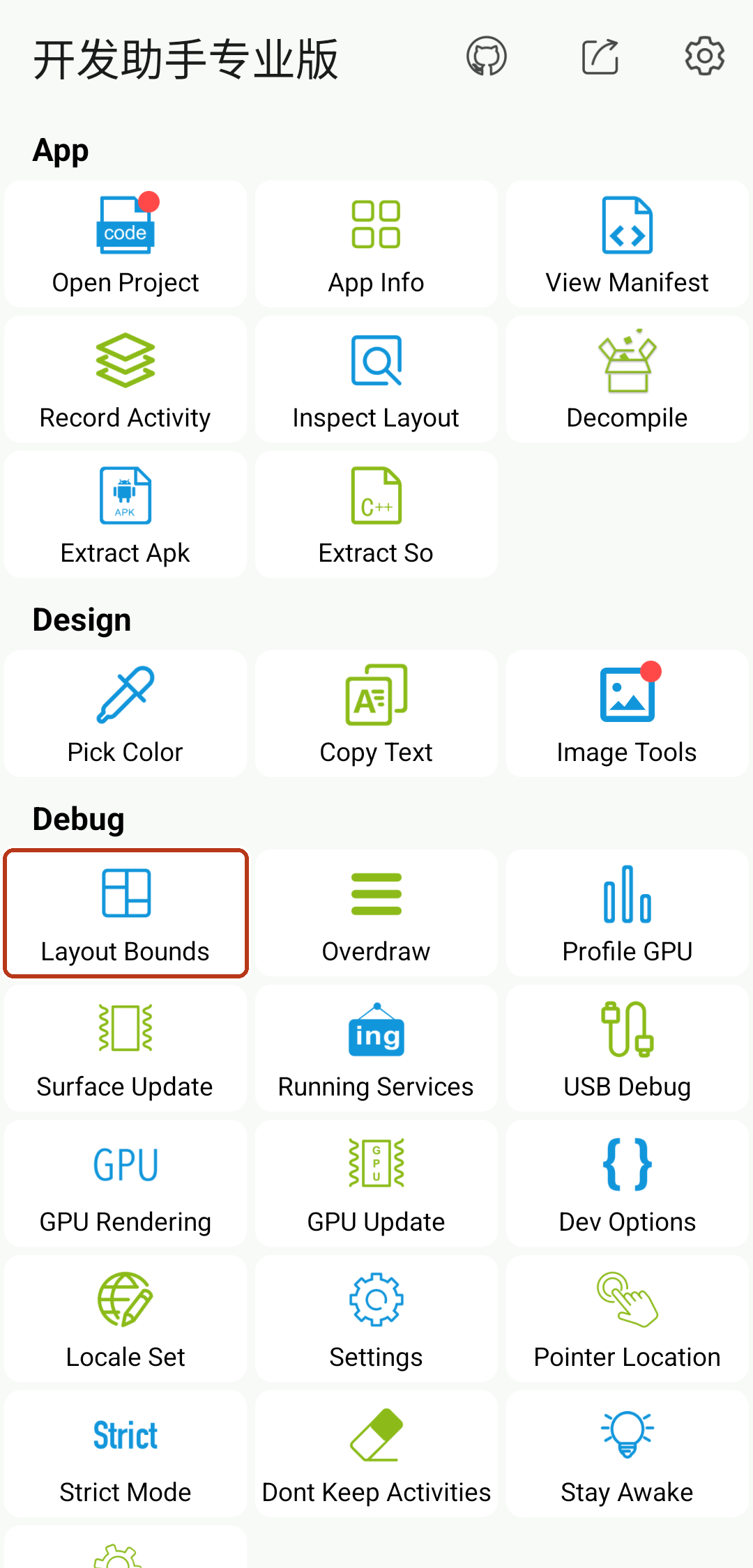
In the Debug section of the Dev Tools App, look for Layout Bounds and Pointer Location. The first draws view boundaries. The second shows touch coordinates and trails.
1. Record the starting state
Enable Android Developer options and open a screen in your own app with a button and a list. Check the original values of both switches. Use Quick locate in the app to find each switch.
2. Turn on one overlay at a time
- 2.1Enable Show layout bounds and revisit the same screen. Look for outlines around buttons, containers and list items.
- 2.2Turn those outlines off and enable Pointer location. Make a short drag on the same screen and watch for the coordinate bar and trail.
- 2.3To read a button ID or its reported width and height, select the node in Inspect Layout.
3. Restore the original values
If both started off, turn them off again. Revisit the screen and drag once to confirm the outlines and touch trail have cleared. If Quick locate opens the Developer options page, find the two items manually.