Features / Activities, history and statistics
When to use Free, Multi-stage or Interval timers
In the New Second App, open Quick timer if you just need to time something once. Under Item timers, create a named item if you want a history for an activity like reading, practice exams or workouts.
1. Choose what each session needs to capture
| Timer type | Good fit | What it records |
|---|---|---|
| Free timer | Reading or piano practice | A stopwatch or countdown, with optional manual laps, saved to the same item. |
| Multi-stage timer | A practice exam or rehearsal | Named stages with target times and separate elapsed times. |
| Interval timer | Exercise intervals or focus and rest | A sequence of timed stages that runs automatically for the number of repetitions you set. |
2. Create an item
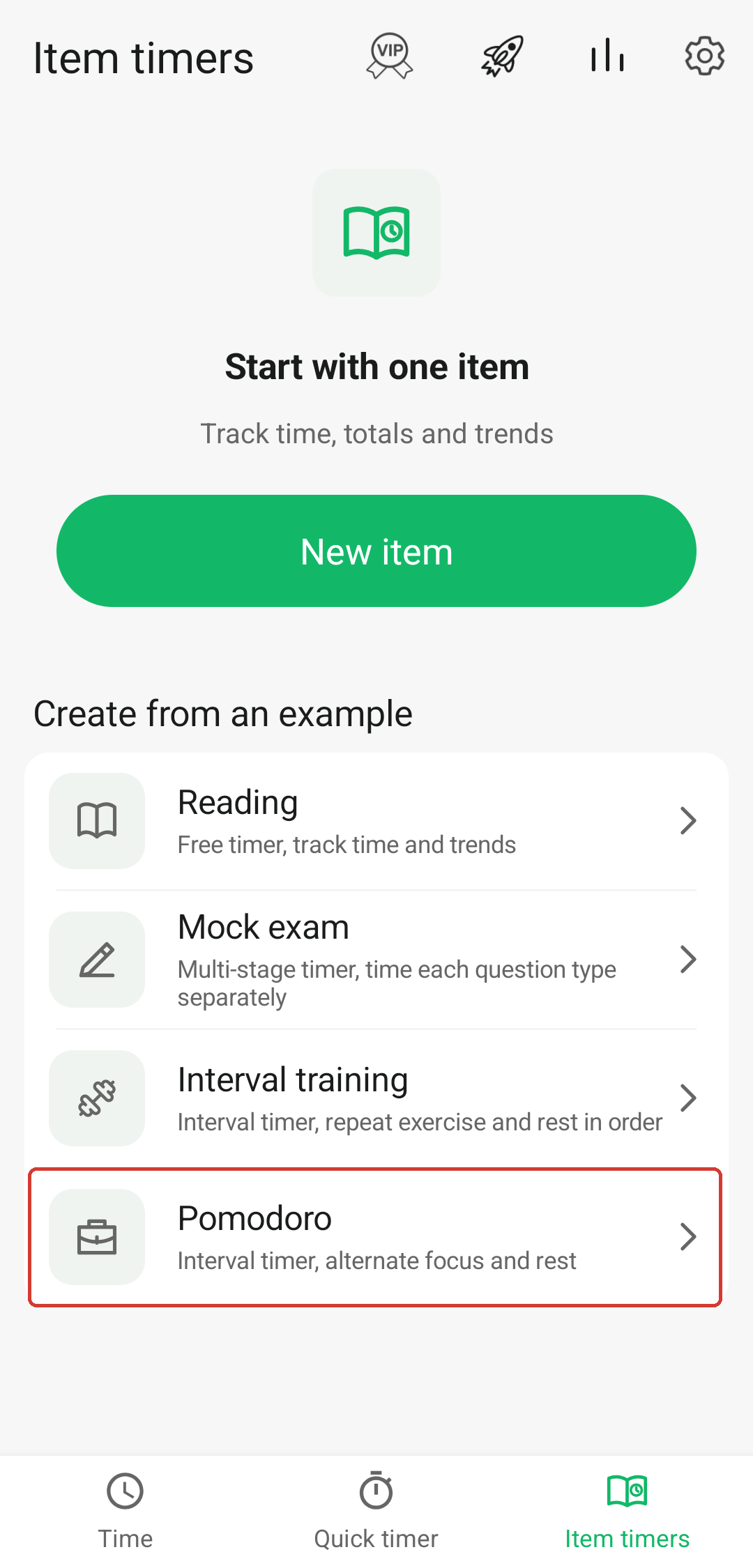
- 2.1Open Item timers. For your first item, choose Reading, Mock exam, Interval training or Pomodoro under Create from an example. They use Free, Multi-stage, Interval and Interval timers, respectively.
- 2.2After you have items, tap New by My items, pick a Timer type, and fill in Item name. Check the stage durations for Multi-stage and Interval timers, and set the number of runs for an Interval timer.
- 2.3Tap Save to open your new timer. Tap Start when you are ready to begin tracking.
3. Check where a session is saved
For example, create a Free timer called Reading. Time 12 minutes in the morning and 18 in the evening. Under Records for that item, you can find two sessions totaling 30 minutes. Sessions started from Quick timer appear under Timer History. To set time targets for individual parts, see multi-stage timers and interval timers.