Features / Quick timers and alerts
How to set a countdown warning or a repeating stopwatch reminder
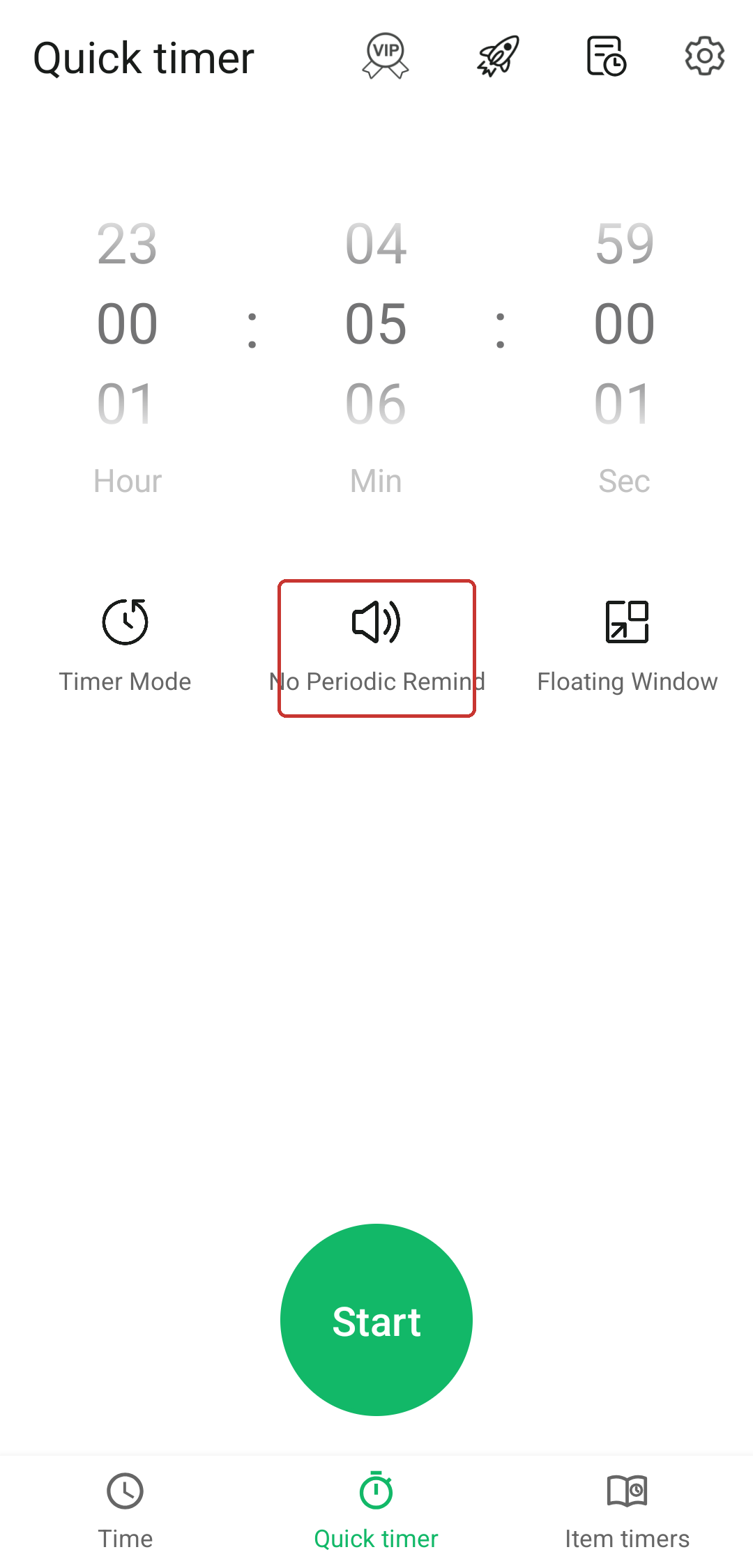
Open Reminder Settings from Quick timer or a Free timer in the New Second App. A stopwatch can remind you at regular elapsed intervals. A countdown can also give one cue before it ends or when it reaches zero.
1. Configure a repeating reminder
- 1.1Under Periodic Reminder, turn on Enable reminder and set Interval. An interval of 30 seconds gives a cue at 30, 60 and 90 seconds of active timing.
- 1.2Under Sound, select Tone or Voice announcement, or use Vibration by itself. This reminder needs at least one of those methods to give a cue.
2. Set up the countdown’s end reminder
- 2.1In countdown mode, turn on Countdown End Reminder. Under Reminder timing, select Before the end.
- 2.2Set Advance time to 10 seconds, for example, and select sound or vibration. To give the cue at zero instead, select At the end in the same setting.
- 2.3With Voice announcement selected, open Spoken content to edit the message, insert the fields offered for that reminder, and preview what it says. If spoken announcements are unavailable, the settings show a tone fallback.
3. Check a short countdown
Try 45 seconds with a repeating reminder every 30 seconds and an end reminder 10 seconds early. The repeating cue is due after 30 seconds. The end reminder is due after 35 seconds, with 10 seconds left. For stage names or run numbers, see spoken alerts for staged and interval timers.