Features / Quick timers and alerts
How to switch between a stopwatch and a countdown on Android
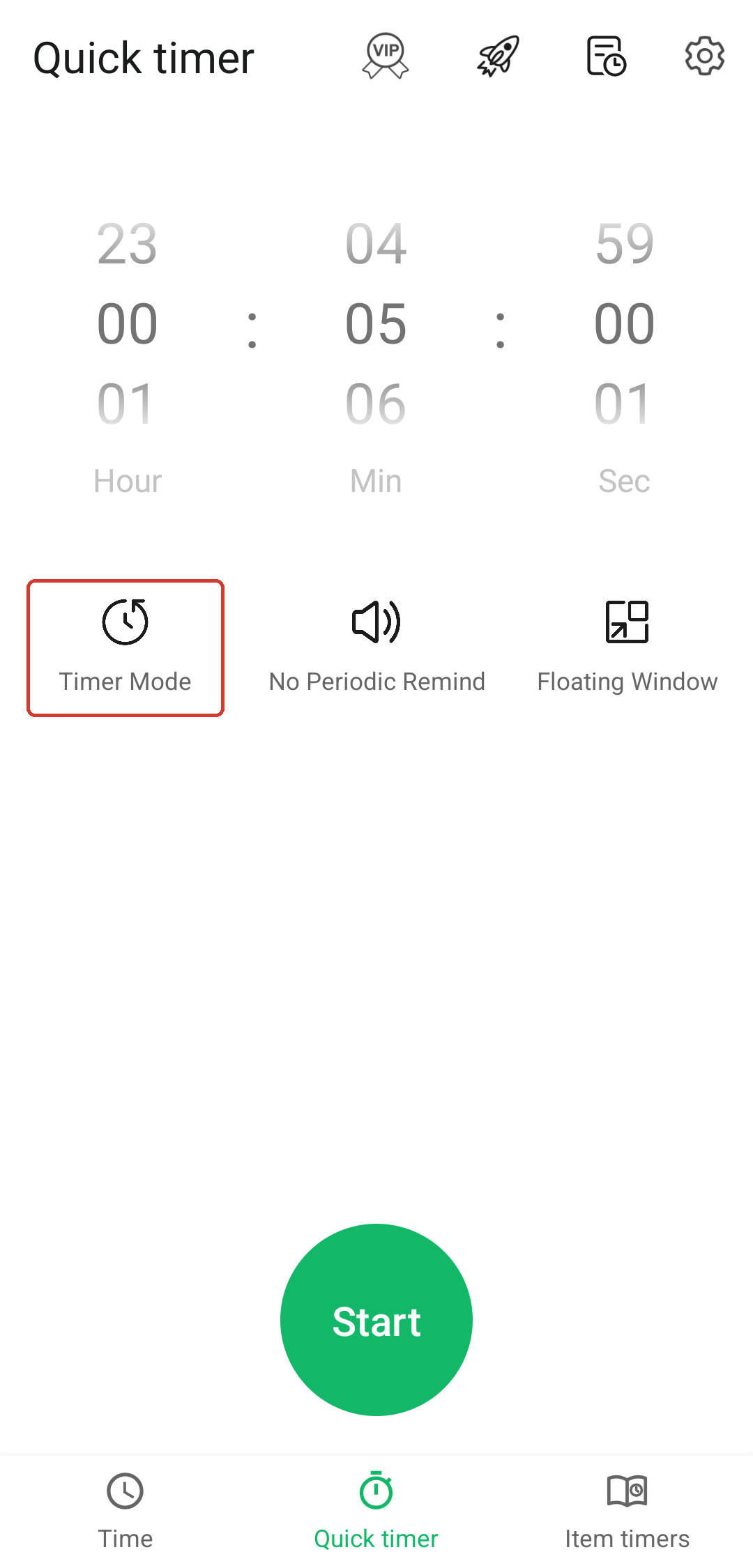
In Quick timer in the New Second App, tap Timer Mode to switch. The stopwatch counts up from zero. The countdown counts down from the time you choose. If the timer is running, confirming the change ends the current session before switching directions.
1. Start, pause, continue and reset
- 1.1Open Quick timer and tap Timer Mode. If prompted, confirm to finish the current timer and switch or cancel to go back to the current timer.
- 1.2In countdown mode, set the hours, minutes and seconds before tapping Start. Use Pause and Continue in the same spot. Reset ends the session and gets the timer ready for a new one.
2. Set the next countdown’s starting duration
- 2.1In Timer Settings, open Countdown and set Starting Time to Default Time or Last Used Time. For a regular three-minute timer, pick Default Time and set Default Duration to three minutes. If you alternate between three and five minutes, Last Used Time can save you a step.
- 2.2Choose the digits to display under Stopwatch format and Countdown format. Tap the preview to switch between directions and check each format.
3. Try a short countdown
Set 15 seconds, tap Start, and watch the digits decrease. Pause for two seconds and continue. The countdown keeps its remaining time during the pause. Reset and switch to the stopwatch. It should count up from zero on the next start. To add a cue before zero, see countdown and stopwatch reminders.