Features / Activities, history and statistics
How to add, edit and reclassify item timer records
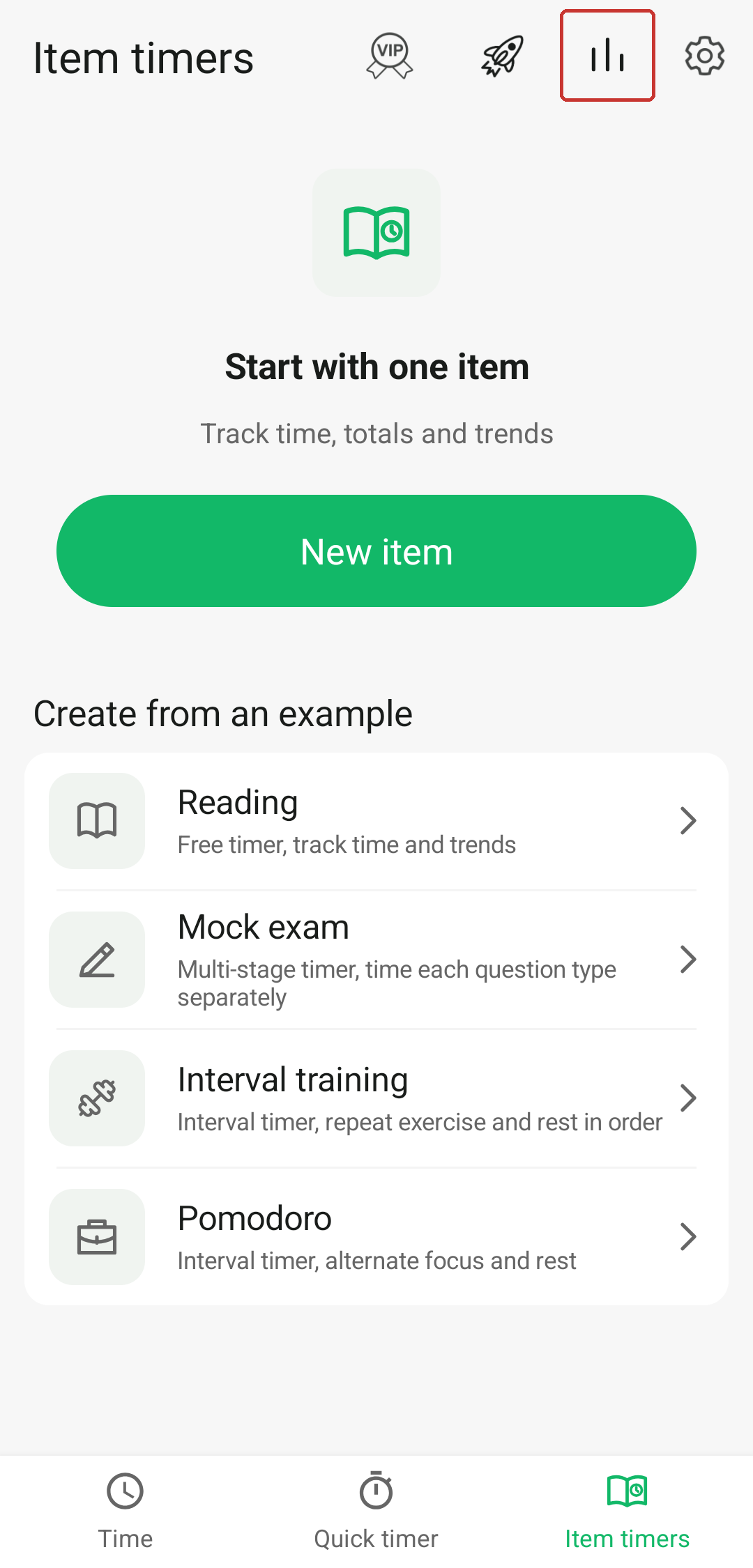
If you forgot to start a timer, open Records under Item timers in the New Second App. Tap Add record and enter the start time and duration. To correct an existing session, open its details and tap Edit.
1. Add or correct a session
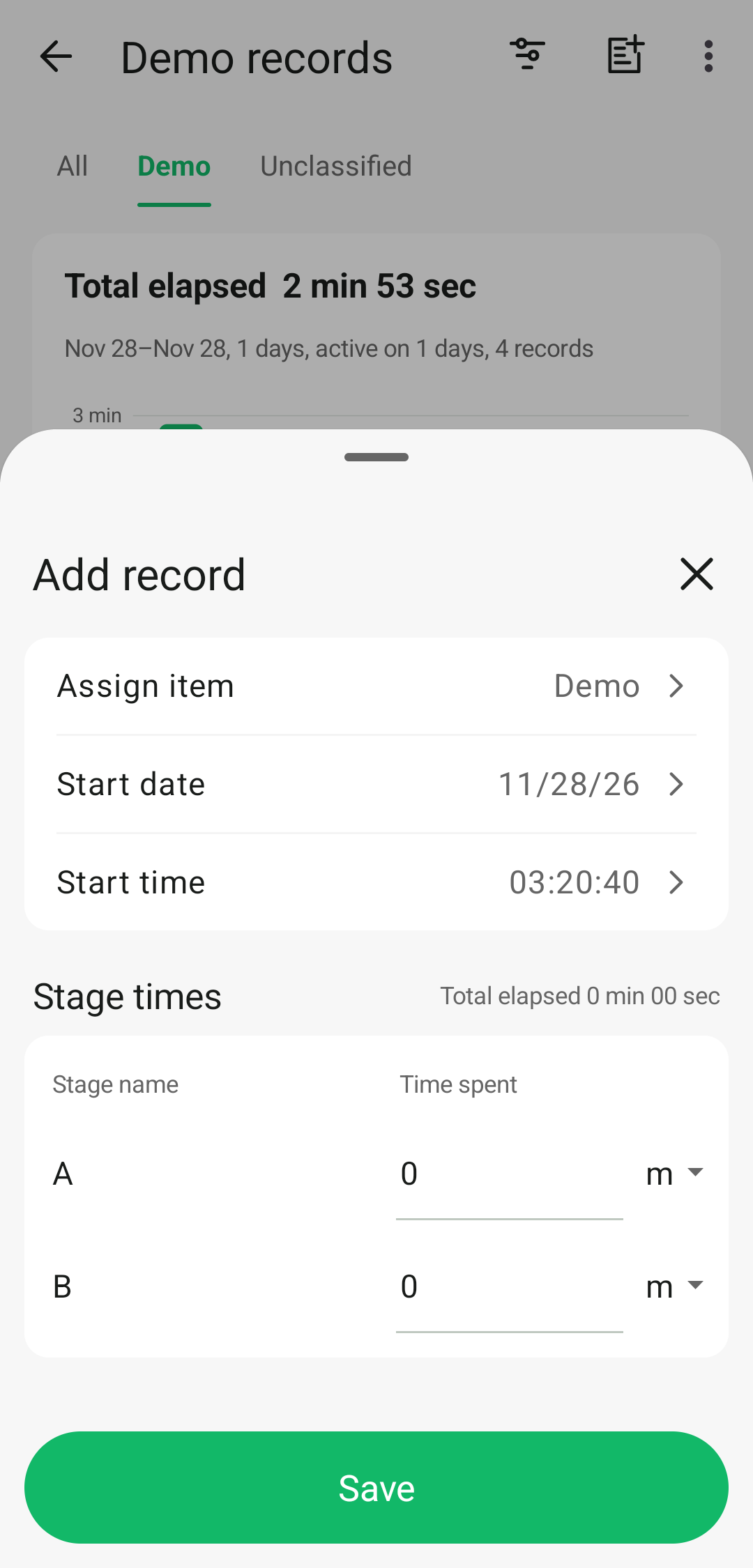
- 1.1Tap Add record and use Assign item to choose the activity. Fill in Start date, Start time, Time spent and an optional note, then save. If you came from an individual item, check the preselected item.
- 1.2For Multi-stage and Interval items, use the stage fields the editor offers. A basic manual entry can record a single continuous block of time.
- 1.3To correct a saved session, open its details and use Edit. If you forgot to time yesterday’s reading, for example, enter 7:10 p.m. and 25 minutes and add “Finished Chapter 3.” Reopen the record to verify the values.
2. Classify several related sessions
- 2.1In Records, filter to the item or to Unclassified, then choose Batch classify from the menu.
- 2.2Select the sessions, tap Classify records, and choose a destination. For example, move three Free timer reading sessions to the same Reading item. Open its records to check the count. When editing one record with structured timing details, the editor offers assignments of the same timer type.
3. Edit, archive or delete an item
Tap Manage by My items. Use Edit item to change its name, icon or note. Archiving hides the item and keeps its records. Find it under Archived items to restore it. When deleting, choose between Delete item, keep records unclassified and Delete item and all its records. To check how an added session that crosses midnight is counted, see time statistics.