Features / Quick timers and alerts
How to keep a stopwatch or countdown visible over another Android app
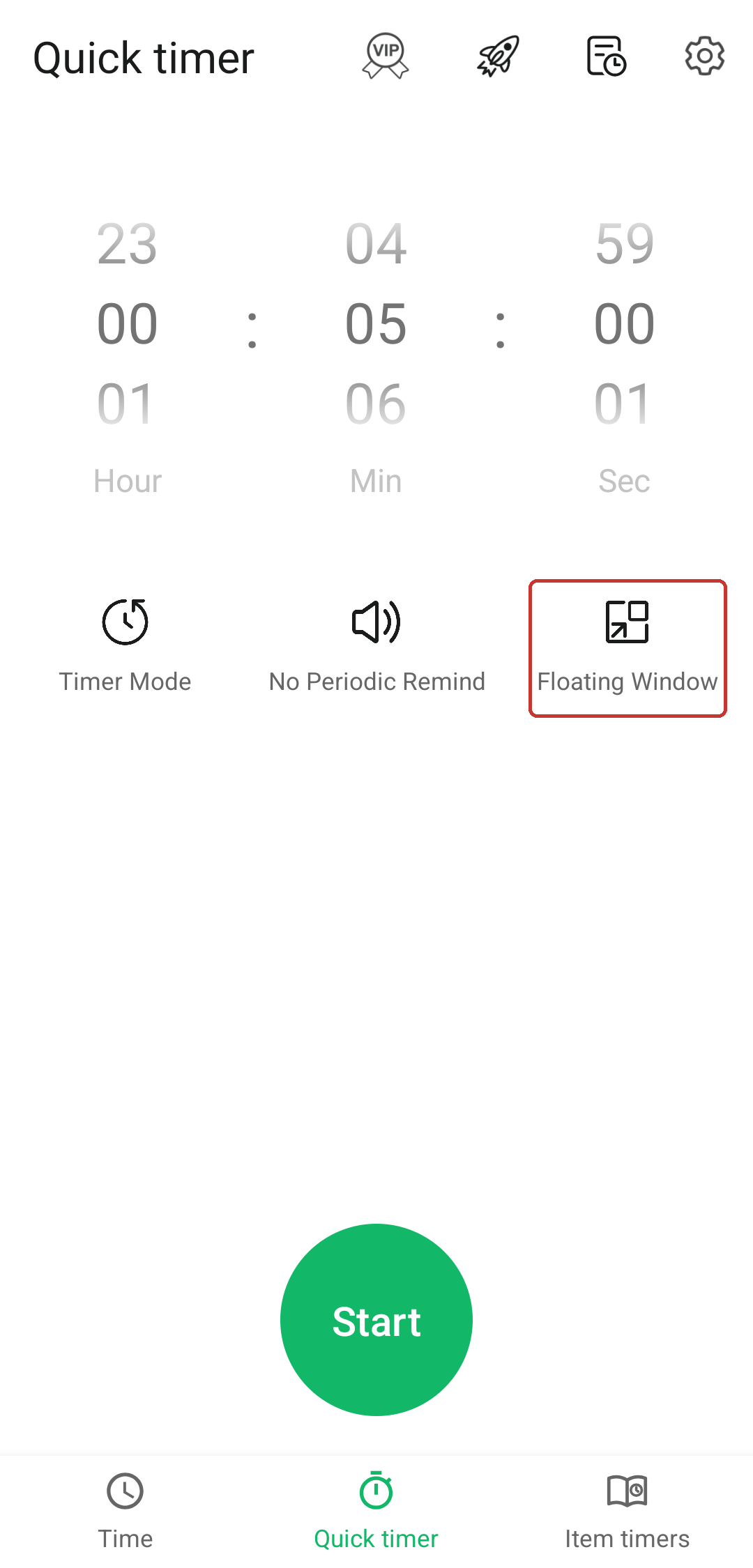
Tap Floating Window in Quick timer in the New Second App and allow it to display over other apps. If you want the other app to use the whole screen, turn on Notification Bar Display and swipe down to see the timer.
1. Put the timer over another app
- 1.1Tap Floating Window in Quick timer. If Android prompts you, allow the app to display over other apps.
- 1.2Open another app and drag the digits out of the way. Tap the floating window to open its menu. You can start, pause, continue, log a lap, reset or close the window, depending on the timer’s state. Use the timer notification to return to the timer tab.
- 1.3Open Floating Window Timer from the floating window’s settings to adjust the display or lock the window in place.
2. Check progress from a notification
- 2.1Turn on Notification Bar Display under Timer Settings and allow timer notifications in Android.
- 2.2Start a timer and switch apps. Swipe down and expand the timer notification to see its progress and available actions, including pause or continue and lap during a run. Tap the notification itself to return to the timer. To see it while locked, also allow Android to show its contents on the lock screen.
3. Check what happens when you close the window
Try a two-minute countdown. Pause for five seconds from the floating window and continue. Tap the close button and the floating display goes away while the countdown can carry on. Use Reset to finish the quick timer. Item timers also offer pause and resume. A Multi-stage timer can move to the next stage, and an Interval timer can skip ahead when another stage remains. If the display freezes, see background refresh troubleshooting.