Features / Clock display and calibration
How to use an Android phone as a full-screen digital clock
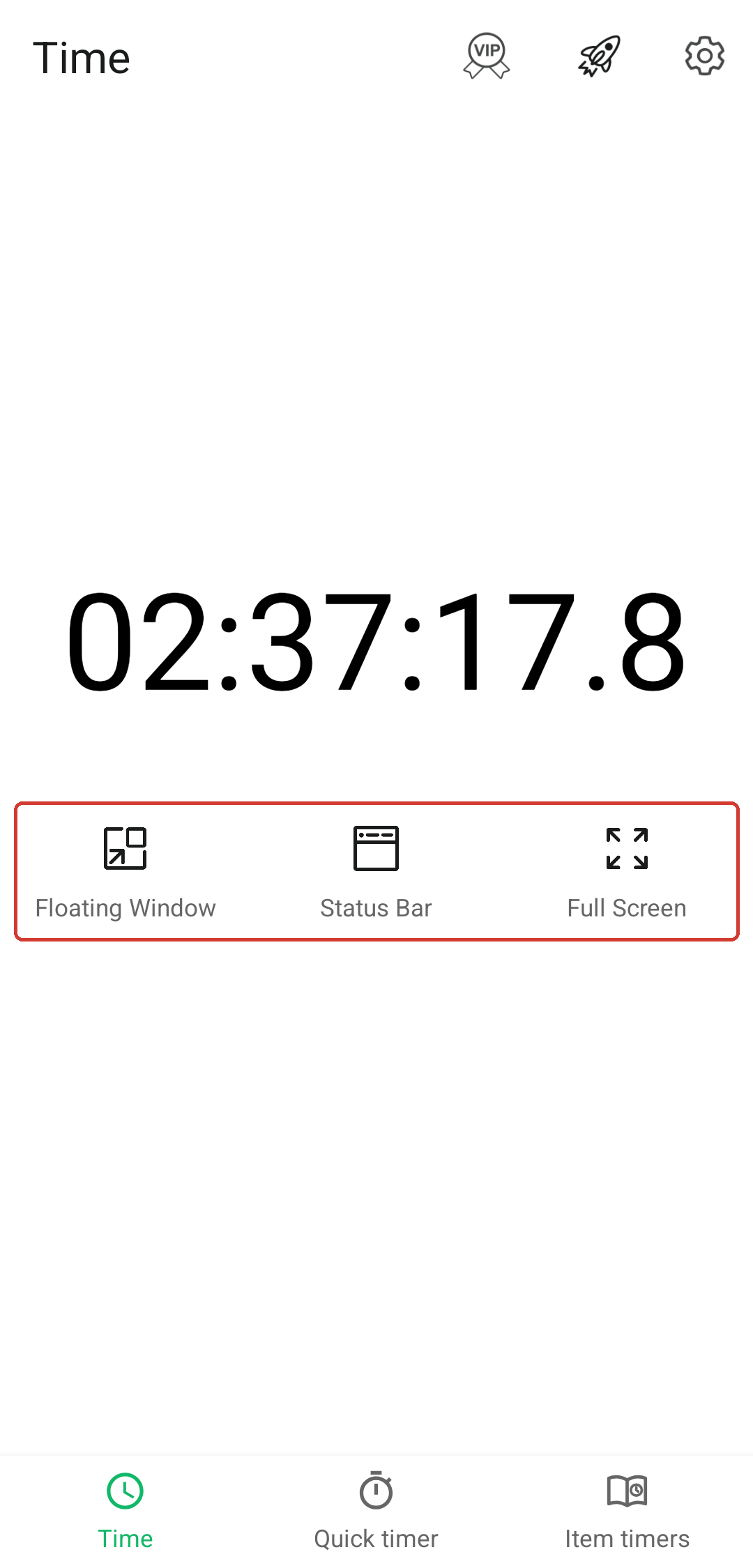
Tap Full Screen on the clock tab of the New Second App. Touch and hold the digits to change the display. The app remembers separate settings for the main and full-screen clocks, and both use the same 24-hour format setting.
1. Open the clock and return to the main screen
- 1.1Tap Full Screen. Tap the clock again or use Android’s Back action to leave it.
- 1.2Touch and hold the full-screen digits to open Full Screen Time under Time Settings. To change the main clock, touch and hold its digits or use the Homepage Time section.
2. Make the digits easy to read
- 2.1Set Size, Style and Format separately for Homepage Time and Full Screen Time. Regular Style uses conventional numerals. LCD Style uses segmented digits.
- 2.2Use 24-hour format in the general time settings if you want to see
19:05in the evening. Turn it off for 12-hour time. - 2.3Under Full Screen Time, turn on Keep screen on for an always-visible display or Rotate with screen if you want to turn the phone sideways. Check how your phone’s own rotation setting behaves. Use Keep screen on under Homepage in the main settings to control the main clock separately.
3. Check both clocks
For example, set the main clock to show 07:05 and the full-screen clock to show 07:05:23 or 07:05:23.24. Leave and reopen the full-screen clock to check the size, format and orientation you chose. To see the clock on your Android home screen, use a home screen widget.