Features / Clock display and calibration
How to show a floating clock with seconds and milliseconds on Android
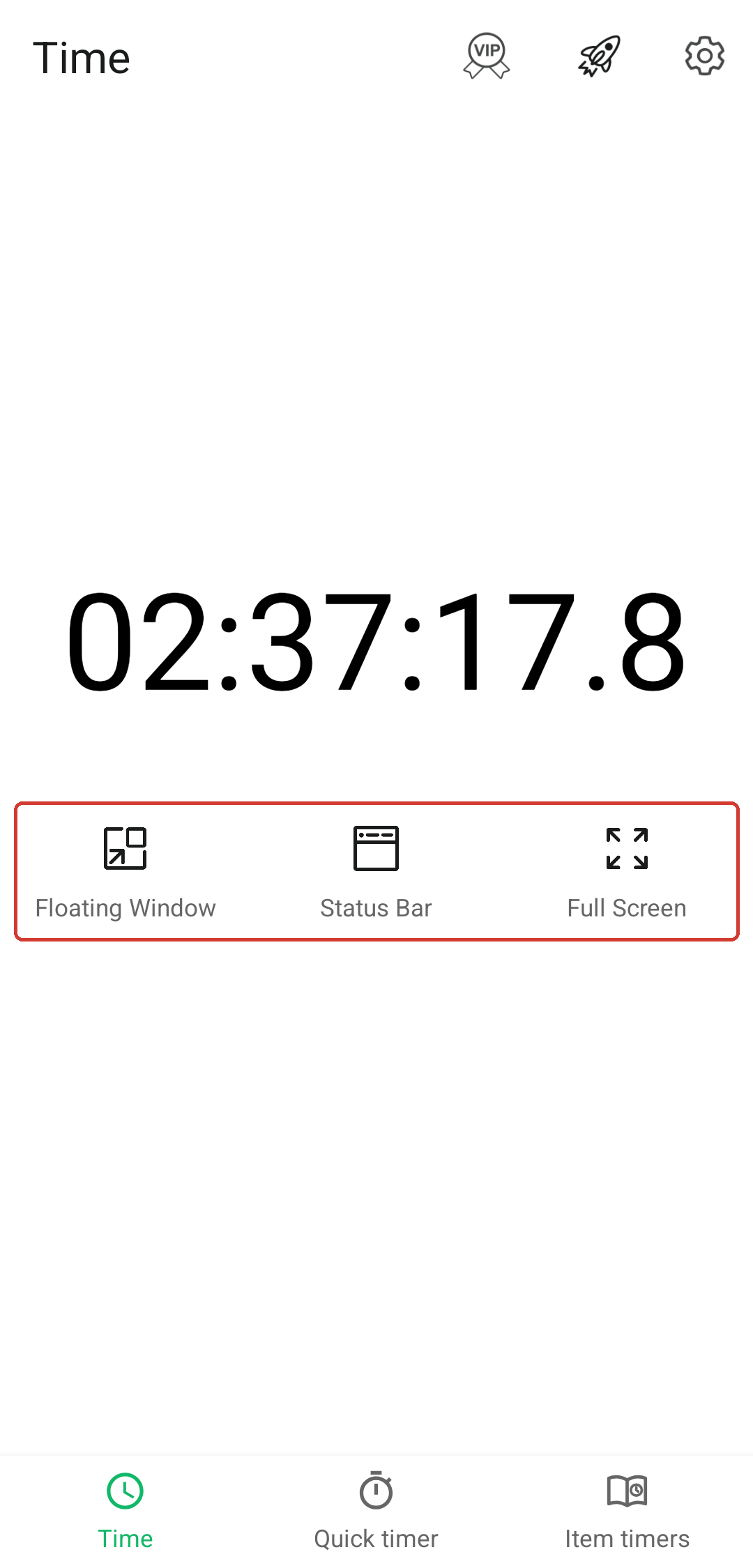
Tap Floating Window on the clock tab in the New Second App and grant Android’s permission to display over other apps. Under Floating Window Time, choose a format with milliseconds. You can then read a time like 07:05:23.24 while using Chrome or another app.
1. Turn on the floating clock
- 1.1Tap Floating Window. If prompted, open Android settings, allow the app to display over other apps, and return.
- 1.2Open another app and drag the clock away from any buttons you use. Open the floating clock’s menu to get to settings, add a note, or close it. Tapping Floating Window on the clock tab again also closes it.
2. Set the size, position and alert
- 2.1Touch and hold Floating Window on the clock tab to open its section in Time Settings. Adjust Size, Style, Format, text and background colors, and Keep screen on as needed.
- 2.2Turn on Remember window position to reopen the clock in the same place. Turn on Lock window position to stop it from moving. Unlock it before trying to drag it again.
- 2.3Use Floating window note in the window’s menu to label it, for example “Start of session.” For a cue at a chosen time, turn on the reminder, set Reminder timing and Reminder color, and enable Vibration reminder if you want a vibration too.
3. Check it over another app
Open Chrome and see whether you can use its address bar and the page’s buttons with the clock visible. The format 07:05:23.24 adds two decimal digits to 07:05:23. To check the cue, set it for an upcoming minute boundary and watch for the selected color. Decimal places describe the display. For the clock offset and network round-trip delay, see network time calibration.