Features / Quick timers and alerts
How to record stopwatch laps and add a note to each one
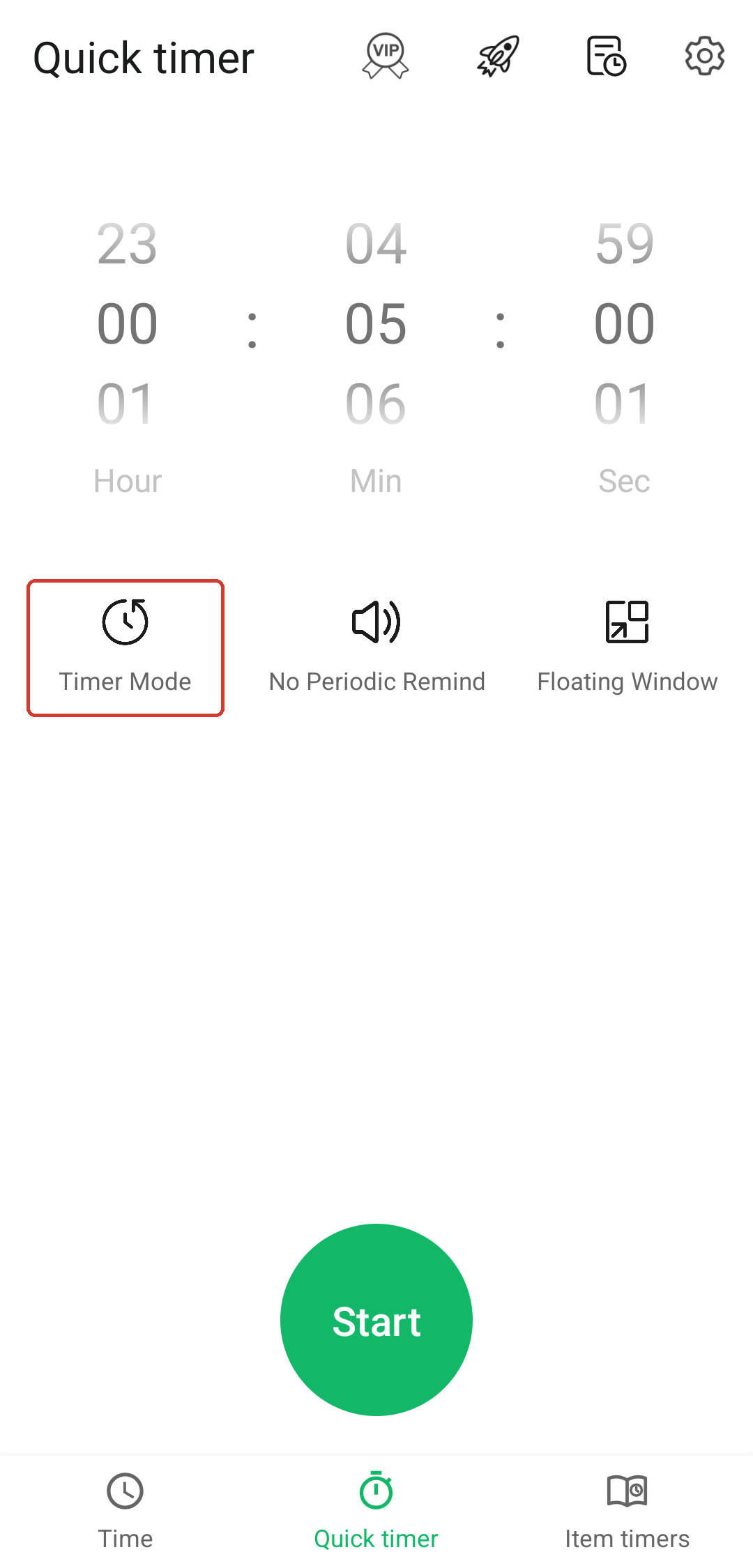
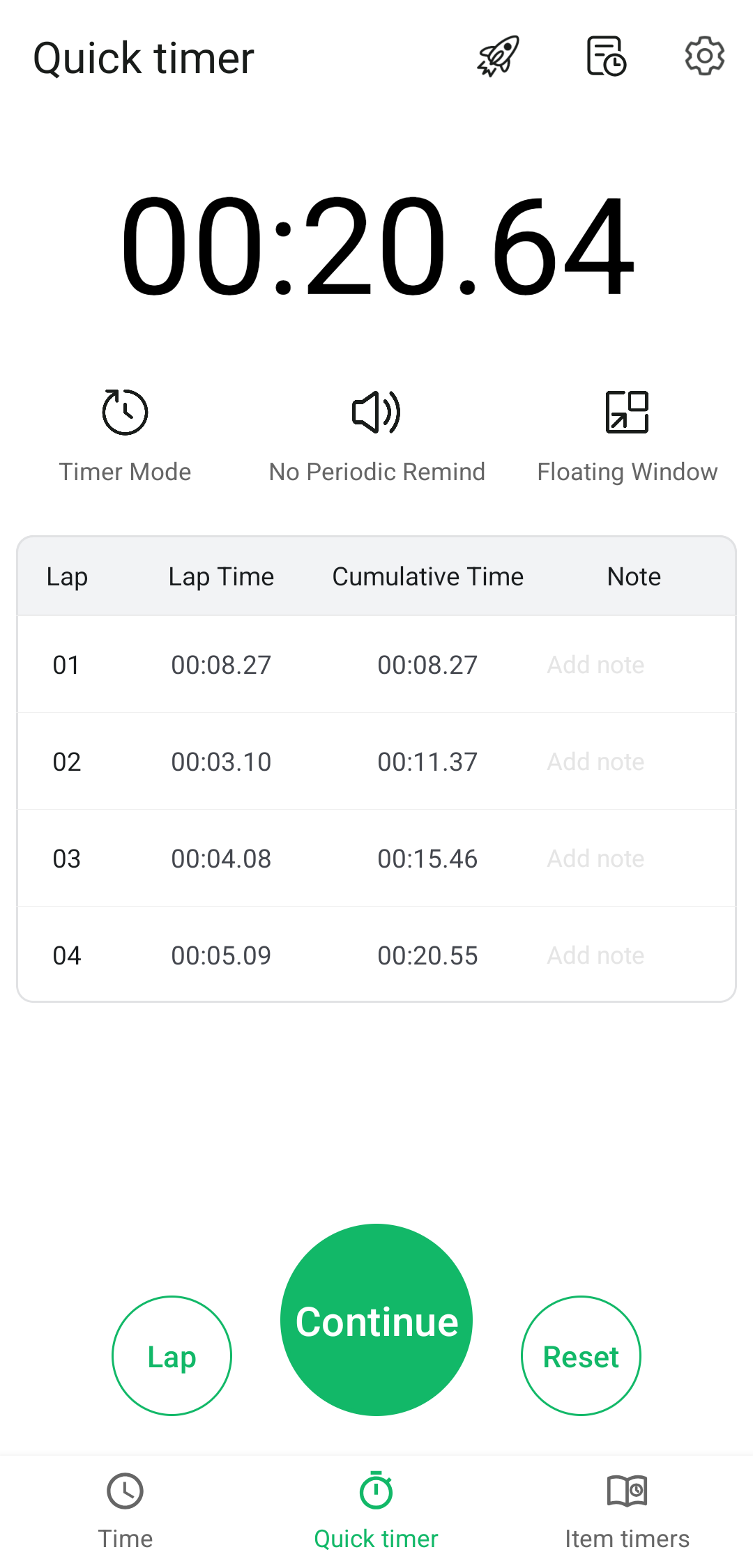
Choose Stopwatch in Quick timer in the New Second App and start it. Every tap on Lap adds a row with the lap time and cumulative time while the stopwatch keeps running. Use the note in each row to identify that lap.
1. Record three parts of a practice run
- 1.1Tap Start, then Lap after each part. For example, mark laps when the stopwatch shows 12, 27 and 40 seconds.
- 1.2In the lap Note fields, write “Warm-up,” “Acceleration” and “Cool-down.” Use the session’s separate note for a label such as “Wednesday sprints.” Both kinds of notes are available in Timer History.
- 1.3Tap Reset to finish and save the quick timer. Turn on Auto-add lap on timer end in Timer Settings if you want a final lap at the end. This setting requires at least one manual lap in the current session.
2. Read the lap and running total
| Lap | Lap time | Cumulative time | Note |
|---|---|---|---|
| 1 | 12 seconds | 12 seconds | Warm-up |
| 2 | 15 seconds | 27 seconds | Acceleration |
| 3 | 13 seconds | 40 seconds | Cool-down |
Lap 2 runs from second 12 to second 27, so it takes 15 seconds. The 27 seconds count from the start. If you go another three seconds after Lap 3 and then reset, the whole session lasts 43 seconds. With auto-add enabled, those three seconds can appear as a final lap.
3. Manage your laps and notes
Long notes wrap by default. Turn on Single-line lap notes for a shorter table. Pro lets you touch and hold a lap to delete it. The free version allows five uses of lap notes. When the record is ready, you can share a card from Timer History.