Use cases / Bookings and ticket sales
See seconds on a ticket-sale page without covering the buy button
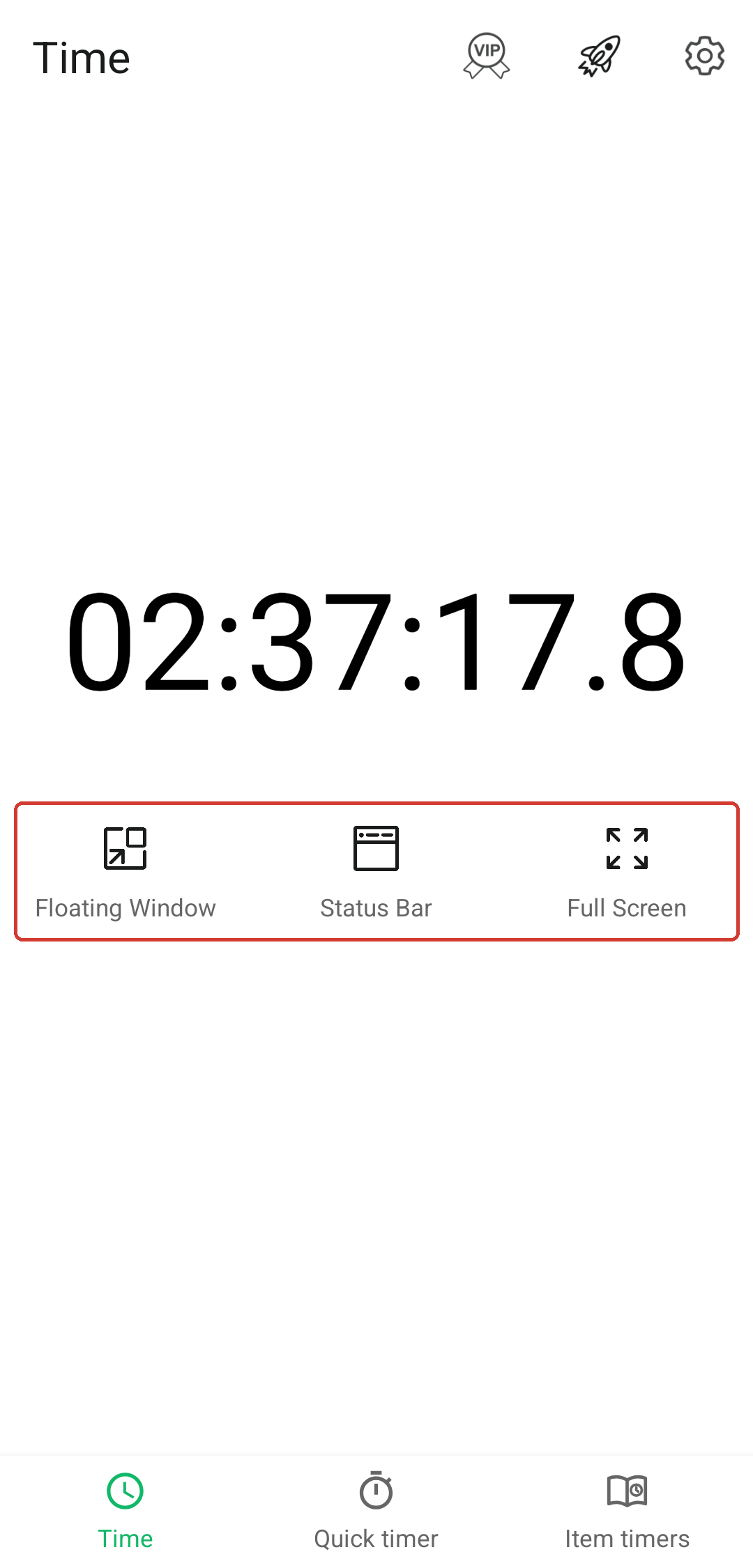
Open the floating clock in the New Second App before the ticket sale. It keeps the time visible while you read the seller’s page. The seller controls when sales open.
1. Check the time before joining the queue
In Time settings, refresh network time calibration and check the source and result. Check any manual offset too. Showing milliseconds adds digits to the clock, but does not tell you how far ahead or behind the ticket server is.
2. Place the clock on the ticket page
Enable the floating clock and grant Android permission to display over other apps if prompted. Open the ticket page and drag the clock clear of the purchase button, price and queue messages. Then enable the position lock in the clock settings.
In the floating clock reminder settings, choose a reminder time and a distinctive reminder color if you want a visual cue.
3. Follow the seller’s opening signal
If the advertised time is 10:00, use the clock to see 09:59:59 turn into 10:00:00. Follow the site’s queue or purchase prompt when it becomes available. A refresh can lose your place on some sites, so follow that site’s instructions.