Features / Activities, history and statistics
How to time each stage of a task separately
Create a Multi-stage timer under Item timers in the New Second App. Give each part a name and a target duration. Manual switching lets a stage run over its target. Automatic switching moves on at the target time.
1. Build the stages in order
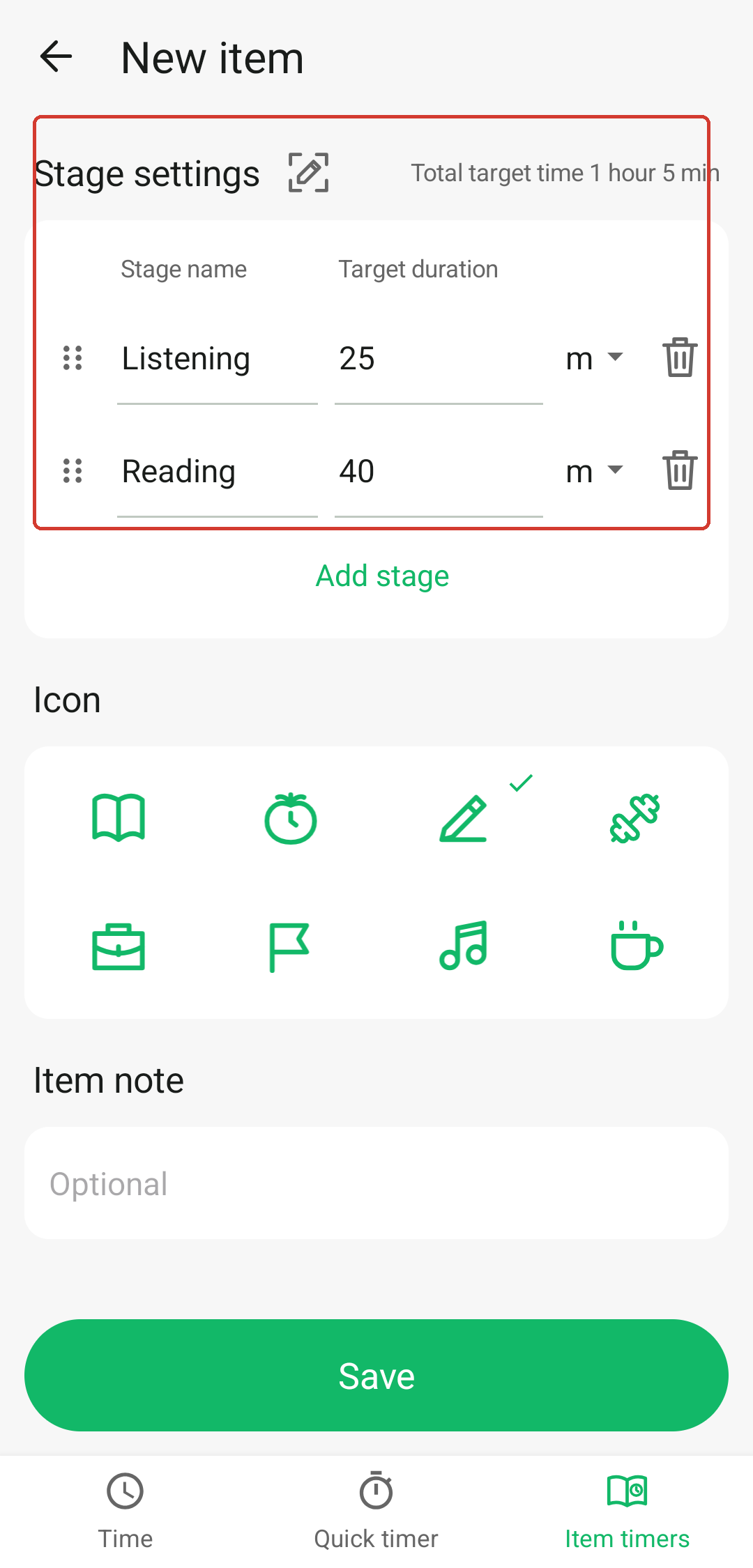
- 1.1Create a Multi-stage timer and fill in Item name. Under Stage settings, enter a Stage name and Target duration for each part. Tap Add stage for more parts and drag the handles to reorder them.
- 1.2Tap the expand icon in the stage section to edit times precisely in full screen. Check the duration unit, tap Done to return to the editor, then Save.
- 1.3In that item’s Timer settings, choose Manual or Automatic under Switch to the next stage. Use manual transitions to track overtime in a rehearsal.
2. Run the stages and record actual time
- 2.1Tap Start. In manual mode, the stage keeps running after its target and shows overtime. Use Next stage to complete the current part and Complete timer on the last stage.
- 2.2Automatic mode advances at each target. You can pause and resume, or use Finish to stop early and review the stages you did not complete.
- 2.3In manual mode you can select another stage from the list to change which stage is active. Use Next stage to mark the current stage complete.
3. Compare actual and target times
For example, set Intro, Main talk and Q&A to one, three and one minute. If you complete them manually in 50 seconds, 3 minutes 20 seconds and 55 seconds, the session totals 5 minutes 5 seconds. The talk ran 20 seconds over and the other stages finished early. Keep the same targets for later rehearsals to compare a stage with Pro’s Stage time trends.