Features / Shortcuts, data and settings
How to change language, dark mode and Compact mode in New Second
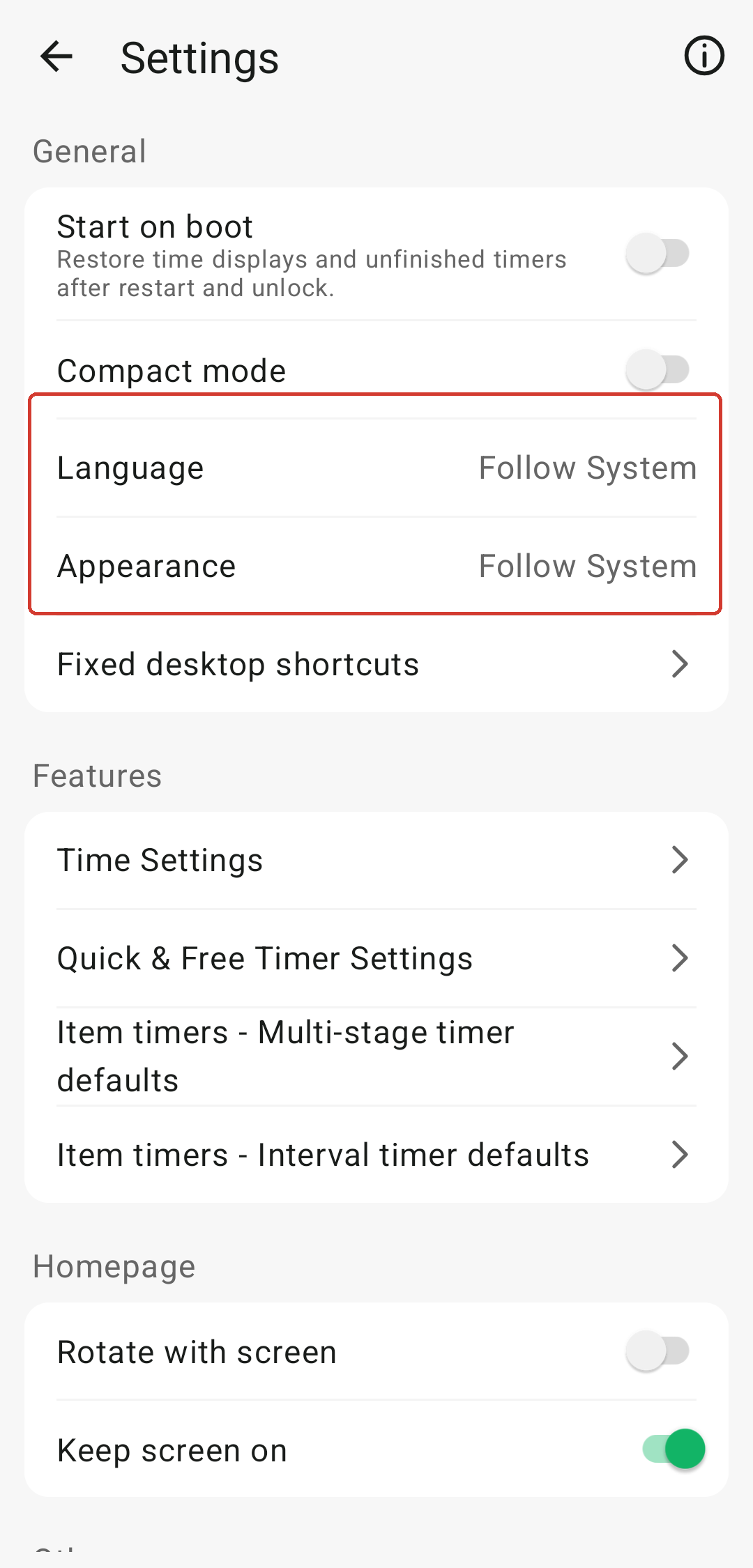
Open the main settings in the New Second App. Use Language, Appearance and Compact mode for the interface, and the Homepage section for screen-on and rotation settings.
1. Change language and appearance
- 1.1Open Language and choose the language you want. English, Simplified Chinese and regional Traditional Chinese options are available. Return to the homepage to check the labels.
- 1.2Under Appearance, choose Follow System, Light mode or Dark mode. Select Dark mode if you want the app to stay dark in the evening.
- 1.3Turn on Compact mode to hide the text labels of the three clock display actions on the homepage. Their icons stay visible. Turn it off when you want the labels back.
2. Keep the homepage visible and let it rotate
Use Keep screen on and Rotate with screen in Homepage, then return to check the result. Android’s rotation setting also affects what happens when you turn the phone sideways. The full-screen clock has its own display settings. Timer Settings contains the quick timer formats and previews.
3. Check recovery after restart
Turn on Start on boot if you want to restore time displays and unfinished timers after restarting and unlocking your phone. Some phones also require permission for autostart or background activity. Use a short timer to check the recovery and return to the app to see its state. For manufacturer settings, see background operation help.