Features / Clock display and calibration
How to show seconds in Android’s status bar and on the lock screen
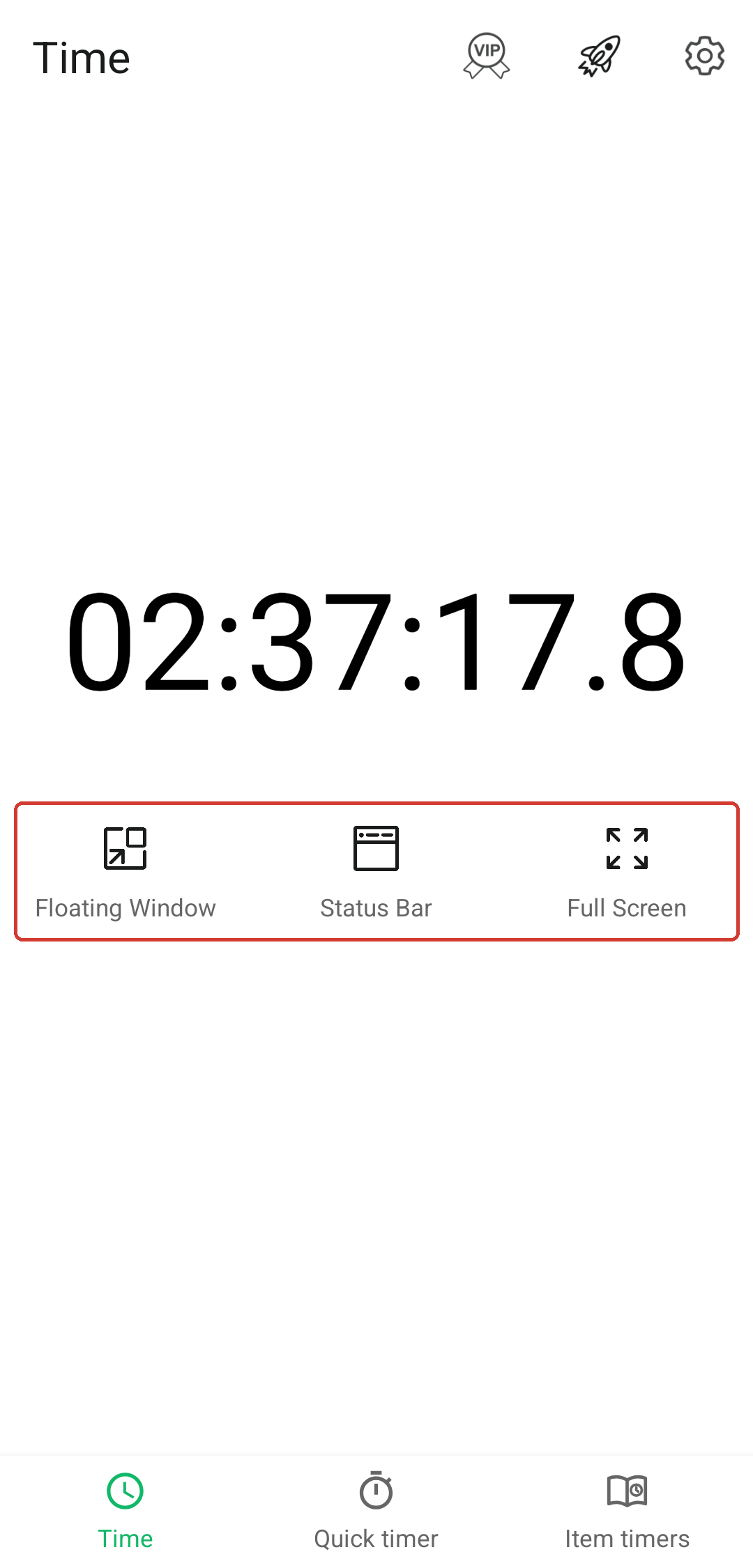
Turn on Status Bar on the clock tab in the New Second App and allow notifications. Android devices that display the changing notification icon can show the current second at the top of the screen. The expanded notification and the lock screen also depend on Android’s notification settings.
1. Allow the clock notification
- 1.1Tap Status Bar and allow notifications when prompted. If you previously declined, open the app’s Android settings and enable notifications.
- 1.2Allow notification icons in your phone’s status bar settings. Check the clock’s notification category if your phone lets you set its alert priority or lock screen visibility.
- 1.3Touch and hold Status Bar to go to Status Bar Time under Time Settings.
2. Configure each of the three surfaces
- Status bar The seconds appear as the small notification icon on supported devices. In Style, try Style 1, Style 2 or LCD. Start at 1x and try a smaller scale if the digits are too large.
- Notification shade Swipe down to find the time in the clock notification. The app uses its own icon on Huawei devices, so check the notification for seconds. If you see a generic icon on another phone, check whether the time inside the notification still updates.
- Lock screen Turn on Show lock screen time, then choose a Lock screen time format with seconds, such as
07:05:23. Lock and wake your phone to check it. Android also needs to allow the notification’s contents on the lock screen.
3. Check what your phone displays
Look at the status bar icon, then swipe down to read the notification, then lock and wake your phone. In a prior Android 15 check with ChinaStore Debug 10.1.0, turning on the status bar clock made the notification title advance from 09:29:07 to 09:29:08. A second tap turned it off. How each location displays the clock depends on your phone. If a Xiaomi phone shows a generic icon, see Xiaomi status bar troubleshooting. For seconds that freeze after leaving the app, see background refresh troubleshooting.