Features / Quick timers and alerts
How to find and share a timer’s lap results
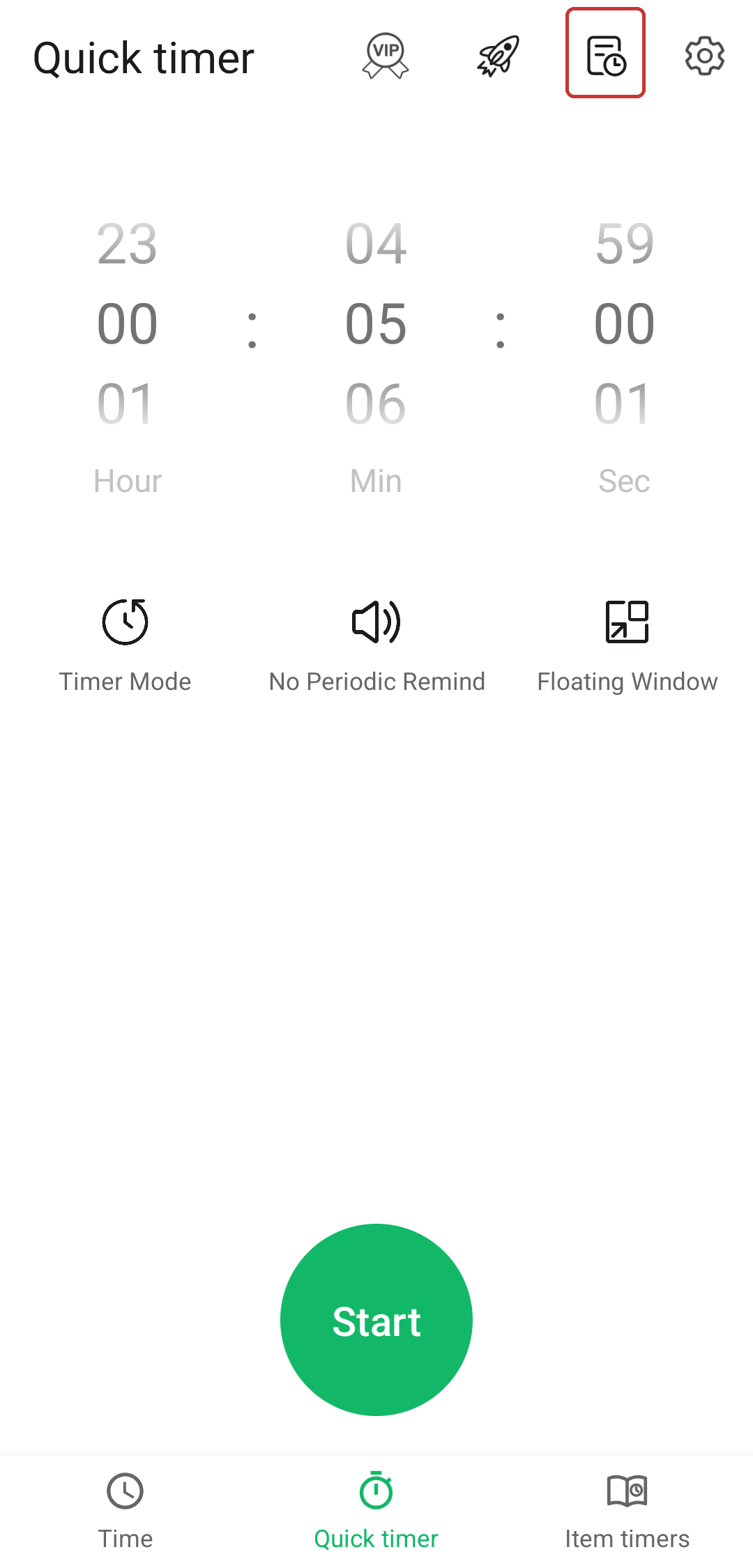
After finishing a quick timer, open Timer History from the Quick timer tab in the New Second App. A record with laps shows them under the session. You can update its notes and use Share from the record’s menu to generate a card.
1. Find the session and check its notes
- 1.1Open Timer History from the toolbar on the Quick timer tab. Find the session by its start date and read the laps under that entry.
- 1.2Tap the session note to change it. To change just one lap’s description, use the Note field in that lap’s row.
- 1.3To remove one session, use Delete from its menu. Delete All in the history menu clears the history while keeping the current timer and its laps.
2. Generate a shareable card
- 2.1Open the menu on the target record and tap Share. Choose an app to send or save the image from Android’s share sheet.
- 2.2To share a named item’s results, go to Records under Item timers, find the session for that item, and tap the share button at the top of its details.
3. Check the results before sharing
Suppose your two laps took 12 and 15 seconds and you stopped at 27 seconds. The card should show 27 seconds for the session and 15 seconds for Lap 2. Check any session and lap notes too. For a countdown stopped early, check the actual elapsed time on the card. The preset countdown duration shown in the history list can be longer. See how to record and annotate laps.