Features / Shortcuts, data and settings
How to import and export timer records as CSV, JSON or XML
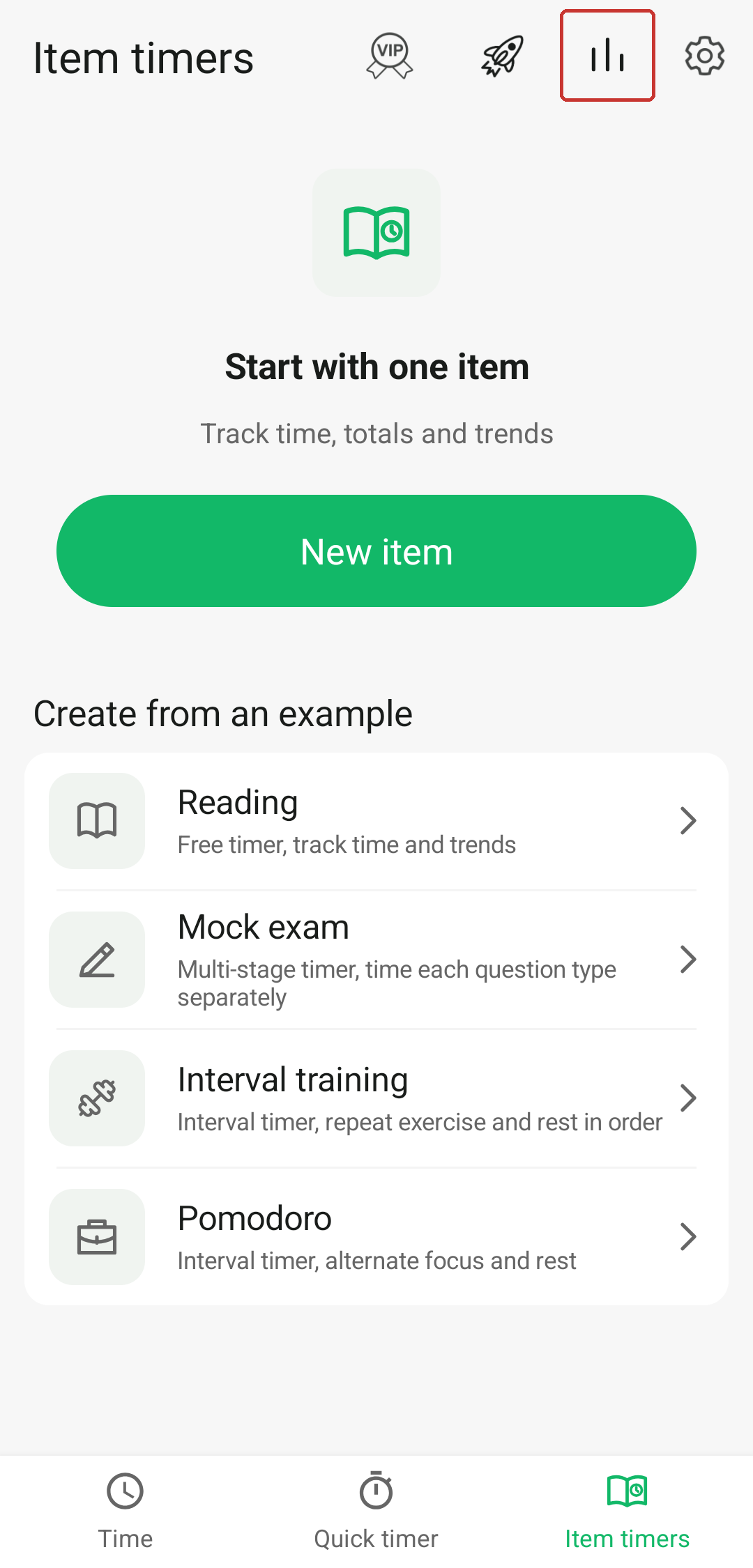
Open Export data or Import data in the New Second App. Use Timer History for quick timer records and Records under Item timers for item data. Both transfers require Pro.
1. Export from the right history page
- 1.1End any session you want to include. Unfinished timers are excluded.
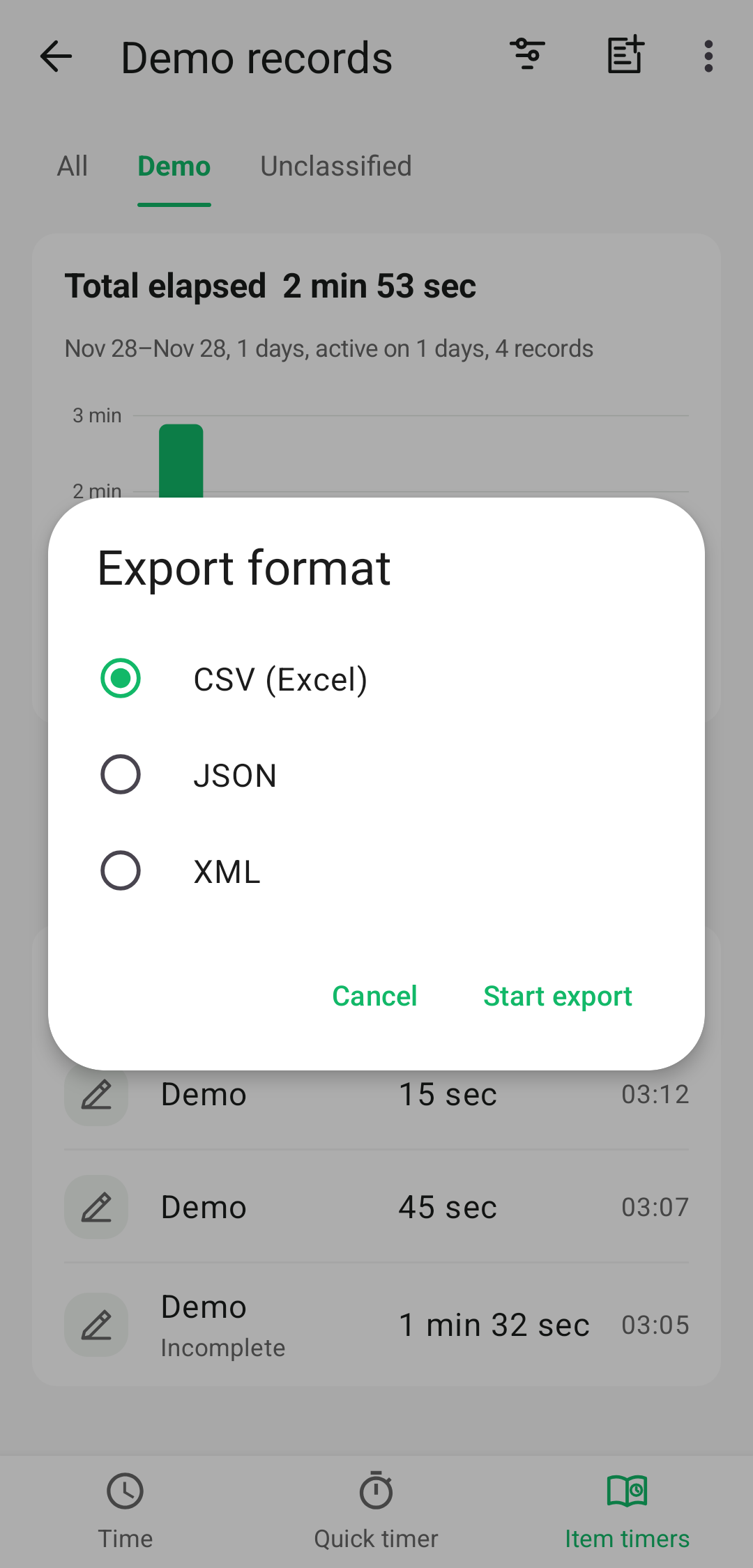
- 1.2In the matching history menu, choose Export data. Select CSV, JSON or XML under Export format, then tap Start export.
- 1.3Save the file in Android’s file picker. Use CSV for a spreadsheet. Choose JSON or XML to move item settings and daily time allocations.
2. Import and check the result counts
- 2.1Open Import data from the matching record page, choose your file, and tap Start import. The app keeps existing data and skips duplicate records.
- 2.2If you import the same, unchanged file back into its original data store, look for zero newly imported records. An item CSV matches existing items and leaves unmatched records unclassified. It does not restore the time split across multiple days. Use JSON or XML for that data.
3. Check one exported record in a spreadsheet
On the test phone, the Demo item’s CSV contained four sessions. The latest summary was 20.652 seconds. Its stage rows were A at 12.346 seconds and B at 8.306 seconds. They add up to the summary. The rows share the same record number, so count the summary once when totaling sessions. Check the item timer statistics.